
See NextiaTax at work, one feature at a time.
Short videos of what the app does, each with a link to the guide that teaches it step by step.
-
 Video coming soon
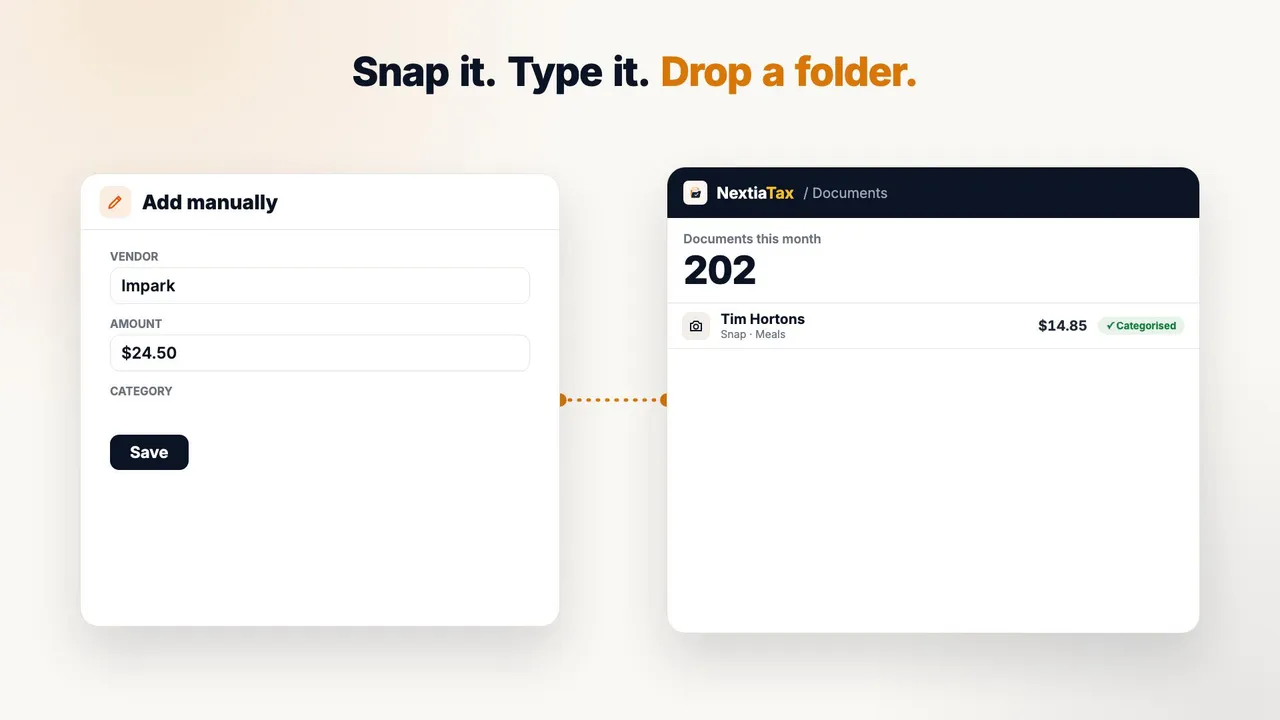
 However it arrives: every way your receipts get into NextiaTax
Nine ways in, one after another: a phone photo, an entry typed by hand, a folder of files, a bill forwarded by email, a photo sent on WhatsApp, a request to an AI assistant, and CSV and PDF statements that unfold into rows. Each one lands on the NextiaTax dashboard, where the count of documents this month climbs. The video also shows a bank feed, which is not available yet.
-
 Video coming soon
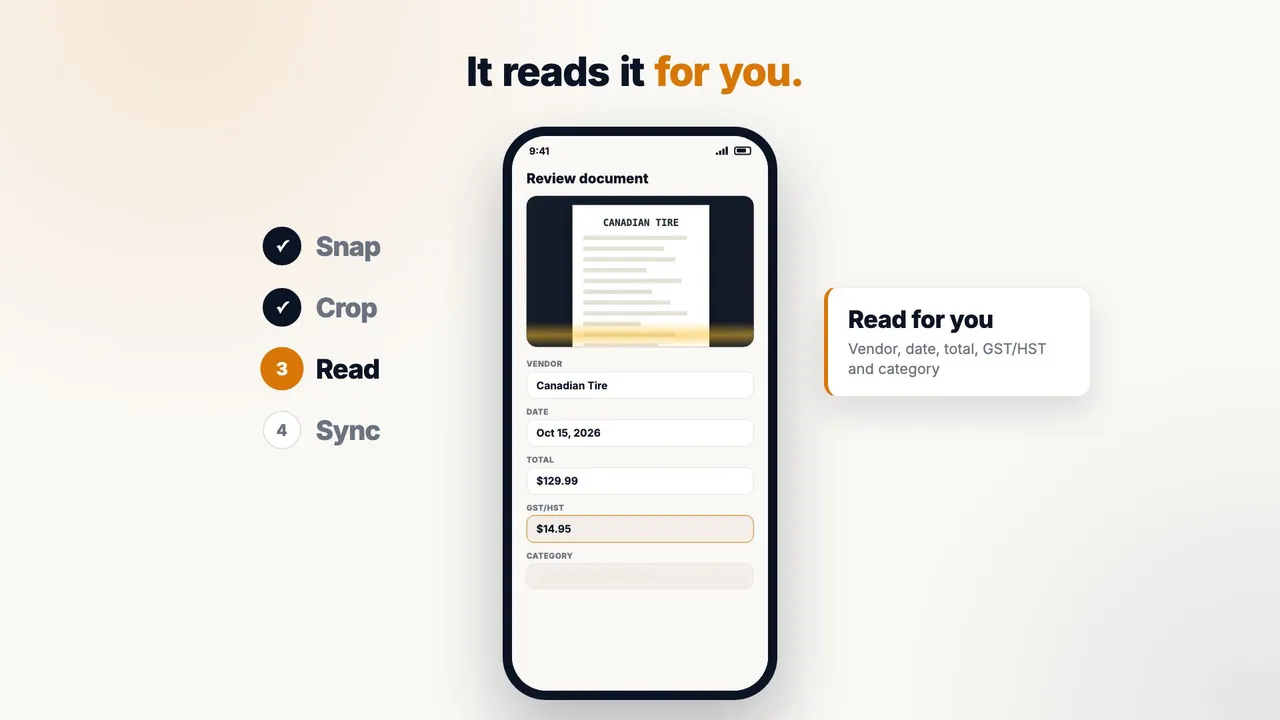
 Snap it: capture a receipt on your phone
In the NextiaTax mobile app, Capture a receipt opens the camera: the receipt is framed, cropped and, when it's long, given a second page. The review screen then fills in the vendor, date, total, GST/HST and category, with a confidence score. With no signal, receipts wait and sync once you're back online. Photos from your library and PDFs work too.
-
 Video coming soon
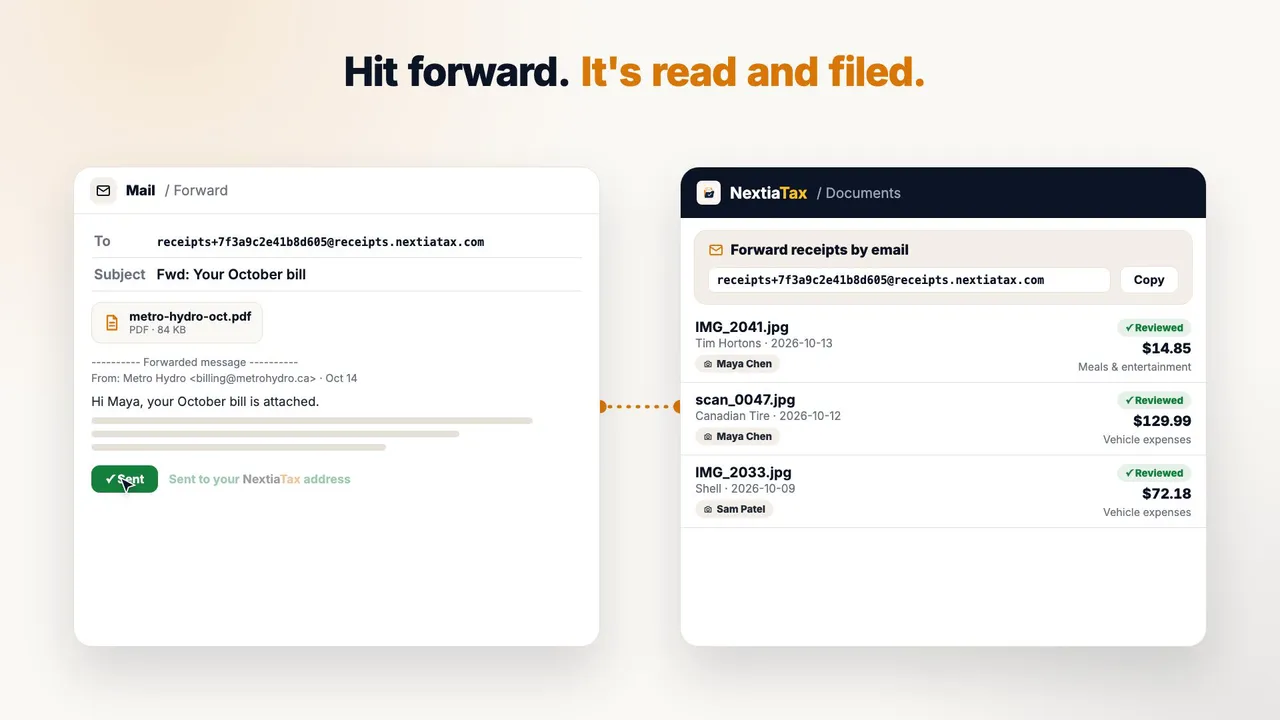
 Forward it: receipts and bills by email forwarding
Every business gets a private forwarding address, copied from the Documents page. A utility bill with a PDF is forwarded to it and lands in Documents, read and categorized, ready for review. An order receipt with no attachment works too, from the email itself. In Business settings, only team members and the senders you add are accepted, and mail from anyone else is ignored.
-
 Video coming soon
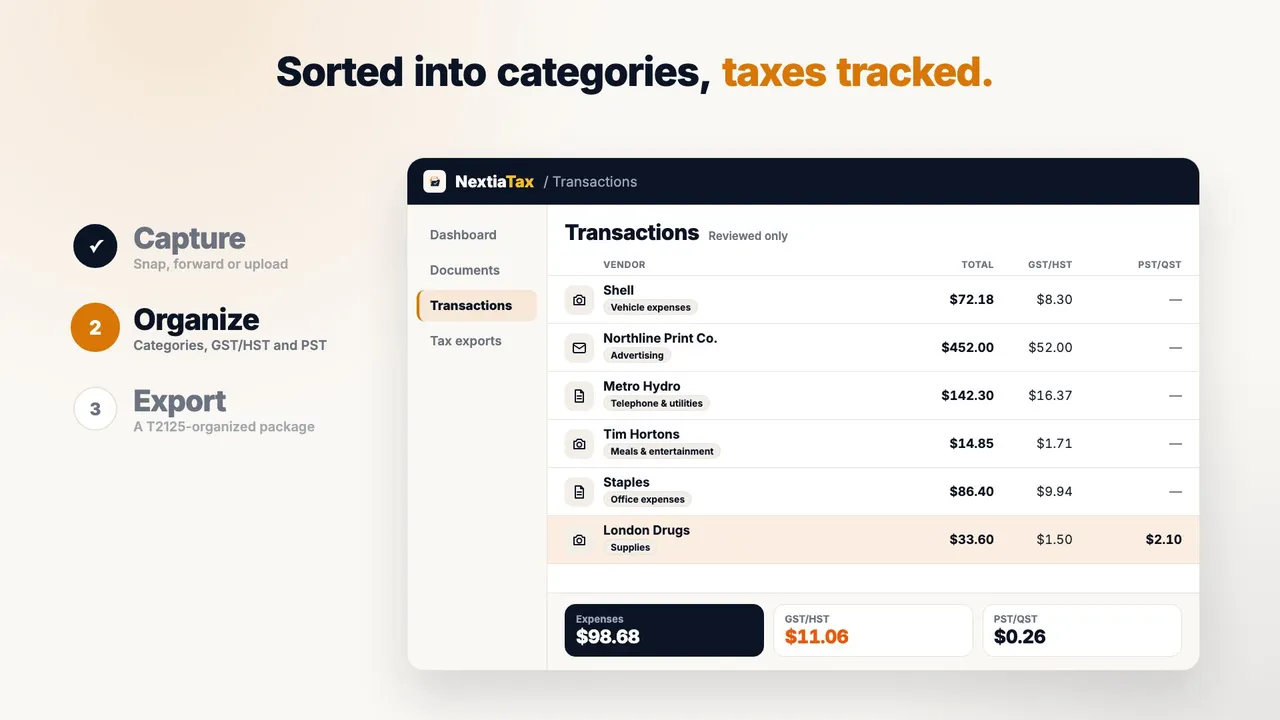
 Tax-ready, all year: capture, organize and export in three steps
A receipt, an invoice and a bill arrive by photo, email and upload, and NextiaTax reads each one for you to approve. On the Transactions page they sort into categories, with GST/HST and PST/QST in their own columns. Then the pre-flight check clears and an accountant-ready package is generated for the year, with T2125 lines, a GST/HST summary, expense detail and a PDF summary.
-
 Video coming soon
 Text it: send receipts to NextiaTax by WhatsApp
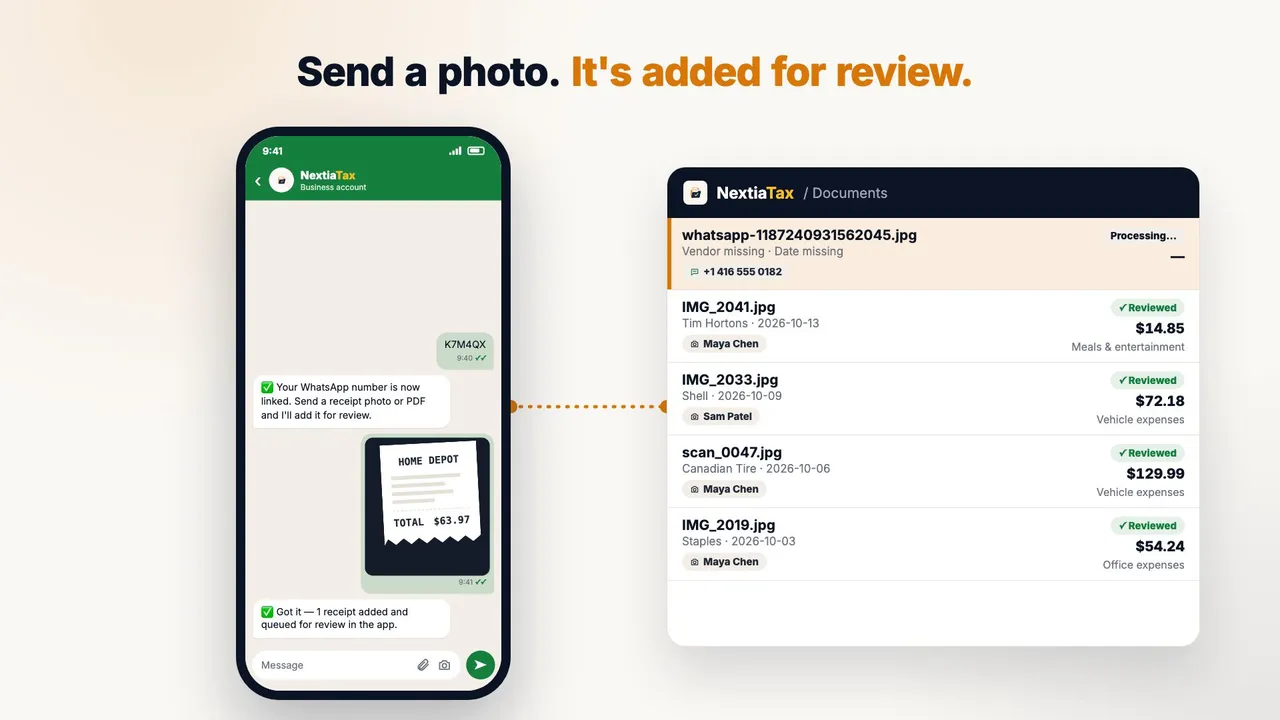
In the NextiaTax mobile app, under More then WhatsApp, you link your number once by texting a code. A receipt photo sent in the chat is added to Documents for review, and once it's read, NextiaTax texts back the vendor, amount, suggested category and tax, with a link to confirm. PDFs work too, and each team member can link their own number.
-
 Video coming soon
 Every receipt, read: receipts, invoices and bills read for you
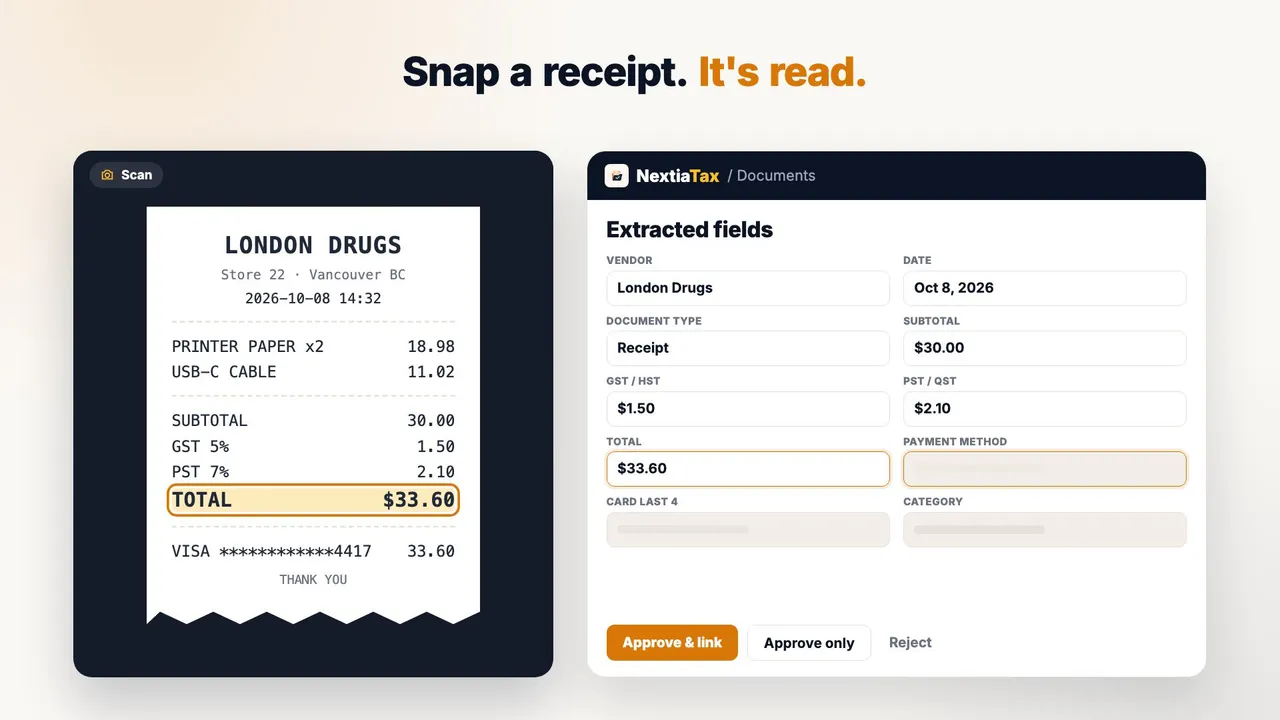
Three documents are read field by field as the matching area lights up: a receipt with its GST and PST split out, the payment method and the card's last four digits; an emailed invoice with its number and the supplier's GST/HST number; and a two-page bill read across both pages. Each shows a confidence score, the lowest asks you to check it, and every field waits for your review before it's saved.
-
 Video coming soon
 Every tax, tracked: GST/HST and PST/QST in their own fields
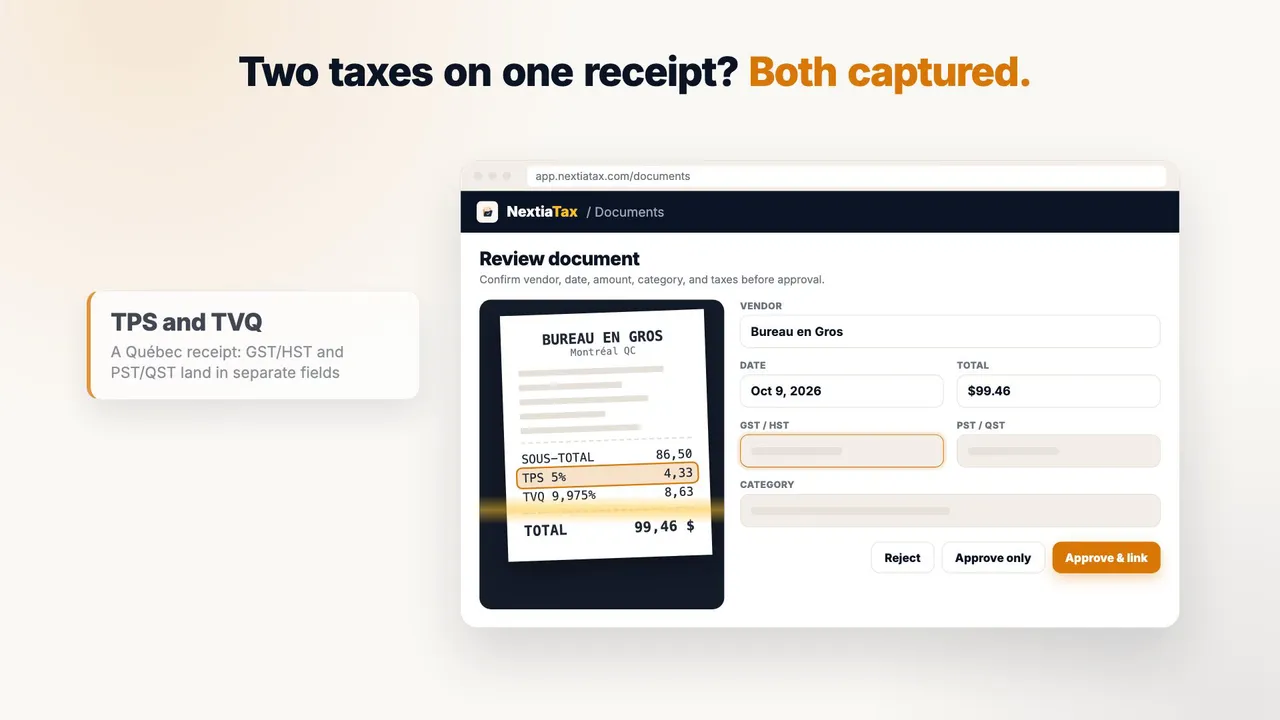
A Québec receipt is read with its GST and QST captured in two separate fields. The same pair appears when you type a transaction in by hand and when you map the tax columns of a CSV import. A sales-tax package then lists the tax collected, paid and net for each filing period. NextiaTax records the tax amounts read from the receipt or that you enter; it doesn't work them out from your province.
-
 Video coming soon
 Only what you confirm: review imported transactions and approve them in bulk
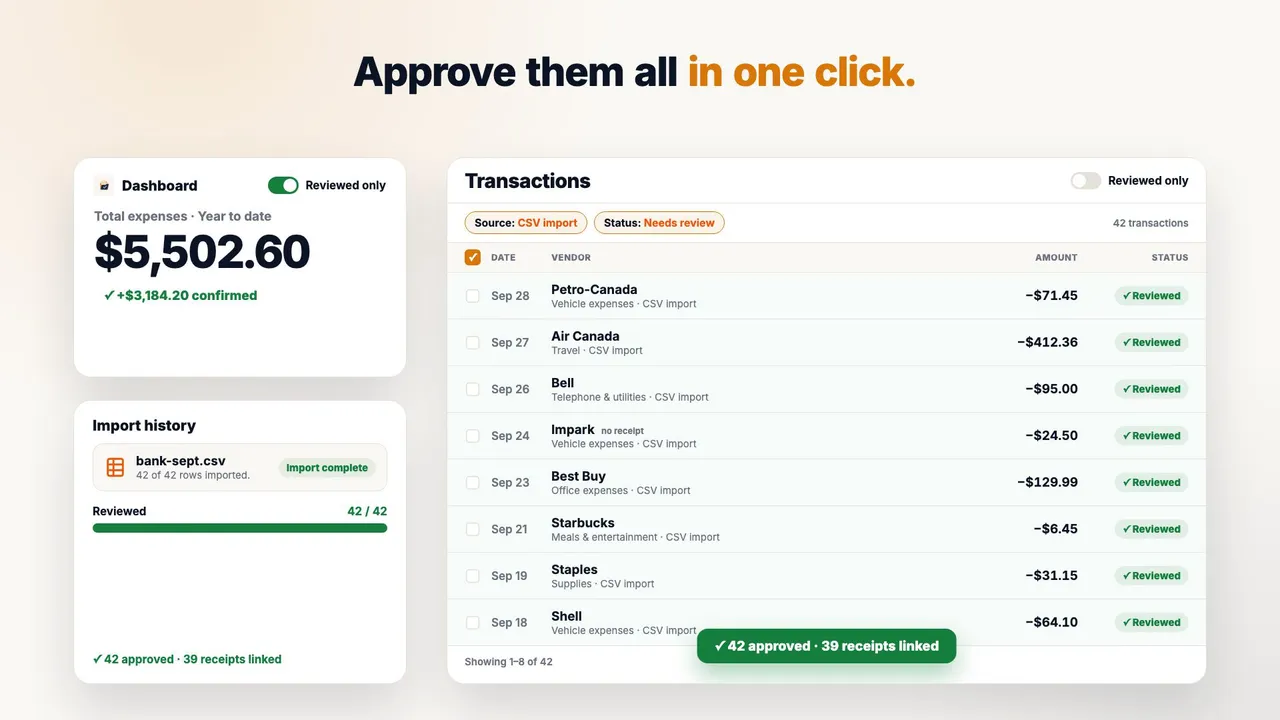
After a 42-row CSV import, the dashboard total holds still while the new rows wait in Needs review. You filter to the import, select all 42, check the running totals in the bulk bar, and approve them in one click, linking the receipts that came with the import. The dashboard, Analysis and tax exports count reviewed transactions only by default.
-
 Video coming soon
 One vendor, one total: merge look-alike vendor names
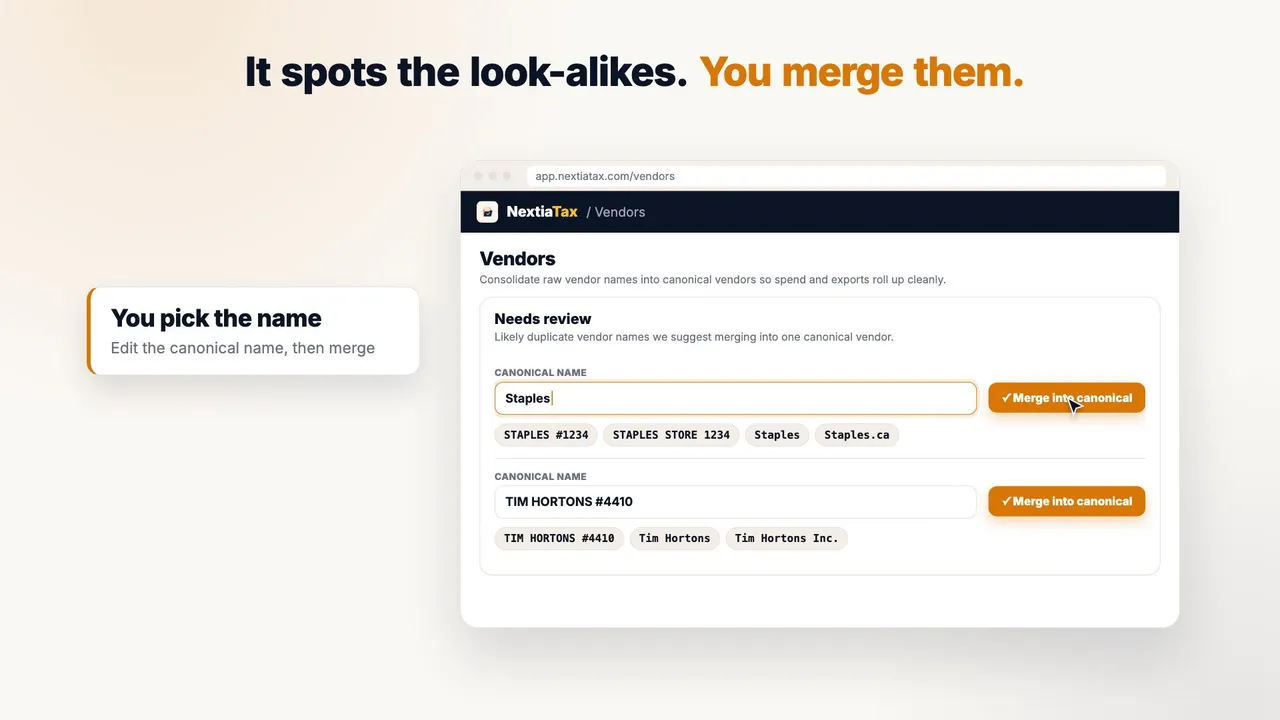
Four spellings of Staples from a statement are flagged as likely duplicates on the Vendors page, and you merge them under one name, so vendor spend shows a single total. A cryptic bank name is mapped to Amazon by hand. When a new spelling arrives, the transaction asks “Maybe Staples?” before matching it. Analysis and tax exports can then group totals by vendor.
-
 Video coming soon
 Track it by trip: expenses by project, kilometres in a logbook
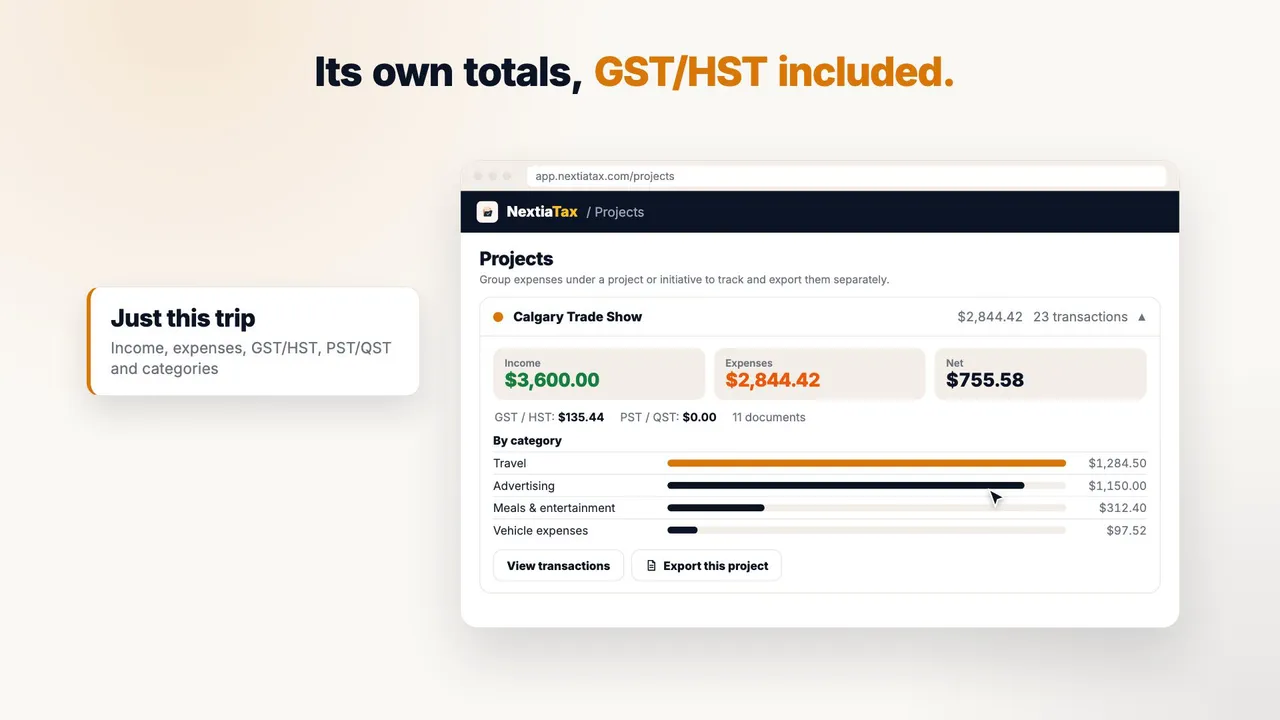
A Calgary trade show becomes a project, and its hotel and other costs are tagged to it from the transaction form. The project card shows its own income, expenses, net, GST/HST and spending by category. The drive there is logged by hand in Mileage & Vehicles as business kilometres for the work van, and an accountant-ready package is exported for that one project.
-
 Video coming soon
 See it all: where the money goes, on the Analysis page
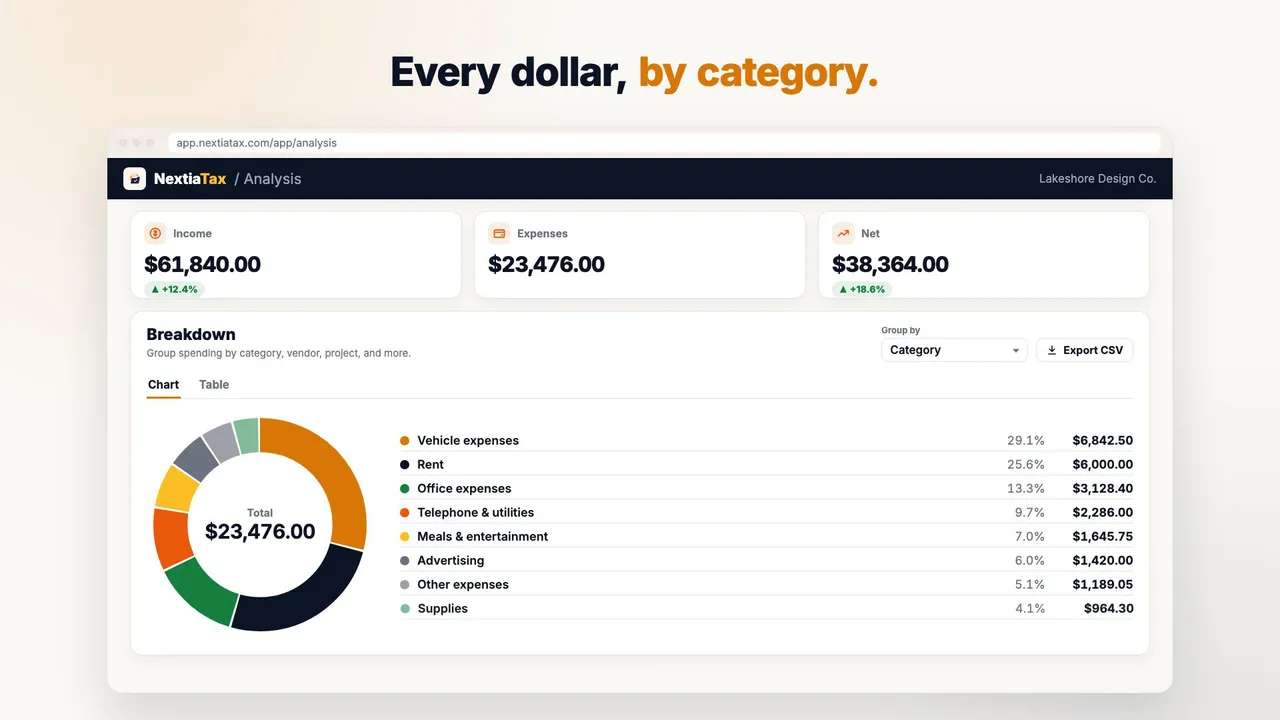
The Analysis page shows the year's income, expenses and net, then breaks spending down by category in a donut chart, by month in bars, and by vendor in a table exported to CSV in one click. A pivot table crosses categories with months, and the same Analysis view is in the NextiaTax mobile app.
-
 Video coming soon
 Hand it over: the year-end package for your accountant
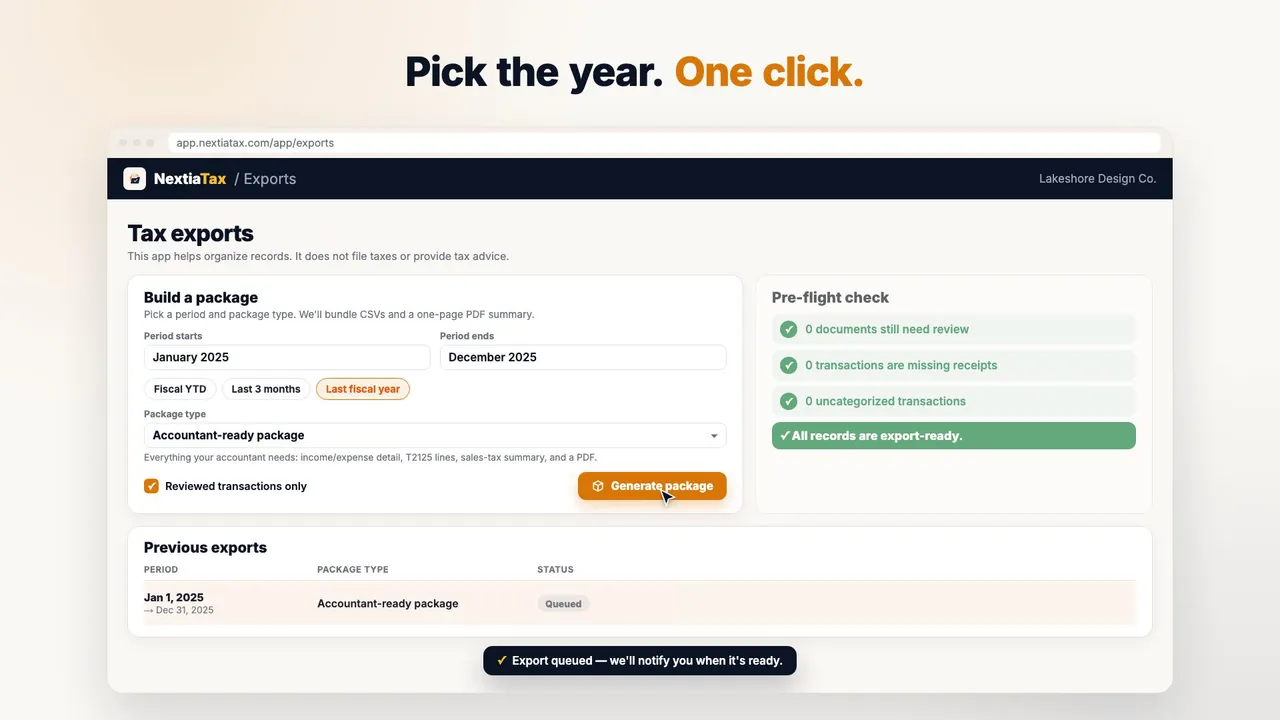
Your accountant asks for the year. On Tax exports, the pre-flight check flags documents to review, a missing receipt and uncategorized transactions until every record is export-ready. You pick last fiscal year and generate an accountant-ready package: CSV files plus a PDF summary of expenses by T2125 line, shared by email with a link that expires. NextiaTax organizes your records; it doesn't file taxes.
-
 Video coming soon
 Built to be trusted: who handles your password, your card and your books
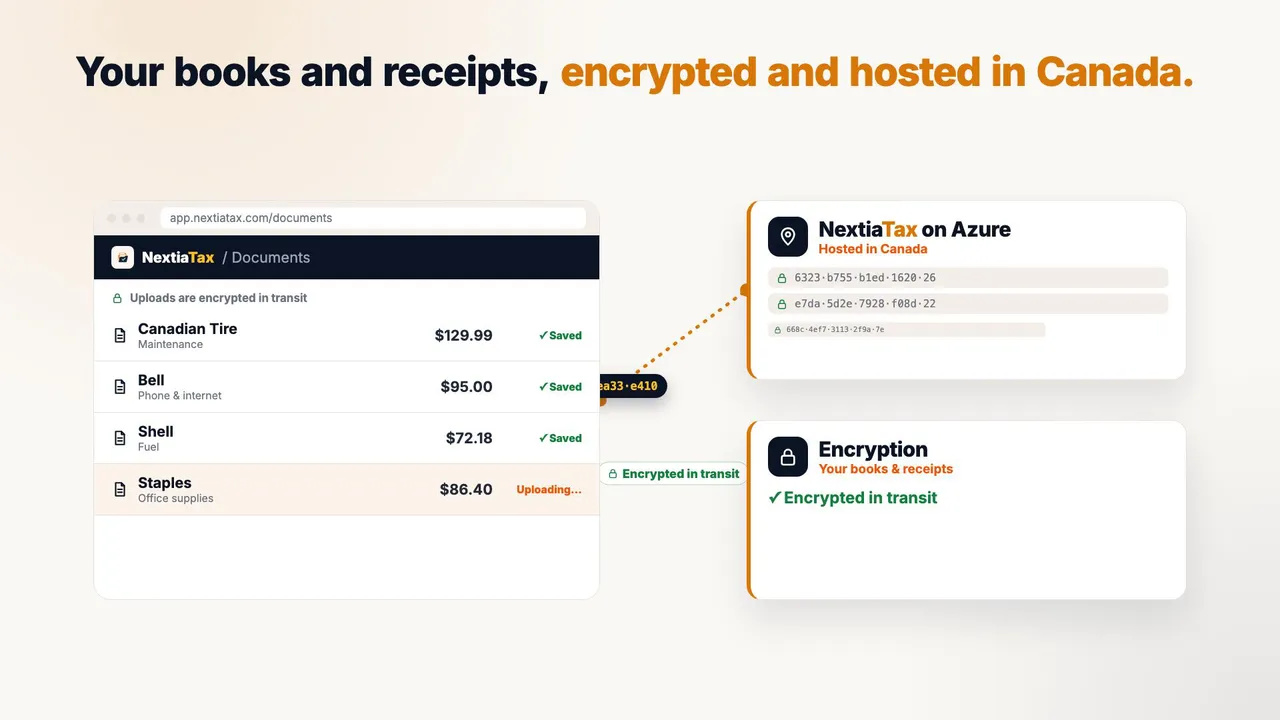
Signing in happens on a secure page run by Microsoft Entra, so NextiaTax never sees your password. Paying for a plan goes through a Stripe checkout, so your card details never touch NextiaTax's servers. Receipts you upload are encrypted in transit and at rest, and core records are hosted in Canada on Microsoft Azure. Roles and permissions are enforced on the server, for each business.
-
 Video coming soon
 Your team, your rules: invite people and give each one a role
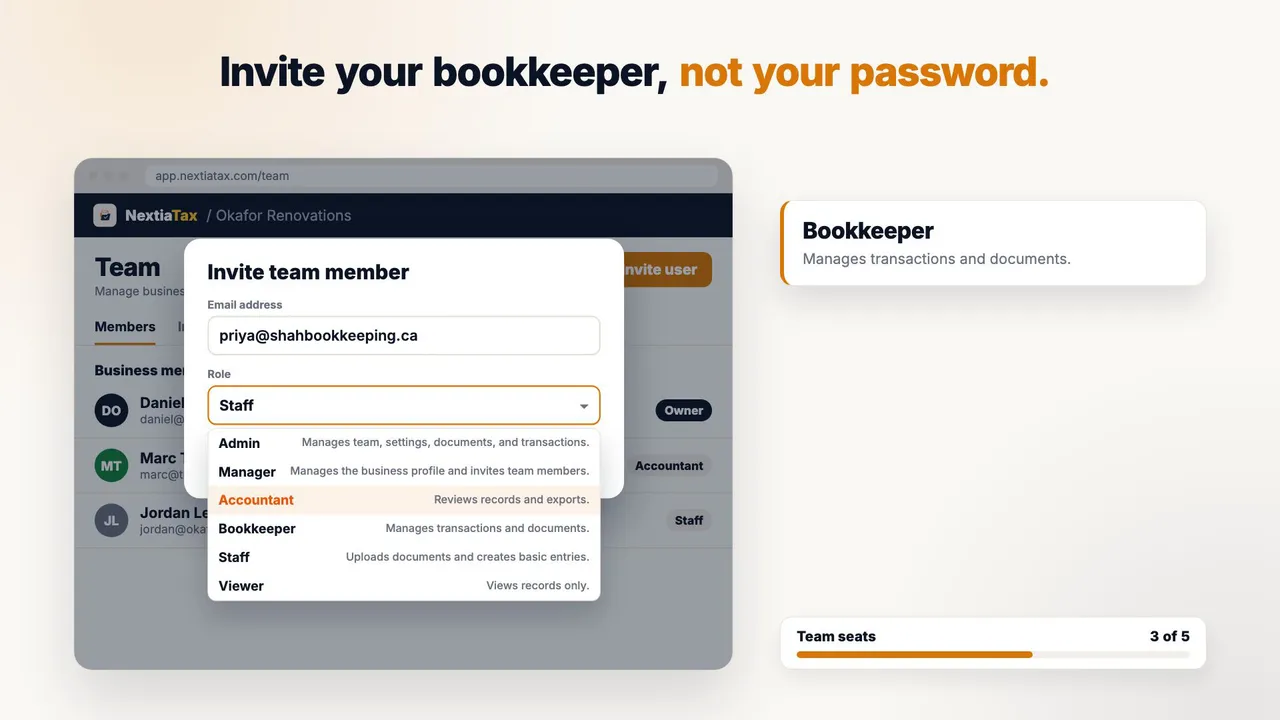
Instead of sharing one login, the owner invites a bookkeeper by email from the Team page and picks their role. The bookkeeper joins with their own sign-in. Under Roles & permissions, each of the seven roles has sensible defaults, and the owner fine-tunes one. In a second business, a Viewer's upload is refused: access is checked on the server, business by business.
-
 Video coming soon
 Just type it: NextiaTax from the command line
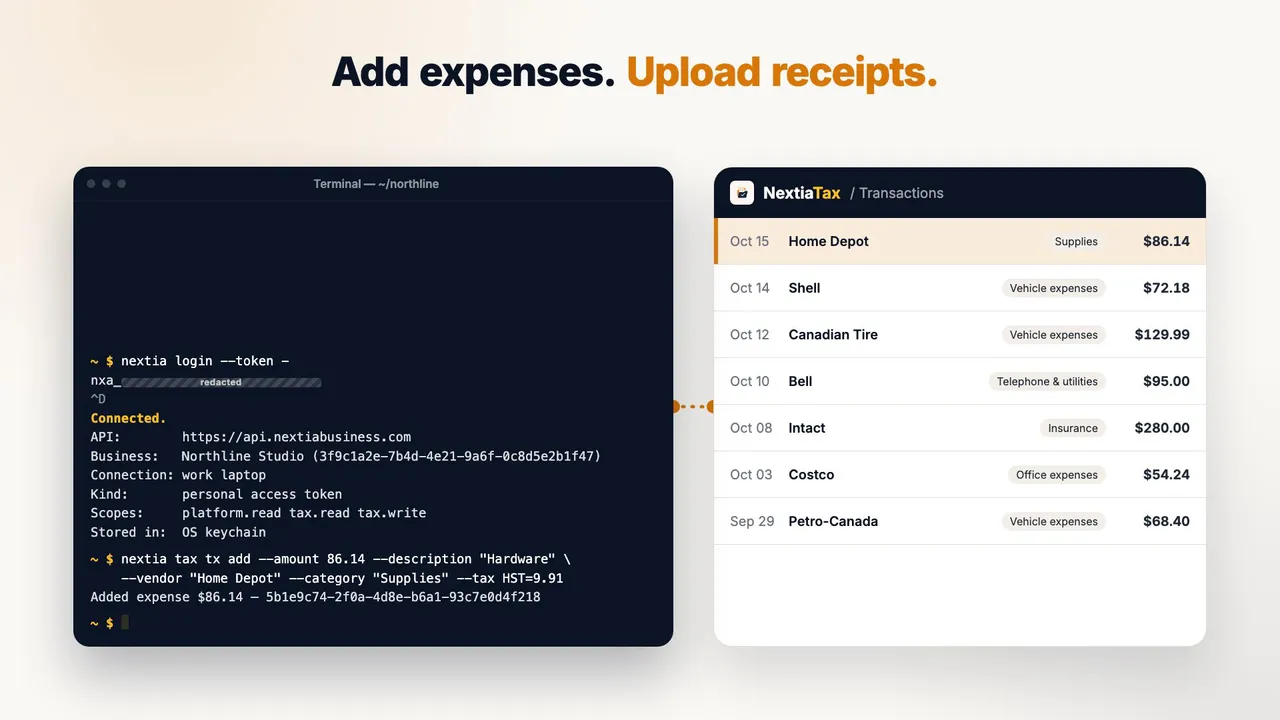
In NextiaTax's AI assistants settings, you create a personal access token with the access you choose and sign the nextia command-line tool in with it. From the terminal you add an expense, upload a bill to be read, print the year's totals from reviewed transactions, and start an accountant-ready export. With --json and a token in an environment variable, the same commands fit scripts and CI.
-
 Video coming soon
 Free to start: the Free plan, the paid plans and the Pro trial
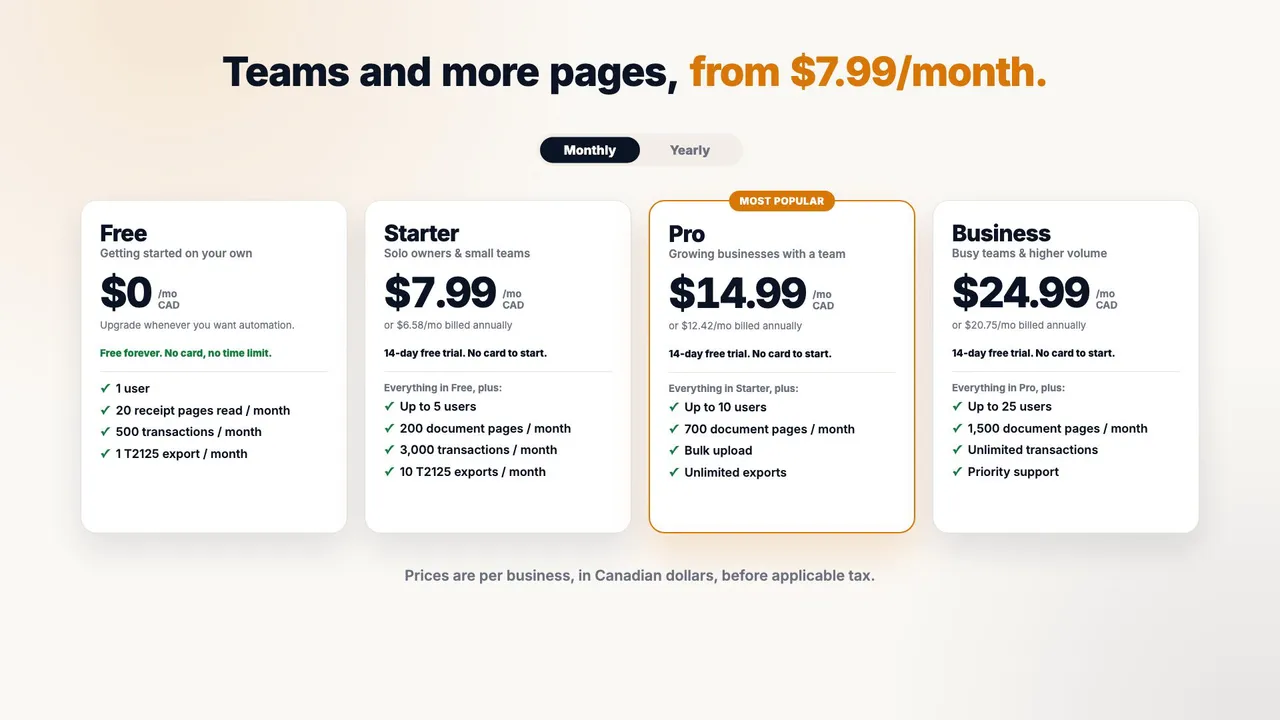
The video walks through NextiaTax's plans: what the Free plan includes and what it leaves out, the Starter, Pro and Business plans side by side with monthly or yearly billing, and the free Pro trial. When the trial ends, the business moves to Free: nothing is charged, every record is kept, and receipts already read stay read. It ends on the NextiaBusiness Suite, which bundles all three apps.
-
 Video coming soon
 Just ask: NextiaTax in your AI assistant
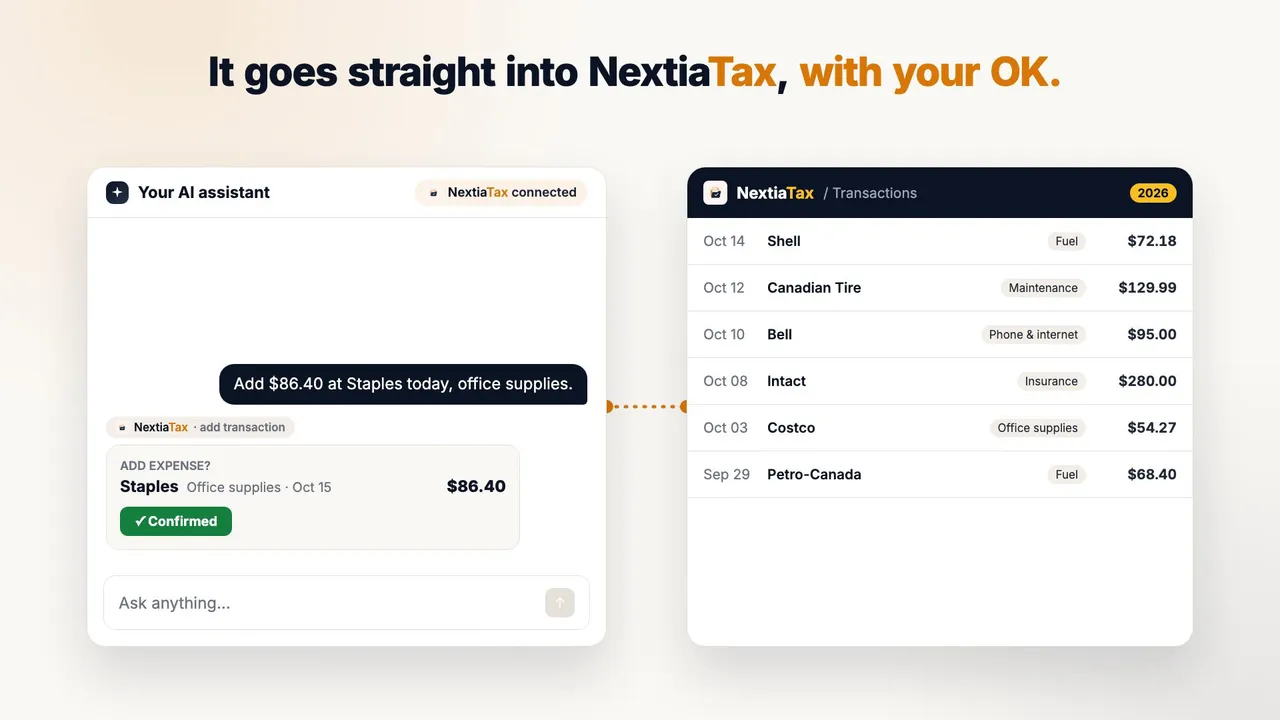
In a chat with your AI assistant, you ask it to add an office supplies expense. A confirmation asks for your OK, then the expense lands in Transactions, tagged as added by the assistant. You then ask what you've spent on your vehicle this year and request last year's accountant-ready export. It works with ChatGPT, Claude and other MCP assistants.
-
 Video coming soon
 Share it, it's recorded: your AI assistant records the receipt with the file attached
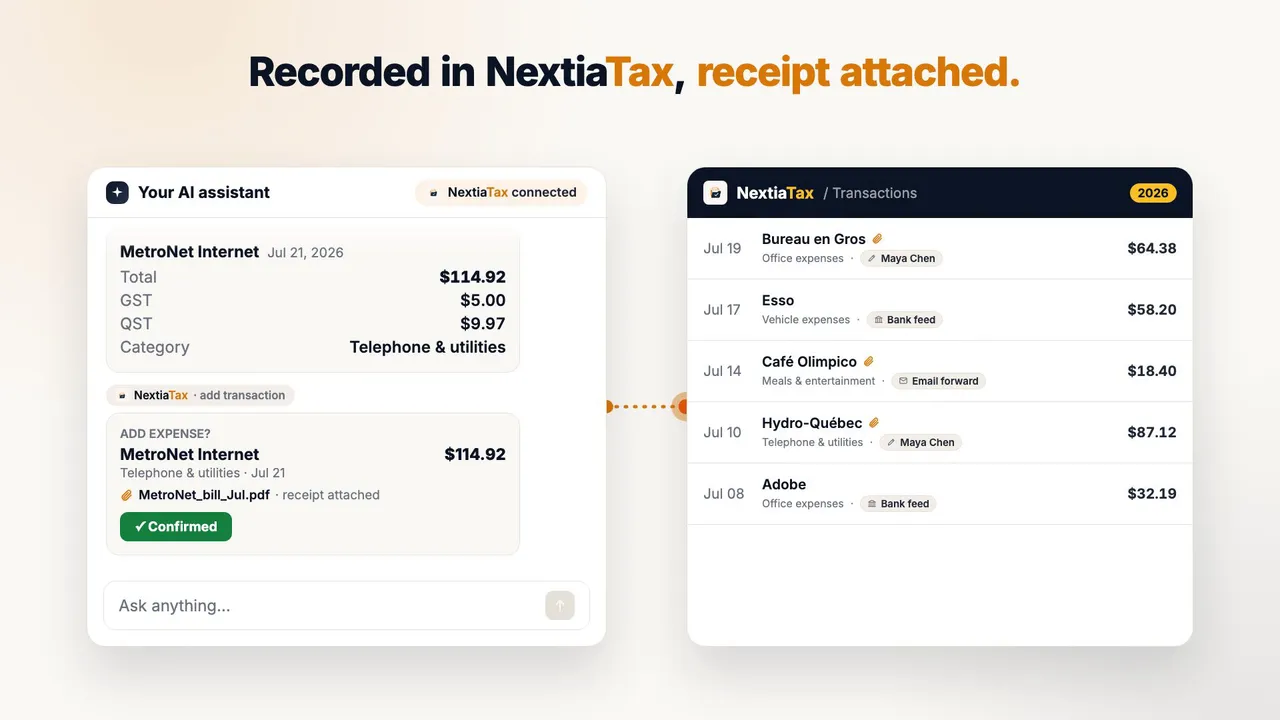
You drop a PDF internet bill into your AI assistant and ask it to add it to your books. The assistant reads the bill itself and, once you confirm, the expense lands in NextiaTax with the PDF attached and the GST and QST in their own fields. Sharing the same file again doesn't store a second copy. Attaching the file needs an assistant that can pass files, such as ChatGPT.
-
 Video coming soon
 Ask for any report: custom reports from your AI assistant
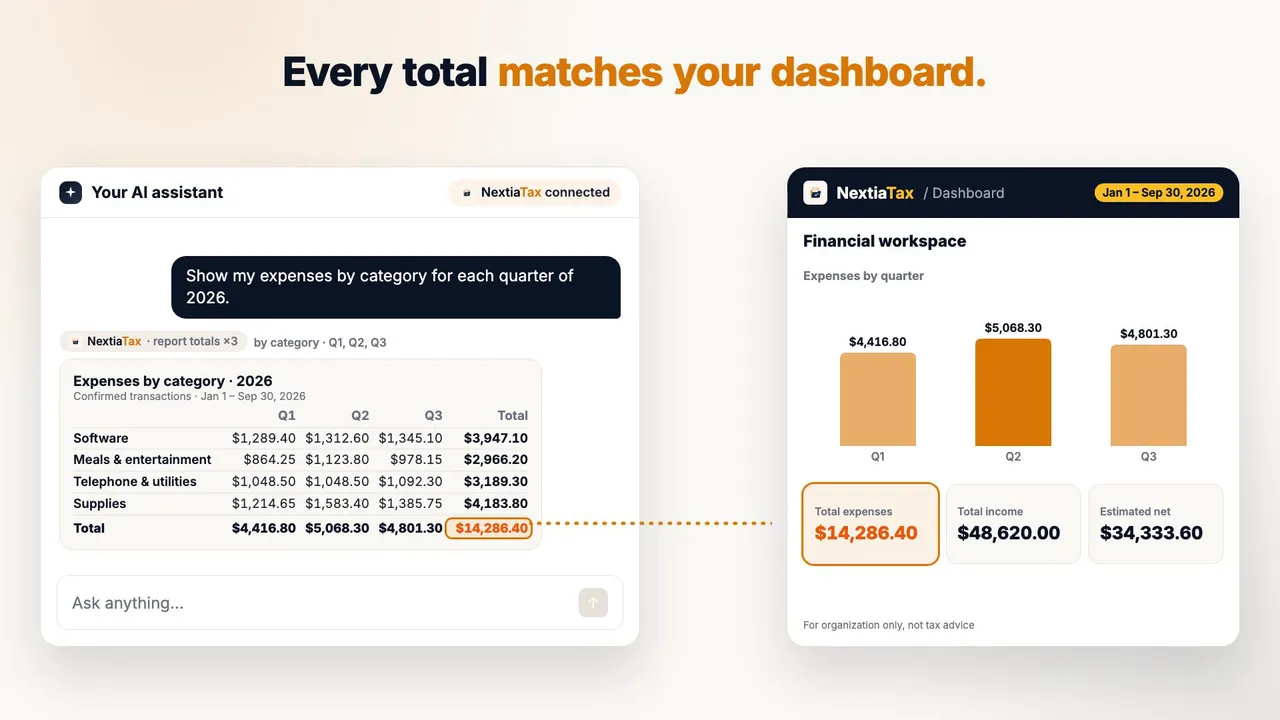
You ask your AI assistant for expenses by category for each quarter, and it builds the table from NextiaTax's own totals rather than adding rows itself. The grand total matches Total expenses on your dashboard for the same period. A follow-up question ranks your top vendors, and reports can be cut by month, quarter, category, vendor, project, tax line, source or assistant.
-
 Video coming soon
 Know who added what: the source of every entry
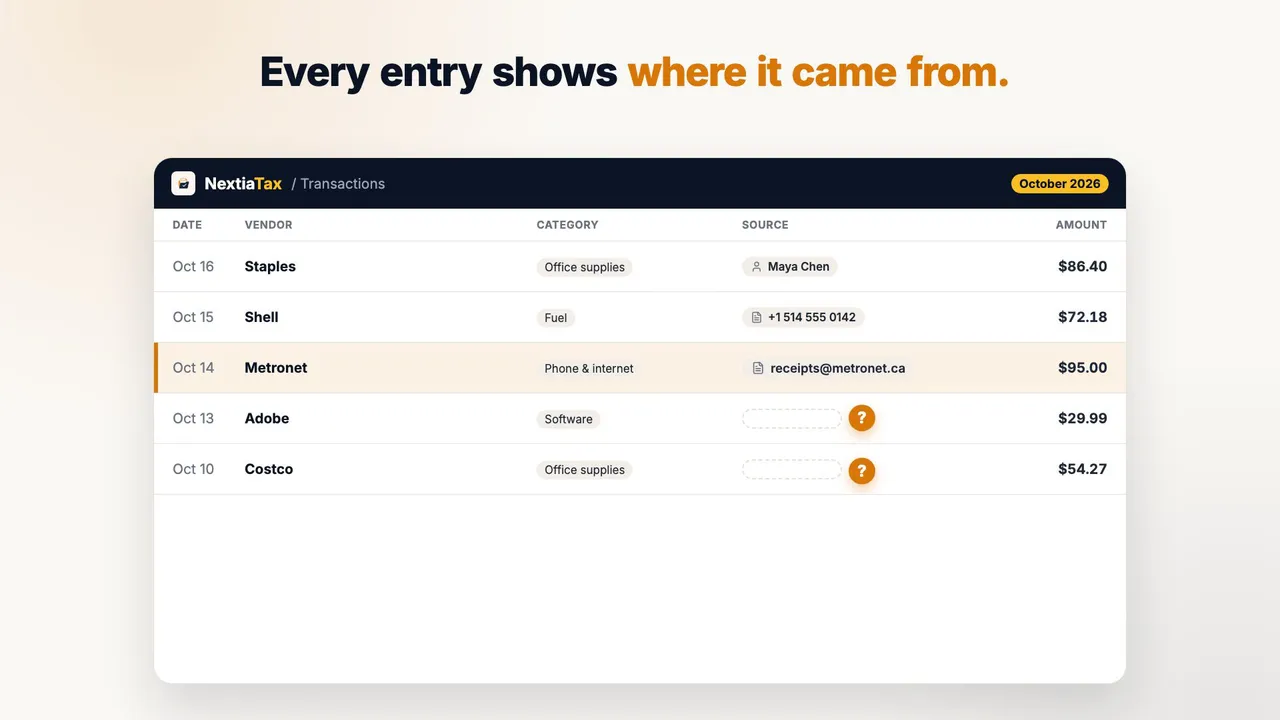
On the Transactions page, every row shows where it came from: the person who typed it, the WhatsApp number or email sender, or the person and AI assistant connection that added it. A channel filter narrows the list to AI assistant entries, and renaming a connection updates its earlier rows too. Asked for totals by assistant, your AI assistant shows what each connection recorded.
-
 Video coming soon
 Your week, summed up: the weekly summary email and PDF
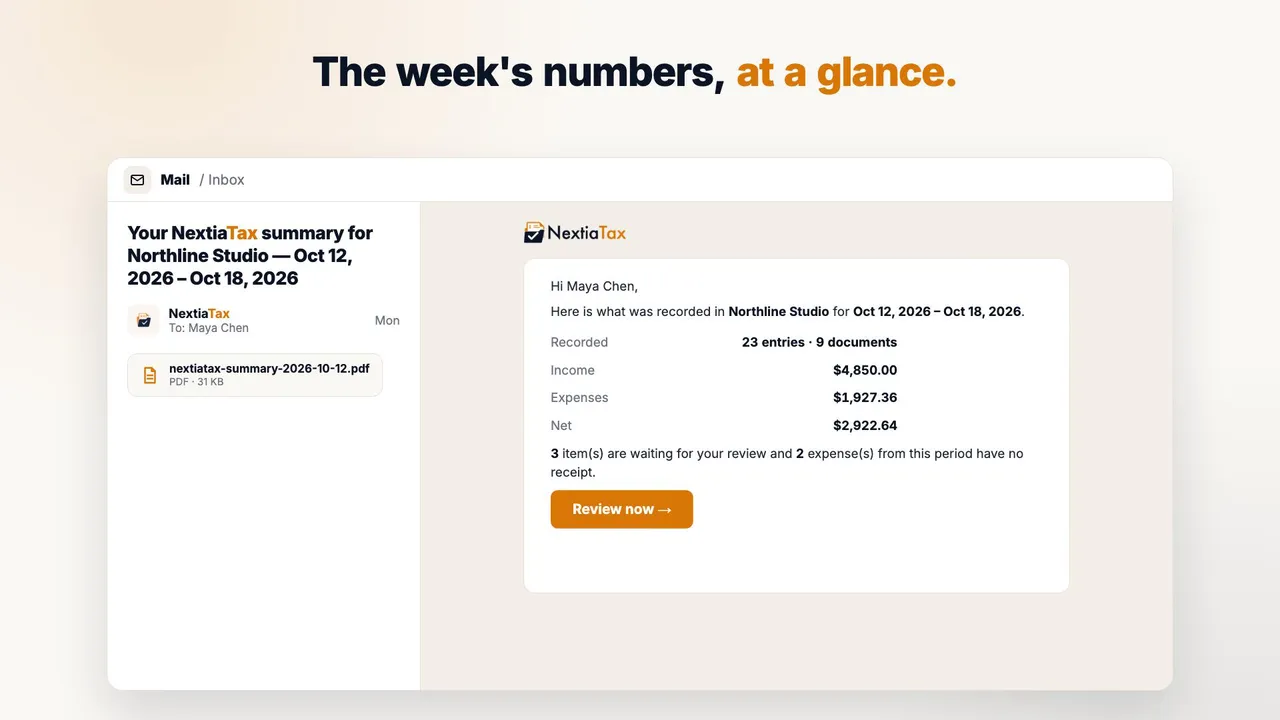
On Monday, a NextiaTax email sums up the past week: the entries and documents recorded, income, expenses and net, and how many items wait for review or have no receipt. The full summary is attached as a PDF, by source, by AI assistant and with sales tax. Review now leads straight to the documents waiting, and in Settings you choose daily, weekly or monthly, and which team members get it.
Get tax-ready this year.
Start on the Free plan and try every Pro feature free for 14 days. No card needed.
Free plan · 14-day Pro trial · No card to start · One Nextia account, secured by Microsoft Entra