
Review and categorize your transactions
Every transaction waits in Needs review until you check it. Review one, save a vendor's default category, and approve several at once.
- 9 steps
- About 2 min
- Checked against NextiaTax on October 21, 2026
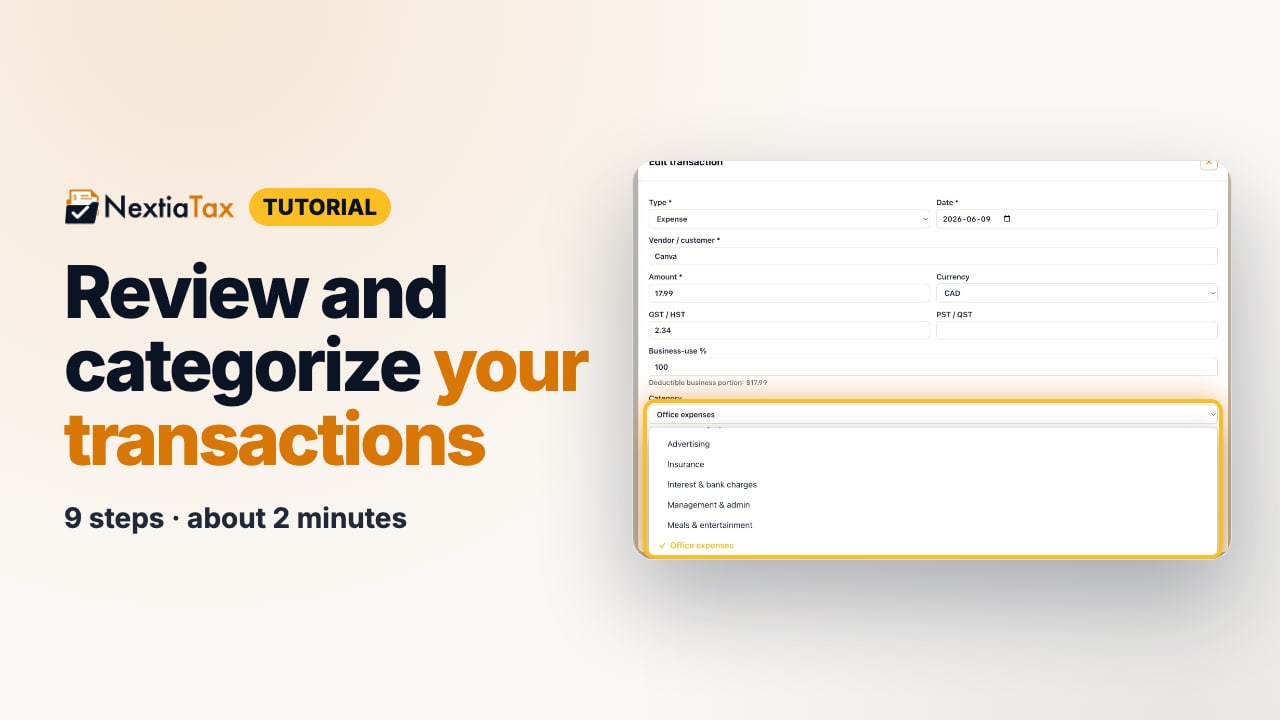
The video is on its way. The step-by-step and written versions are ready now.
- 1
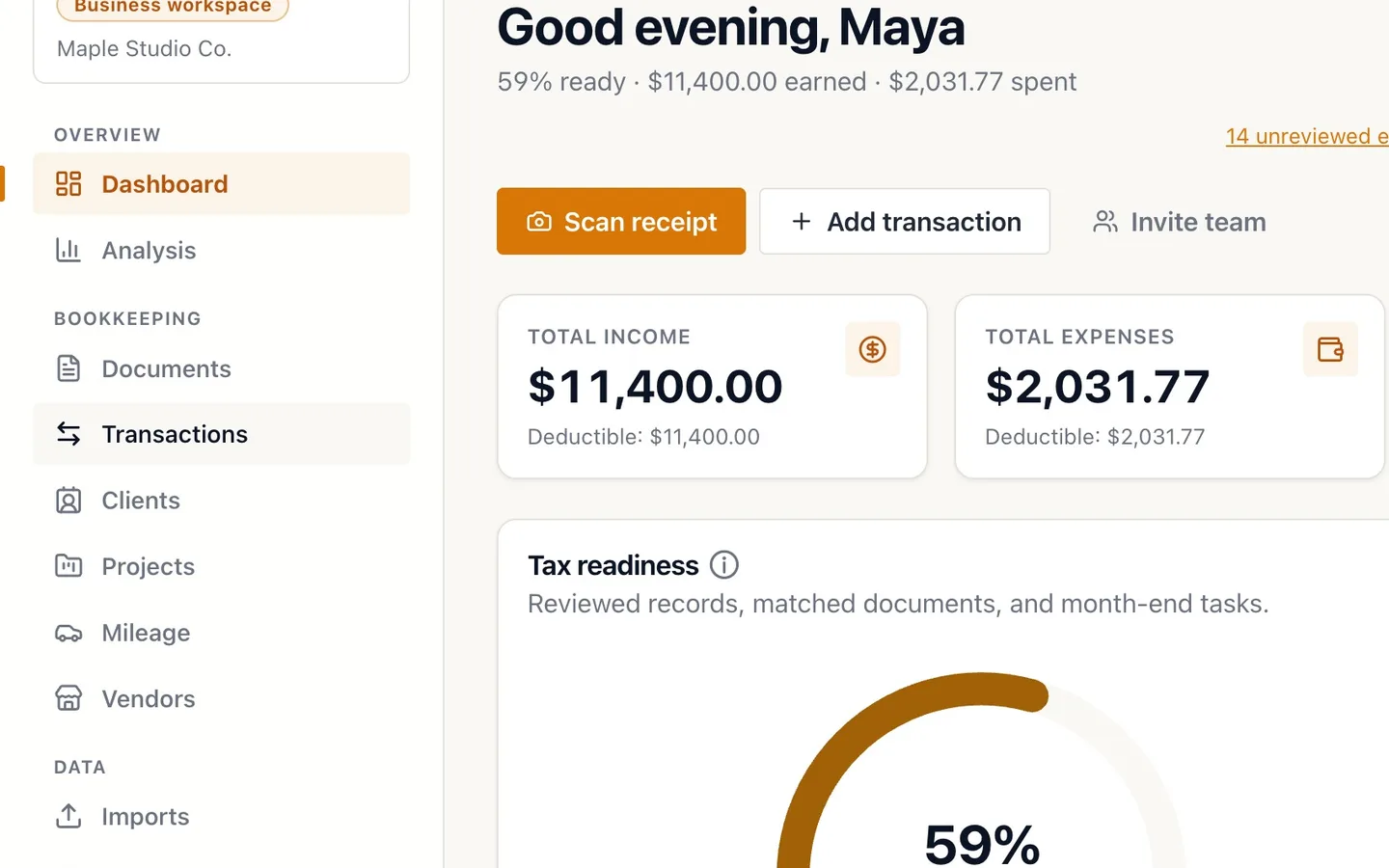
Select Transactions in the sidebar.
Bank feeds, imports, receipts and manual entries all land here.
- 2
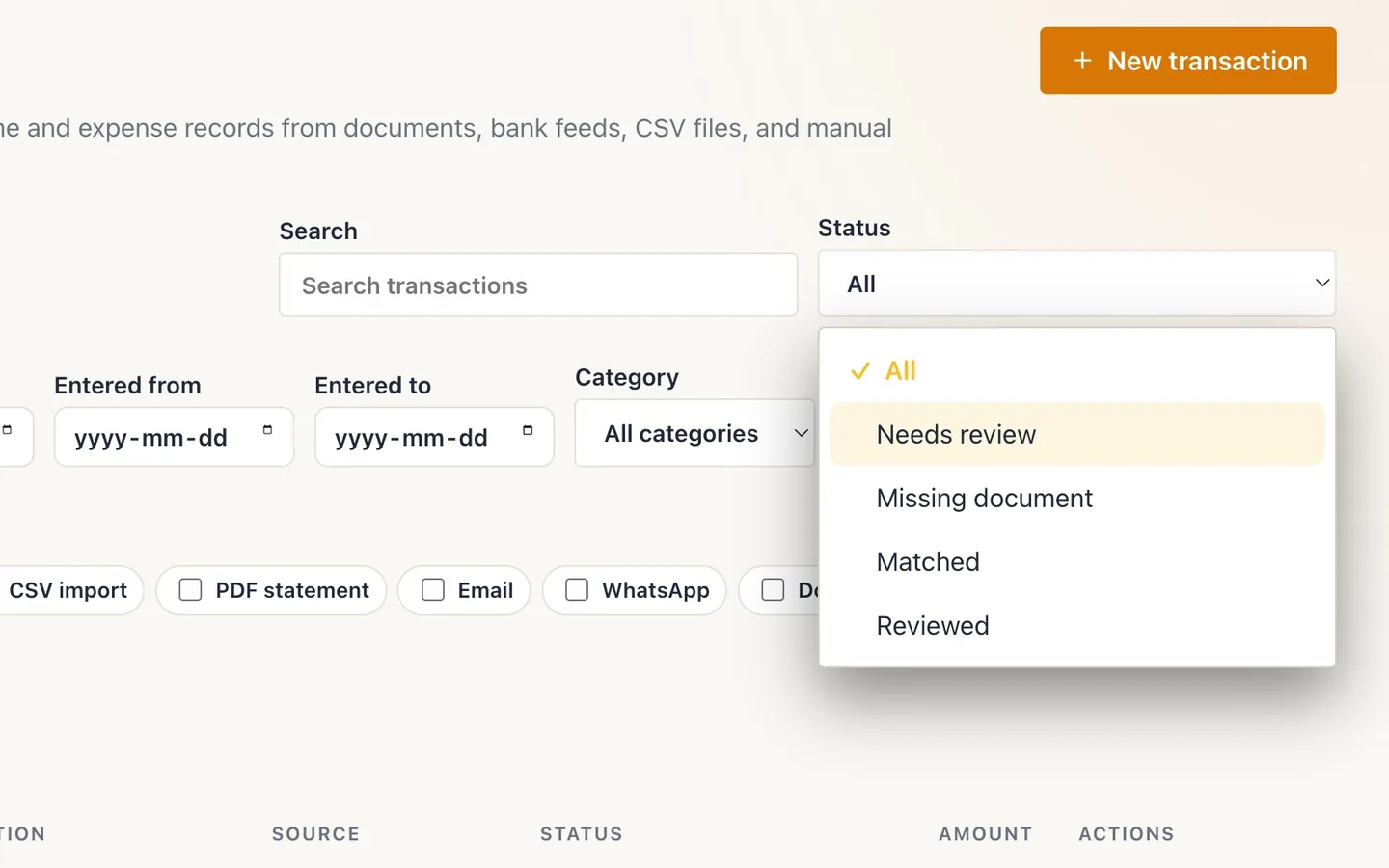
Set Status to Needs review.
Only the transactions waiting for you are listed.
- 3
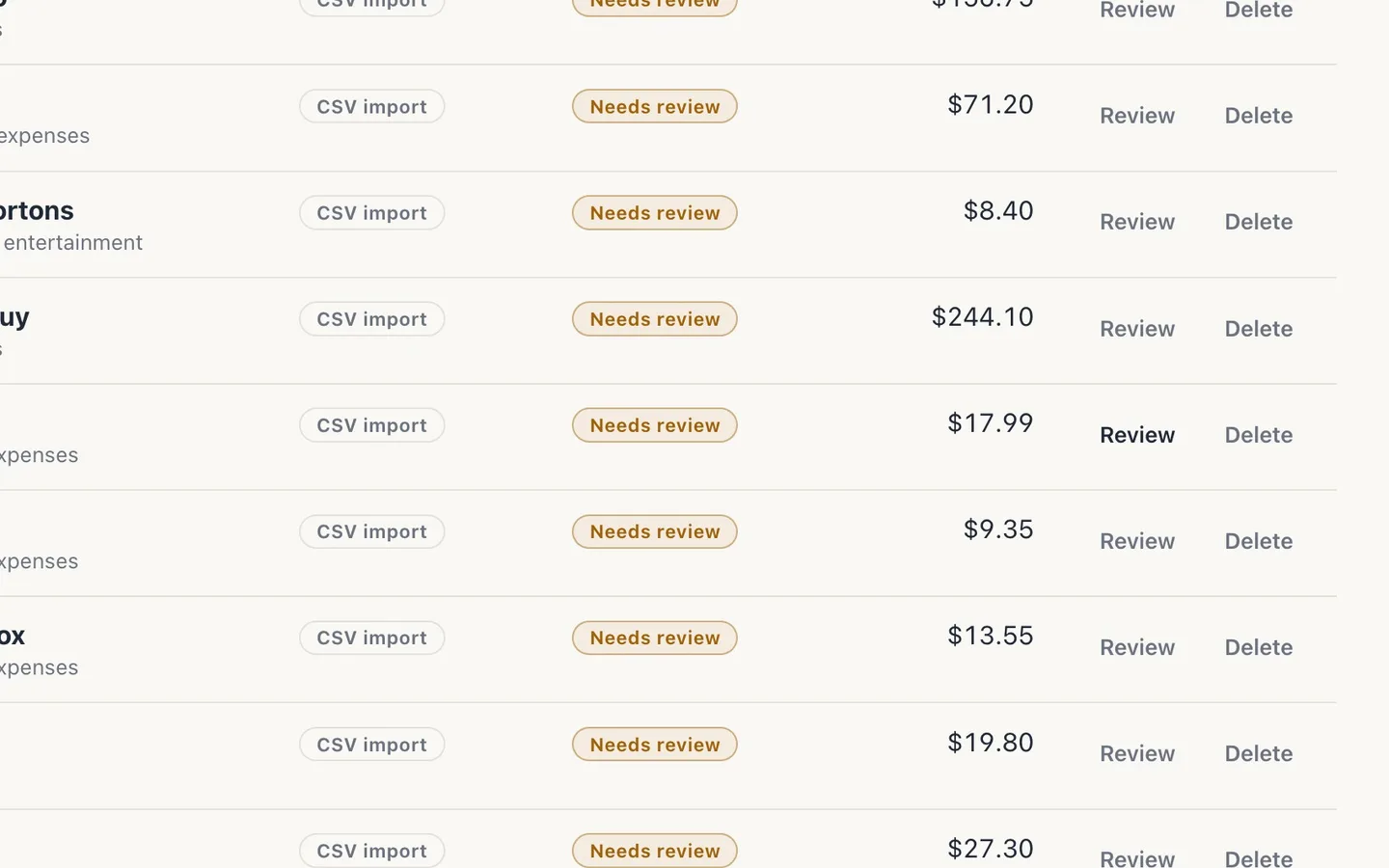
Select Review on a transaction.
Here, a Canva charge from a statement import.
- 4
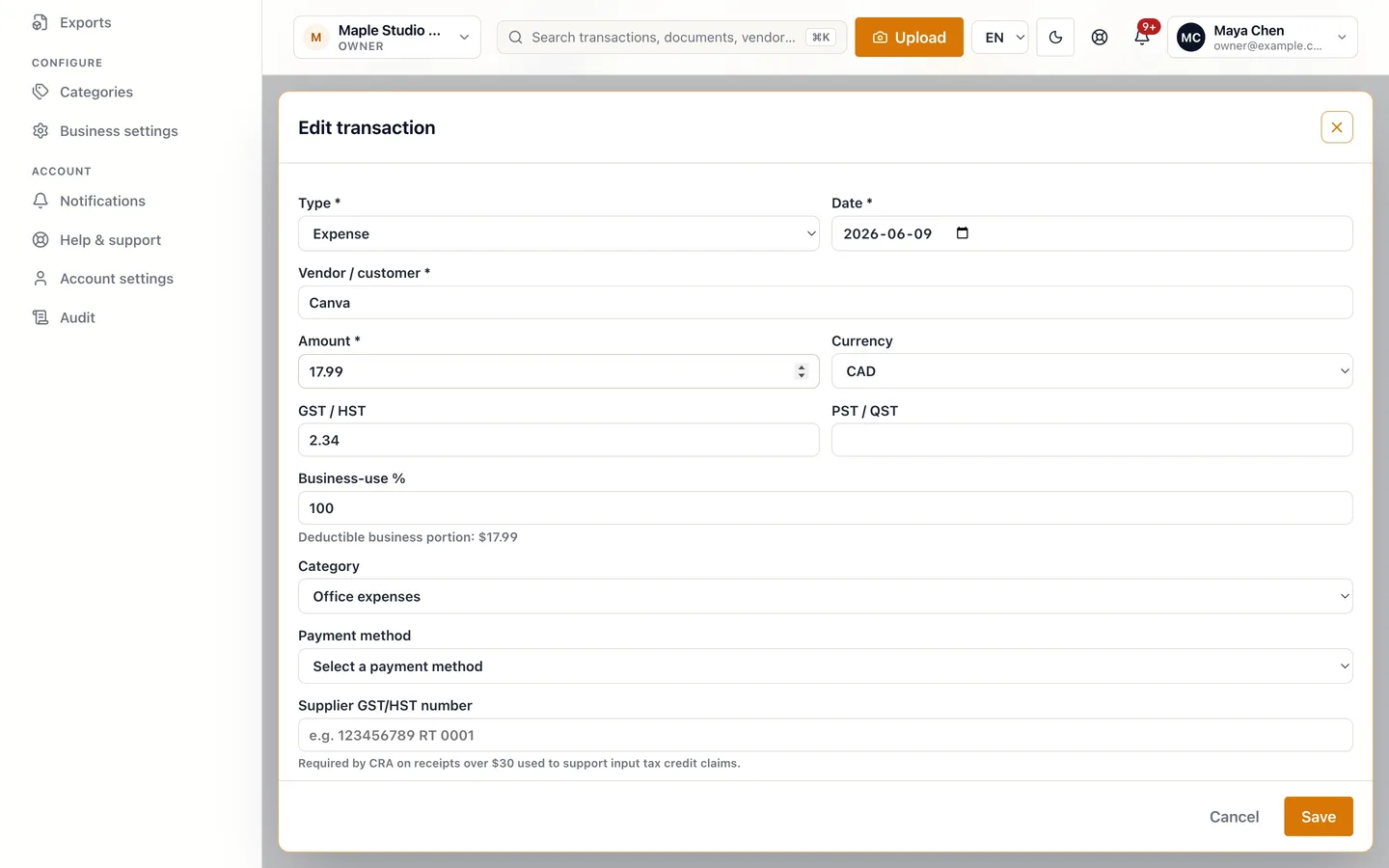
Check the vendor, date and amount.
Compare them with your receipt or statement.
- 5
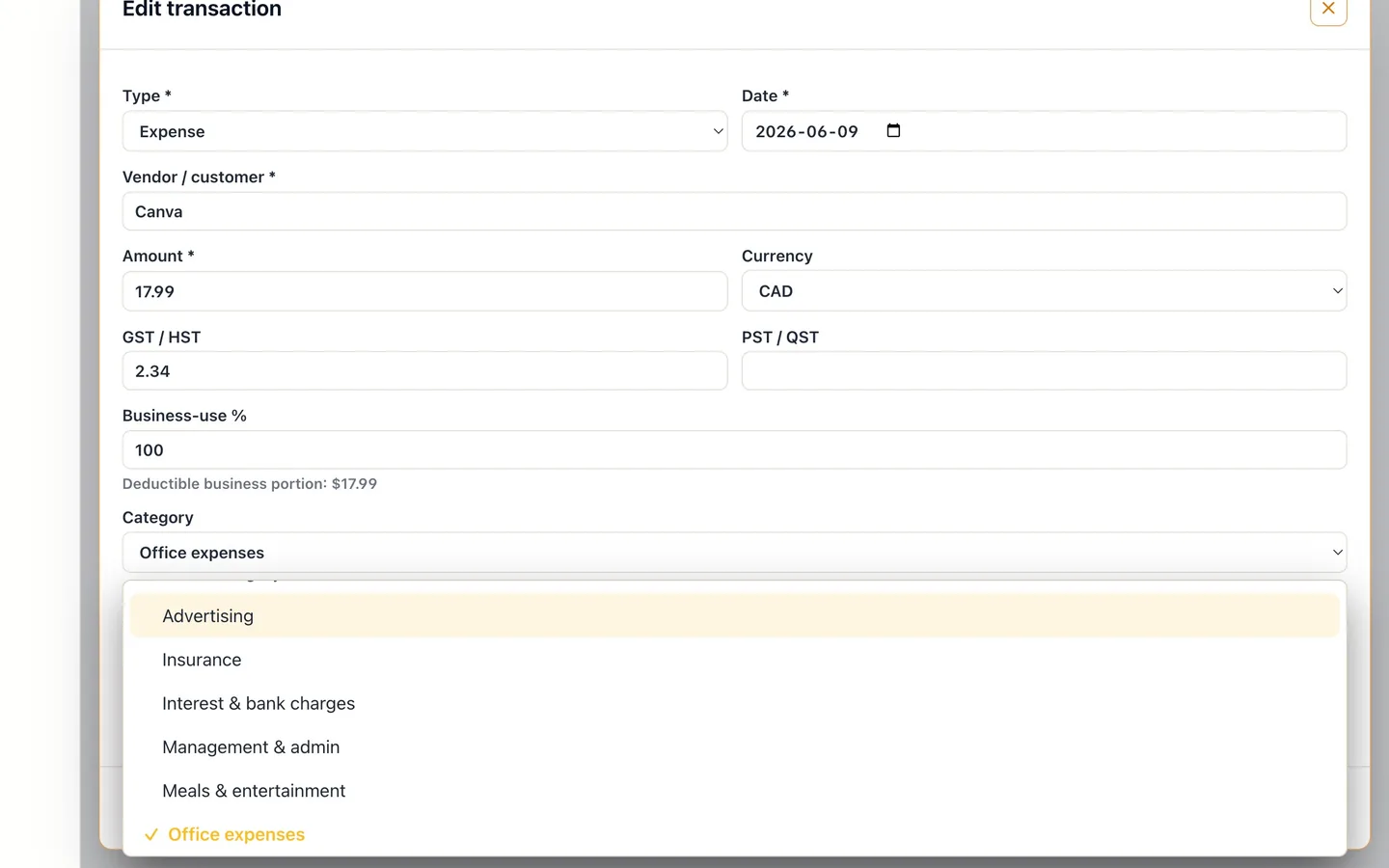
Choose the right Category.
The category decides which T2125 line it counts on. Here, Canva moves to Advertising.
- 6
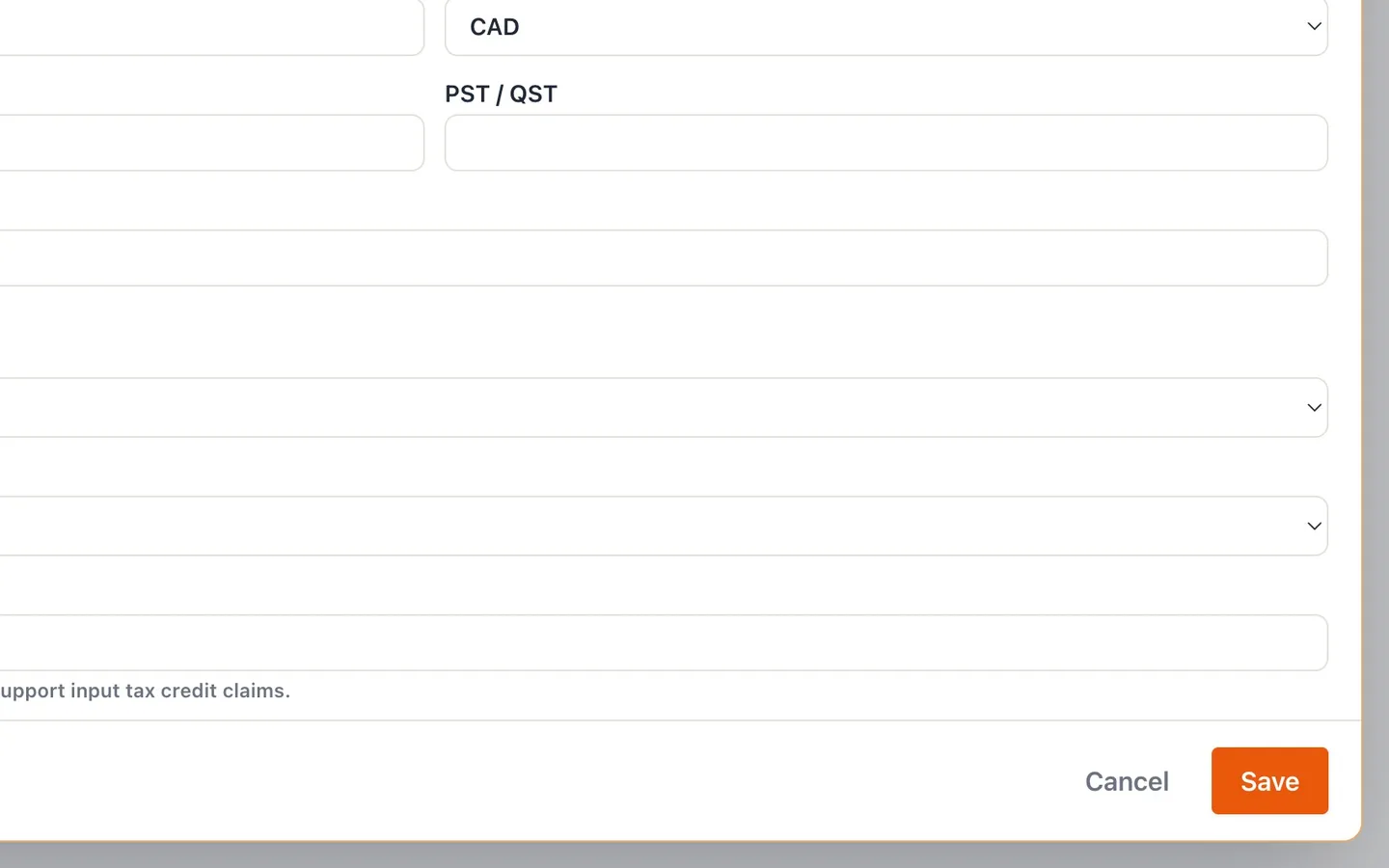
Select Save.
Saving marks the transaction reviewed.
- 7
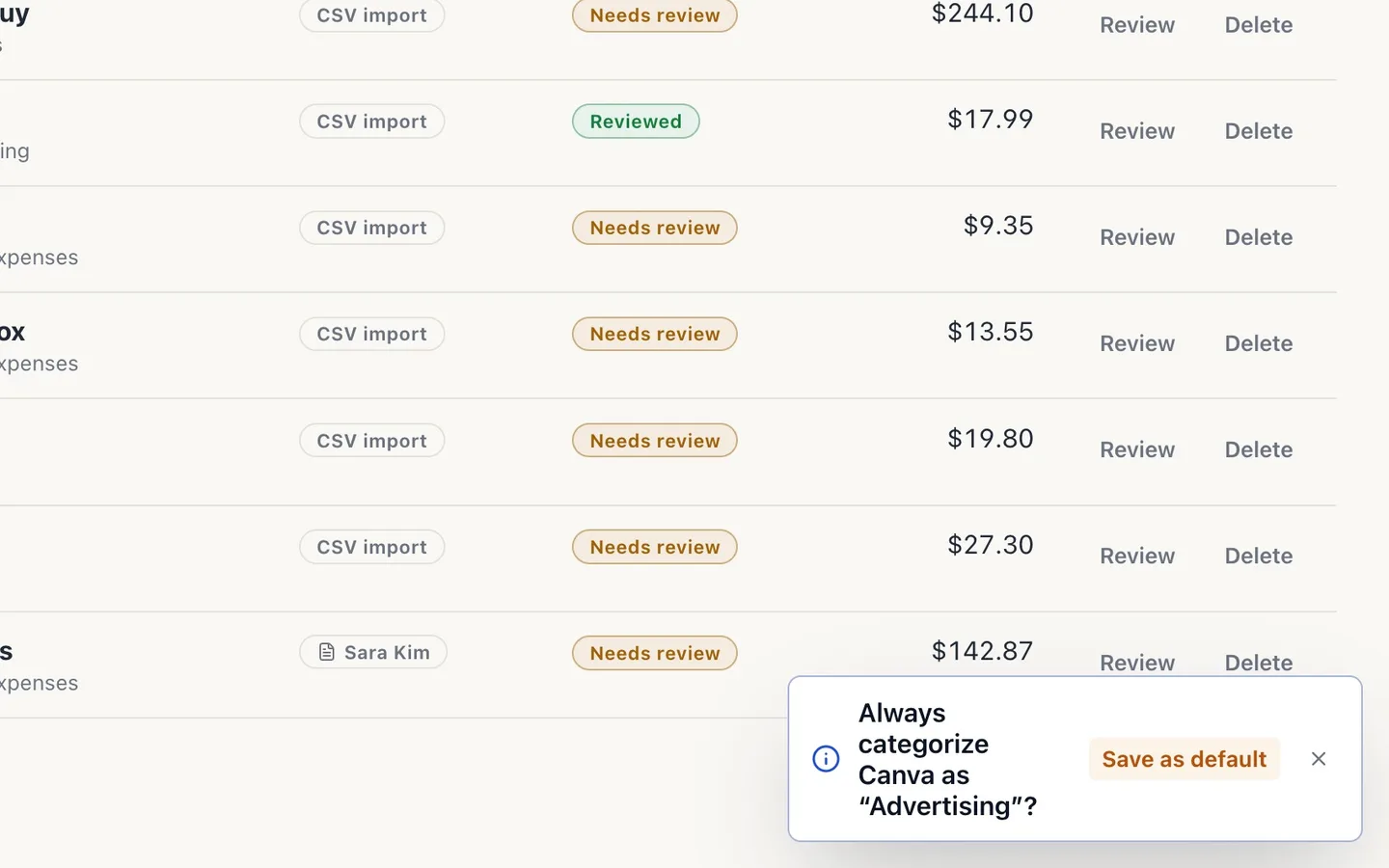
Select Save as default to remember the category.
Future transactions from this vendor arrive already categorized.
- 8
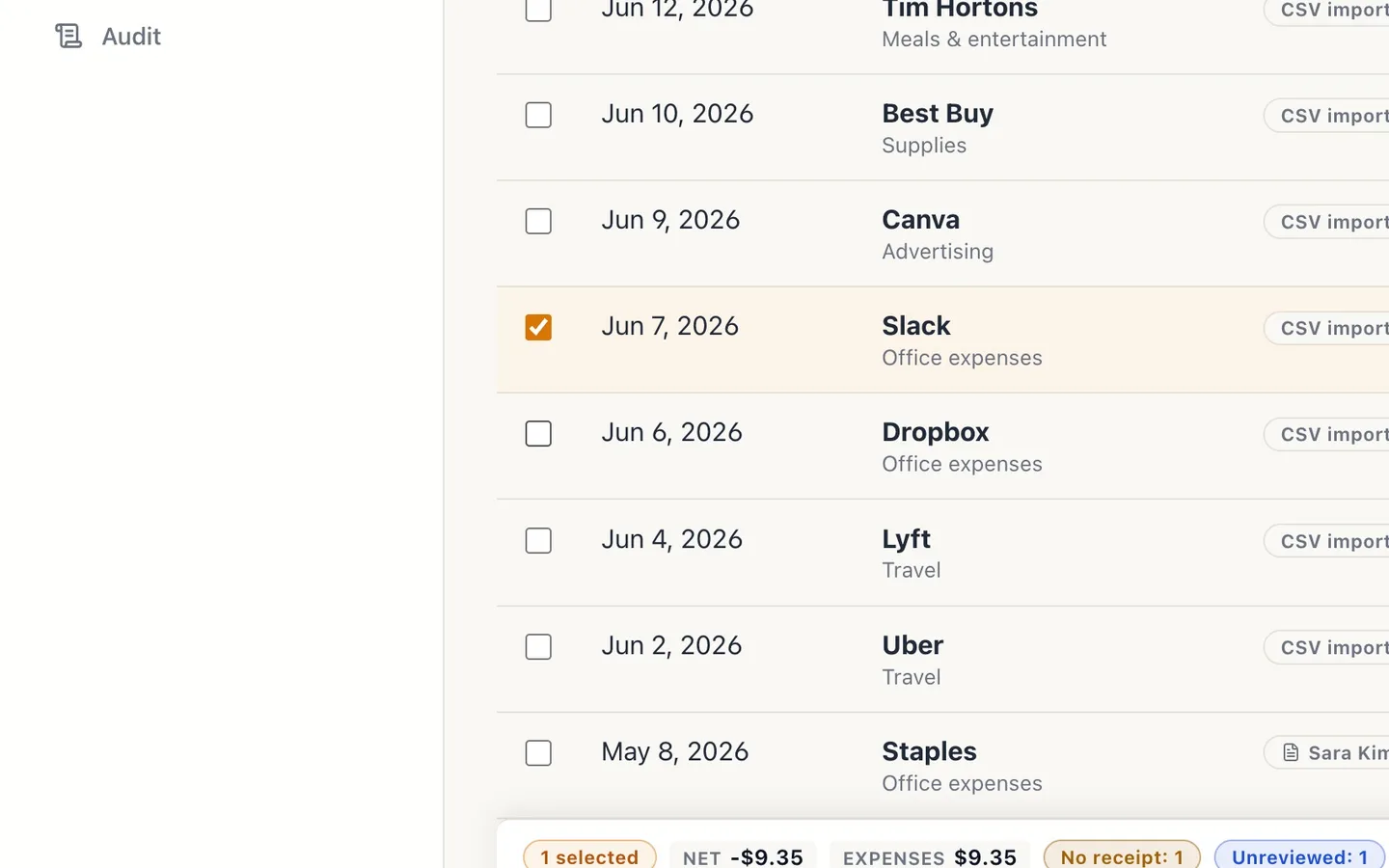
Tick the transactions that are already right.
A bar appears with totals for your selection.
- 9
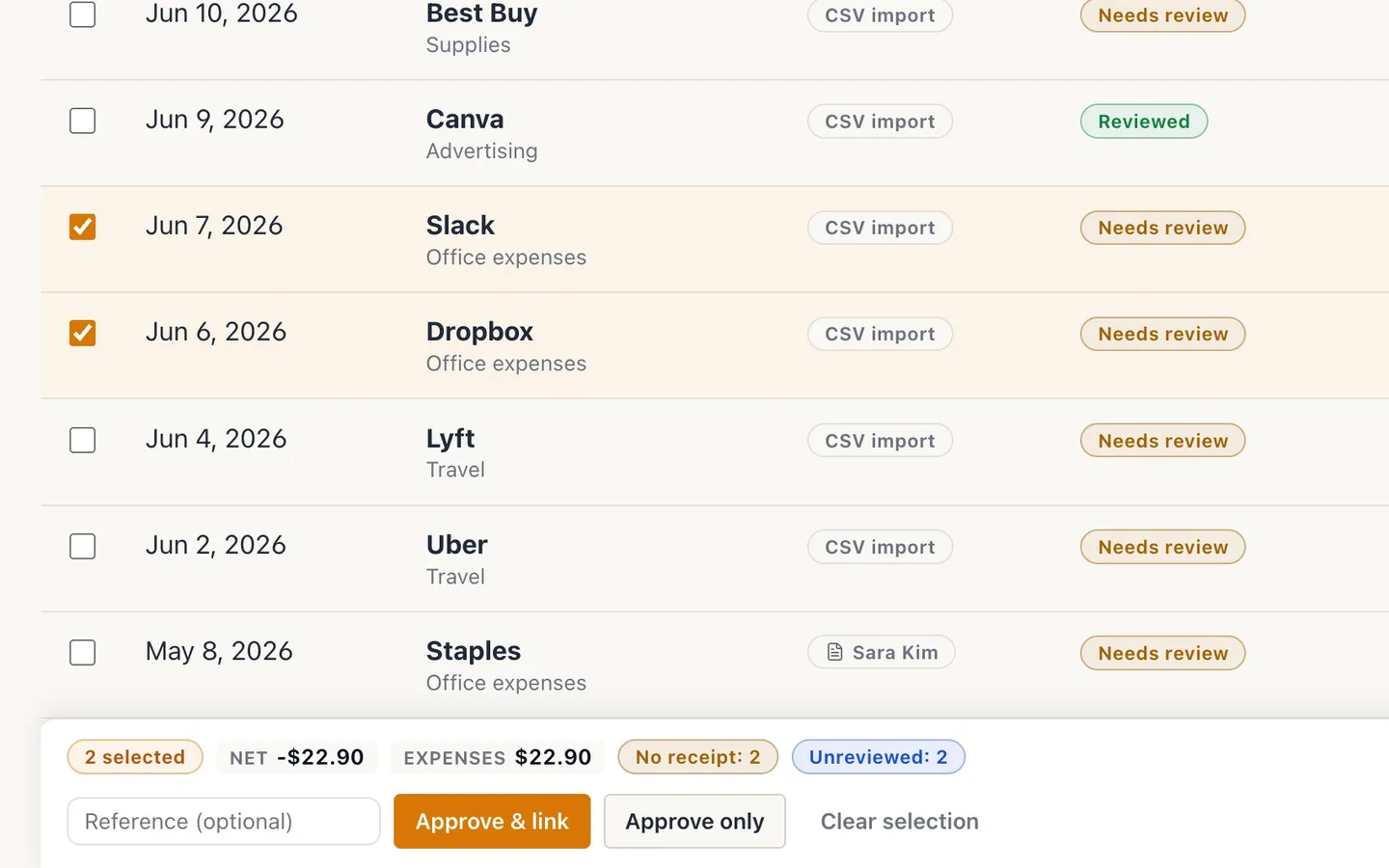
Select Approve only.
Approve & link also attaches receipts uploaded with that import.
Review and categorize your transactions
Before you start
- Bring transactions in first: connect your bank, import a statement, or add receipts.
- You need a role that can edit transactions: Owner, Admin, Accountant or Bookkeeper.
Steps
- Select Transactions in the sidebar. Bank feeds, imports, receipts and manual entries all land here.
- Set Status to Needs review. Only the transactions waiting for you are listed.
- Select Review on a transaction. Here, a Canva charge from a statement import.
- Check the vendor, date and amount. Compare them with your receipt or statement.
- Choose the right Category. The category decides which T2125 line it counts on. Here, Canva moves to Advertising.
- Select Save. Saving marks the transaction reviewed.
- Select Save as default to remember the category. Future transactions from this vendor arrive already categorized.
- Tick the transactions that are already right. A bar appears with totals for your selection.
- Select Approve only. Approve & link also attaches receipts uploaded with that import.
Tips
- Clearing a backlog? Sort by vendor and save a default the first time each vendor appears: later imports arrive already categorized.
- Change or clear saved defaults, and merge spellings of the same vendor, on the Vendors page.
If something goes wrong
- A transaction is flagged Duplicate. Open it to compare the two records side by side, then merge them, or dismiss the flag if they're different.
- Save as default didn't appear. It's offered when you change the category and the vendor has no default yet.