
Send your accountant a tax-ready package
Build the package, download a copy, and email your accountant a secure link. They download it with one click, no account needed.
- 12 steps
- About 2 min
- Checked against NextiaTax on October 21, 2026
The video is on its way. The step-by-step and written versions are ready now.
- 1
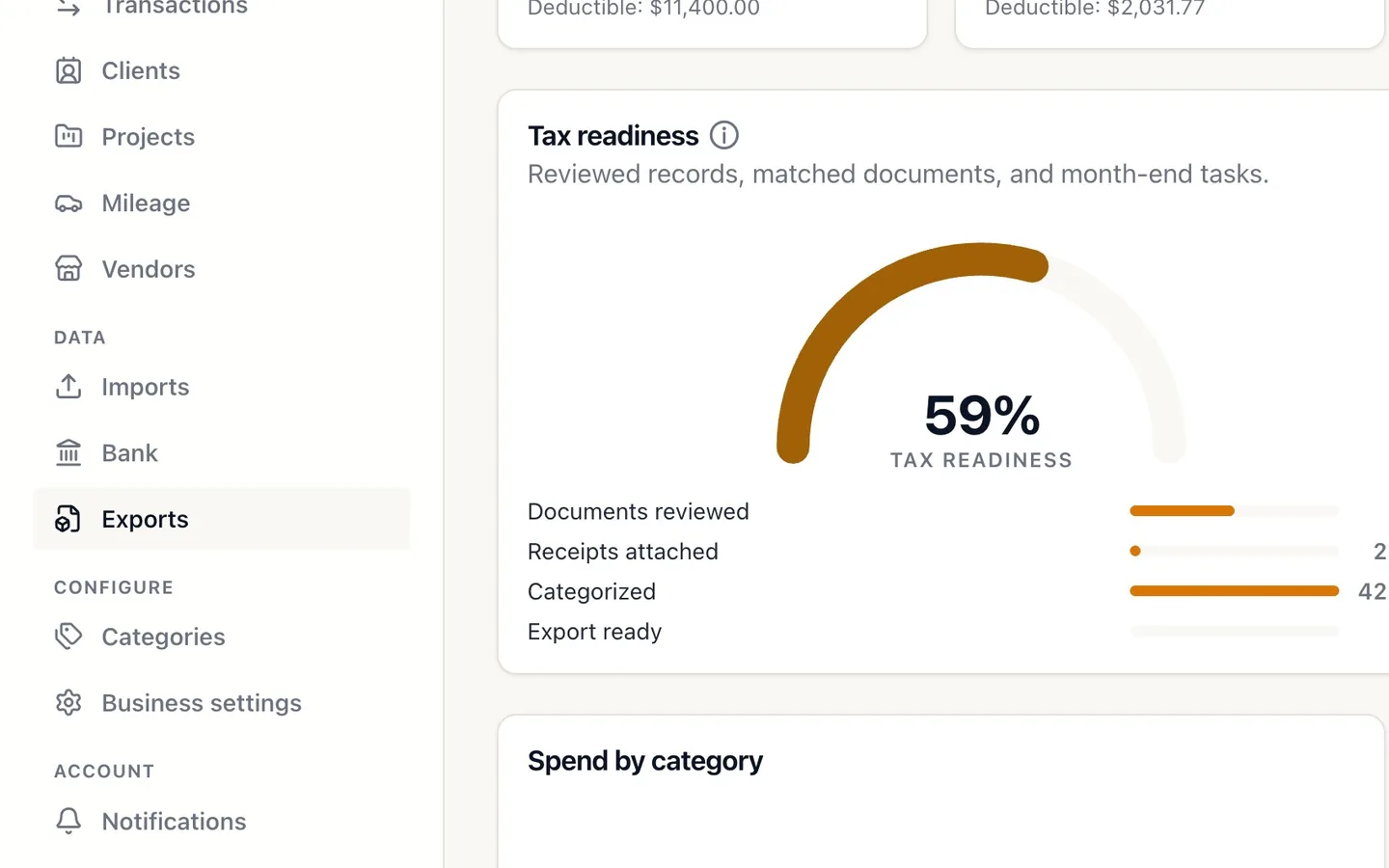
Select Exports in the sidebar.
You can open it from any page.
- 2
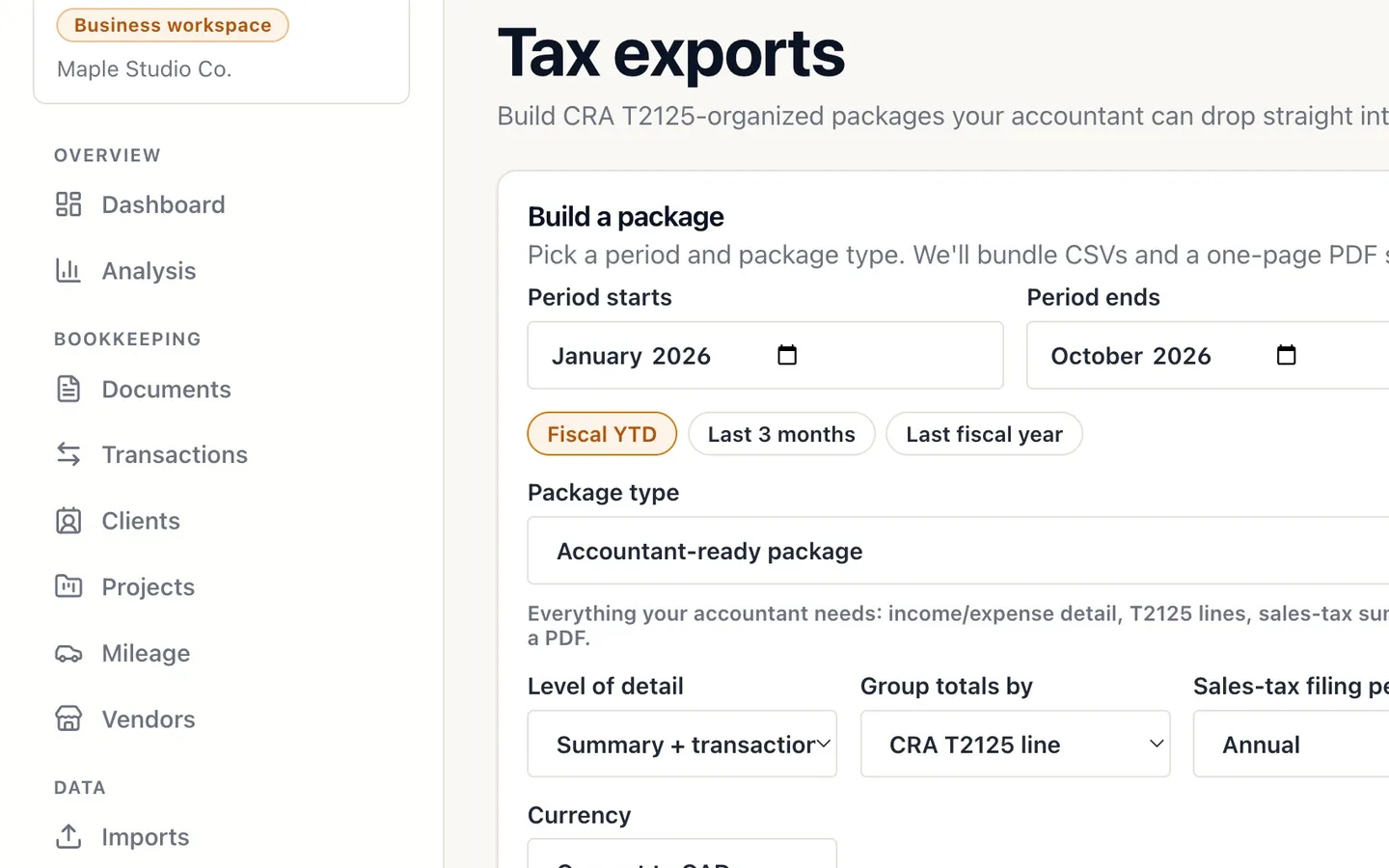
Choose the period: select Fiscal YTD.
Last 3 months and Last fiscal year fill the dates in too, or pick the months yourself.
- 3
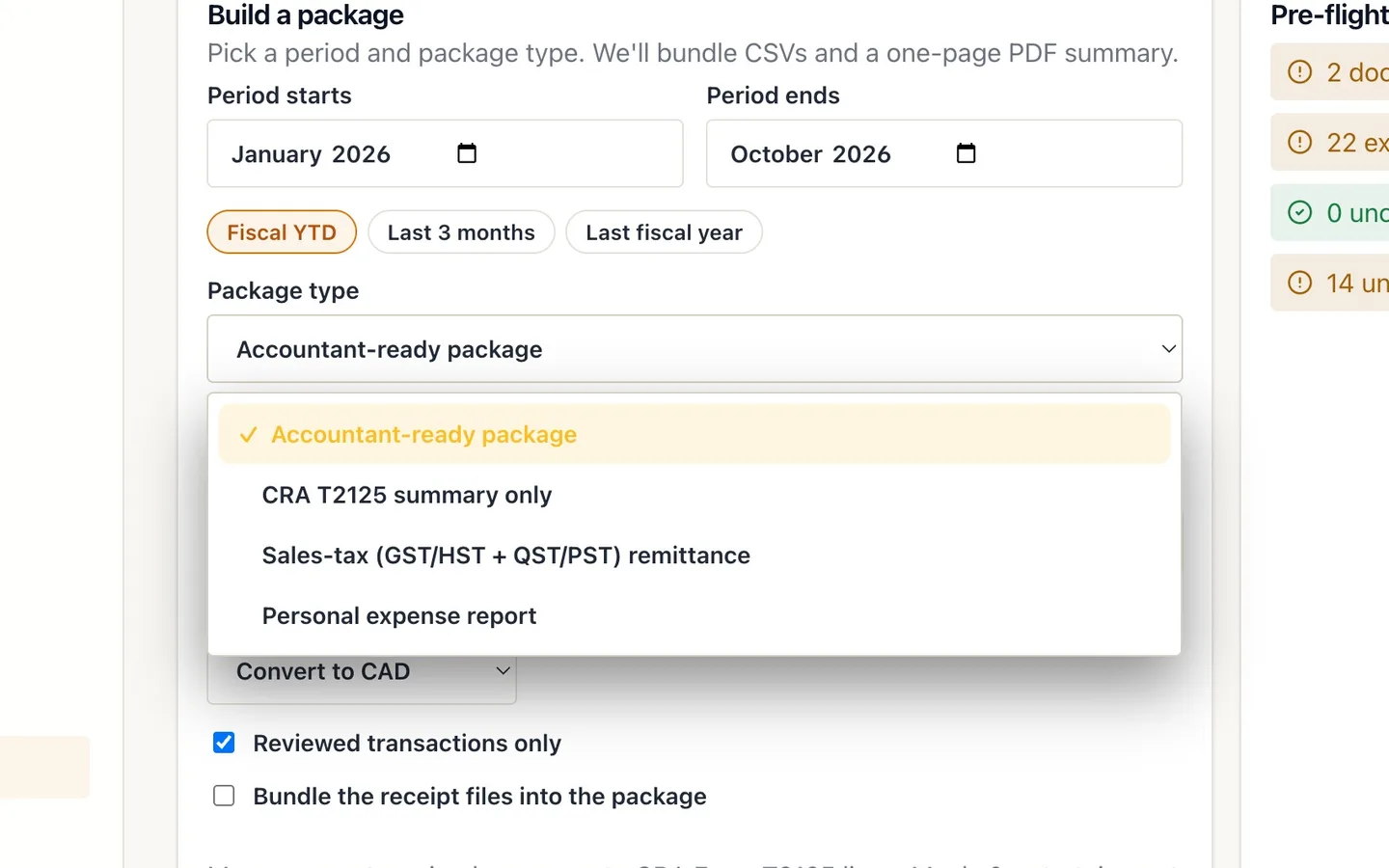
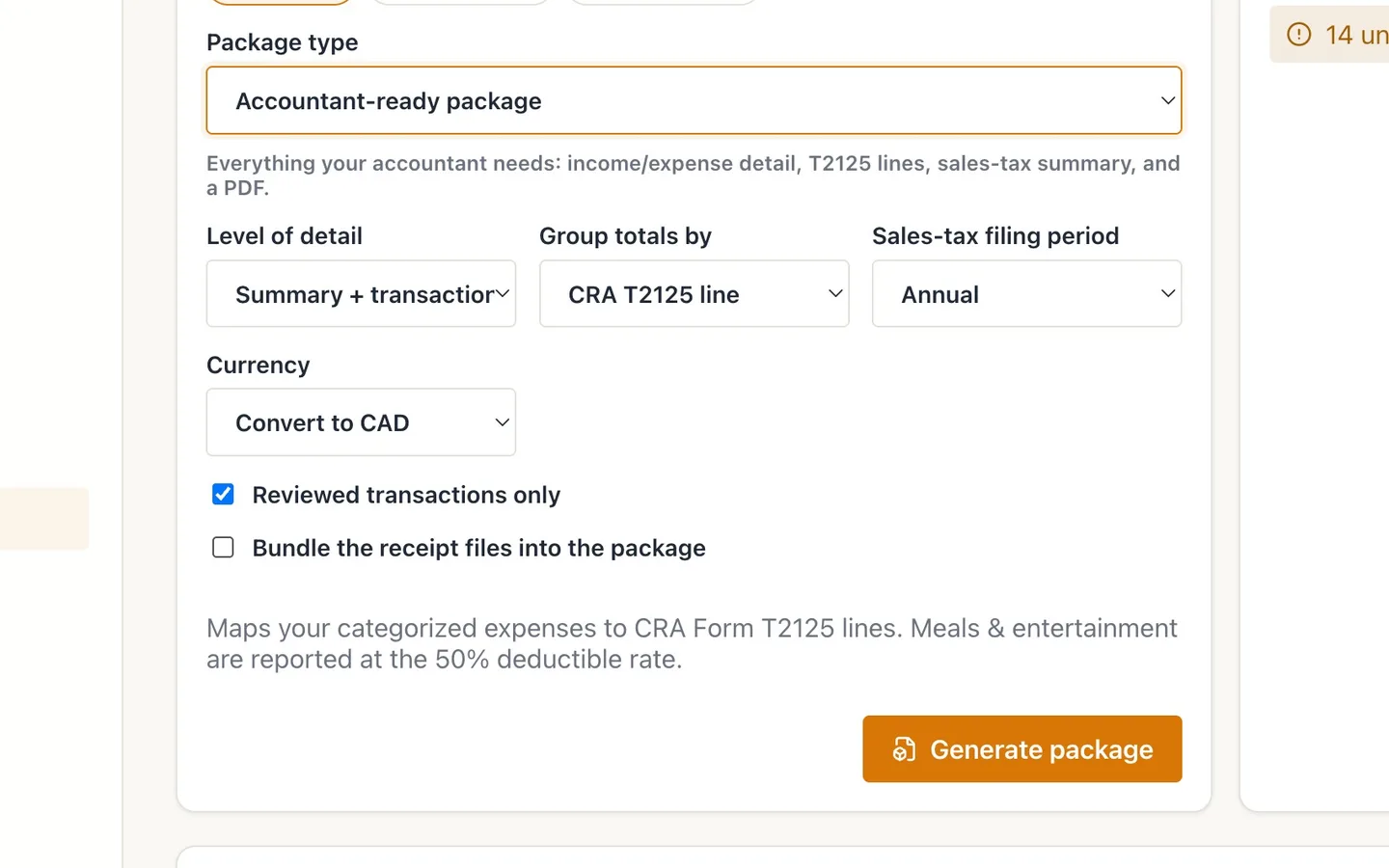
Open Package type and choose Accountant-ready package.
It has your income and expense detail, T2125 lines, a sales-tax summary and a one-page PDF.
- 4
Optional: tick Bundle the receipt files into the package.
Do this if your accountant wants copies of your receipts.
- 5
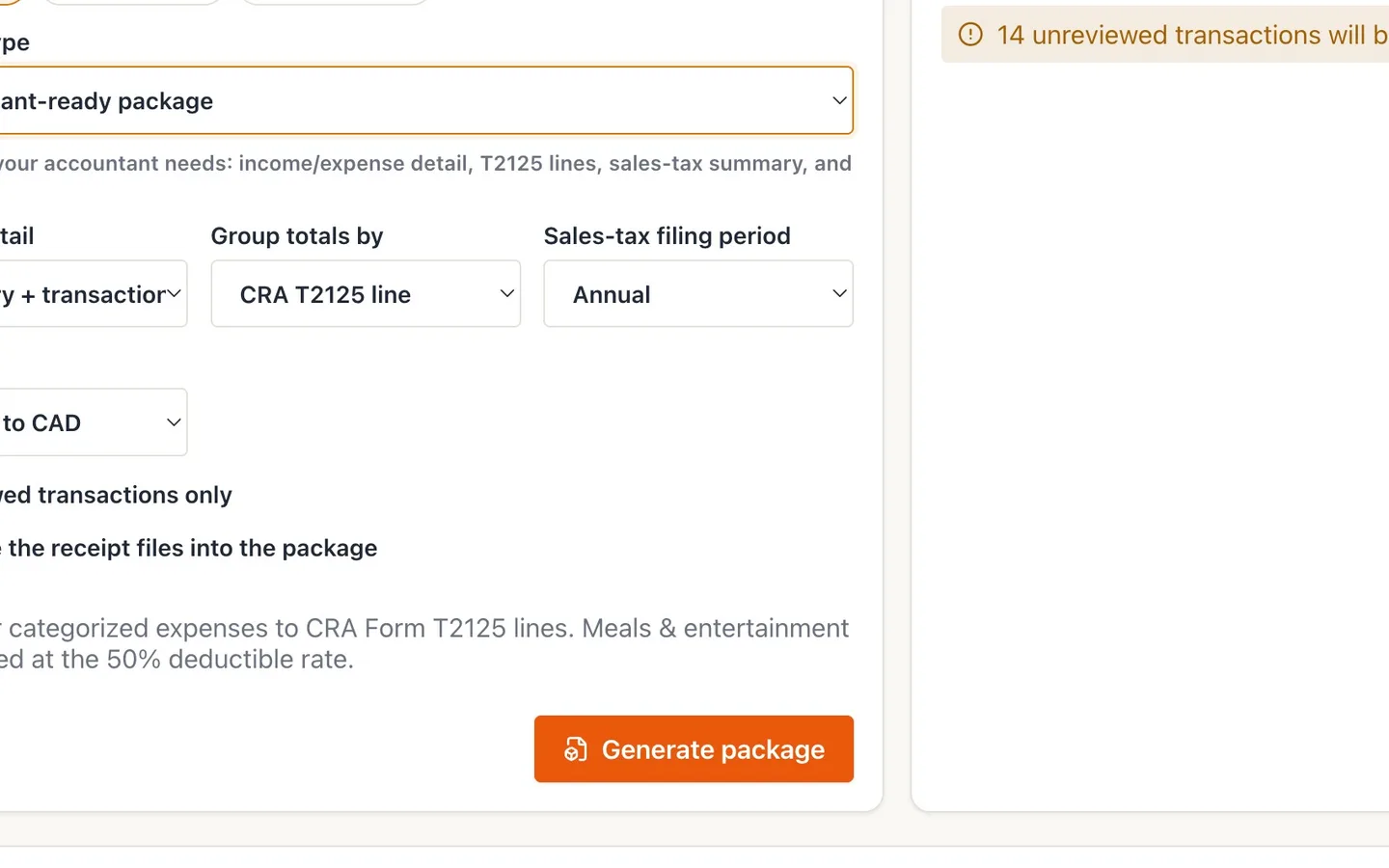
Select Generate package.
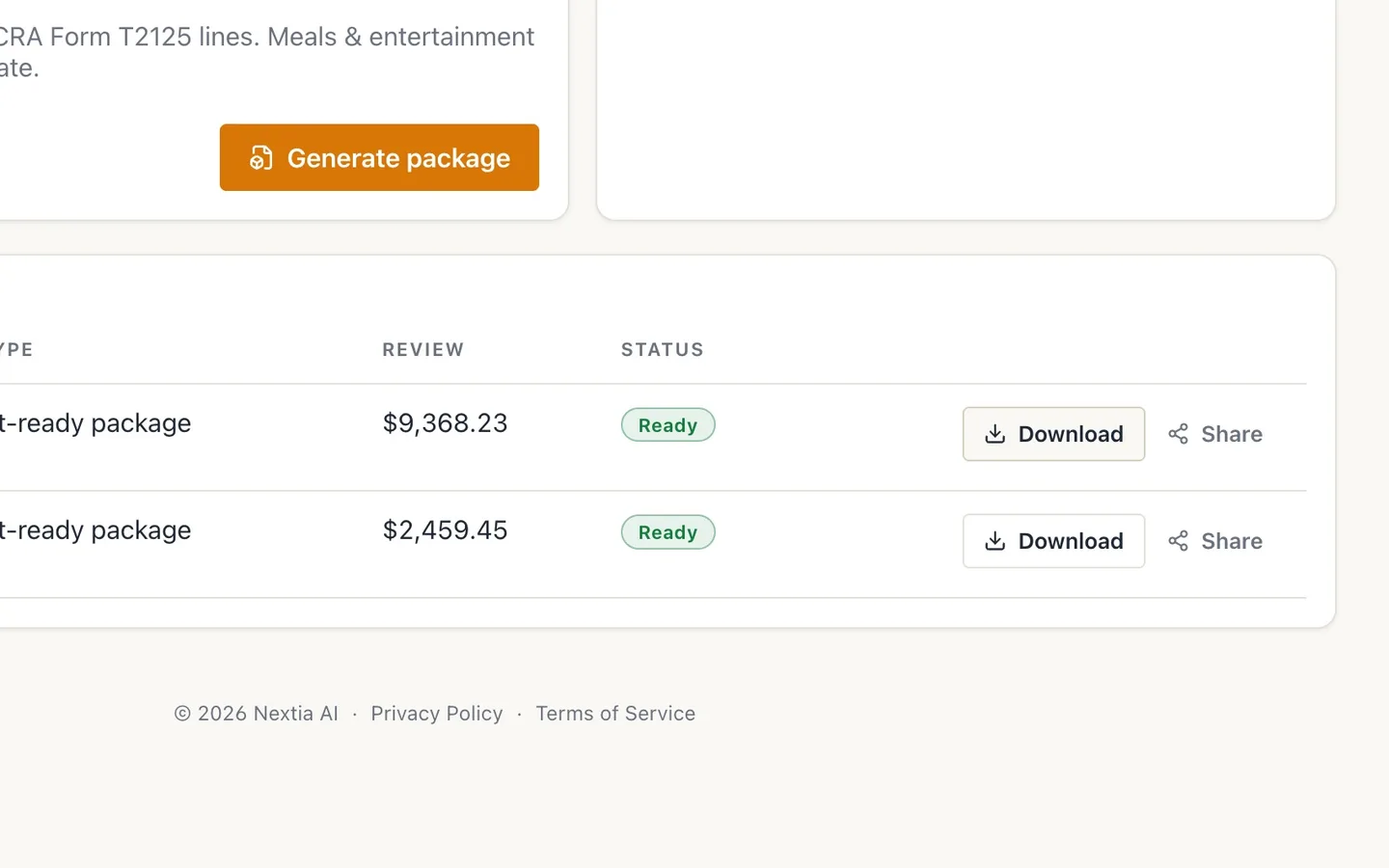
After a few seconds it appears under Previous exports, marked Ready.
- 6
Select Download to keep a copy.
A ZIP with spreadsheets, a missing-receipts list and a one-page summary.
- 7
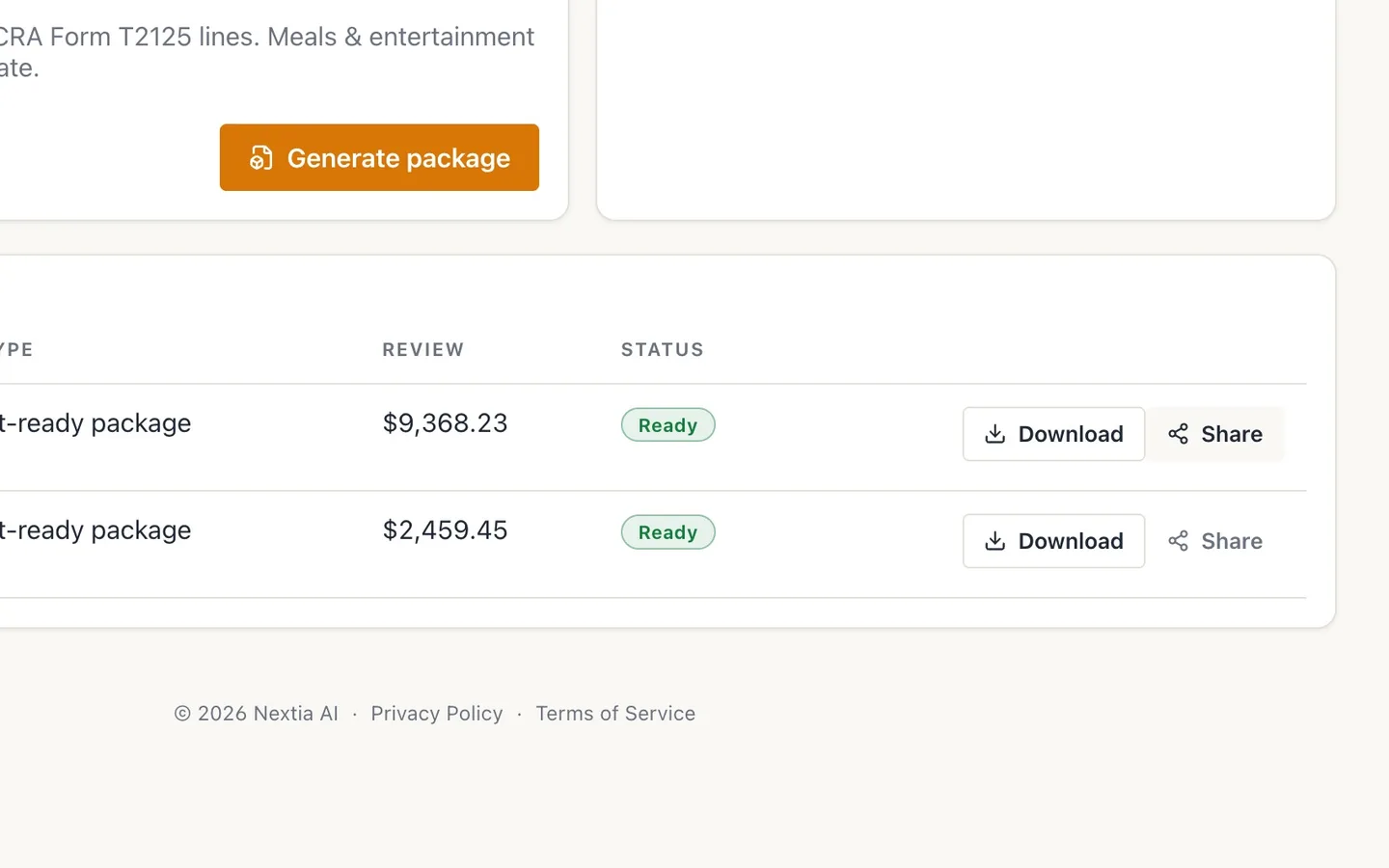
Select Share on the same row.
- 8
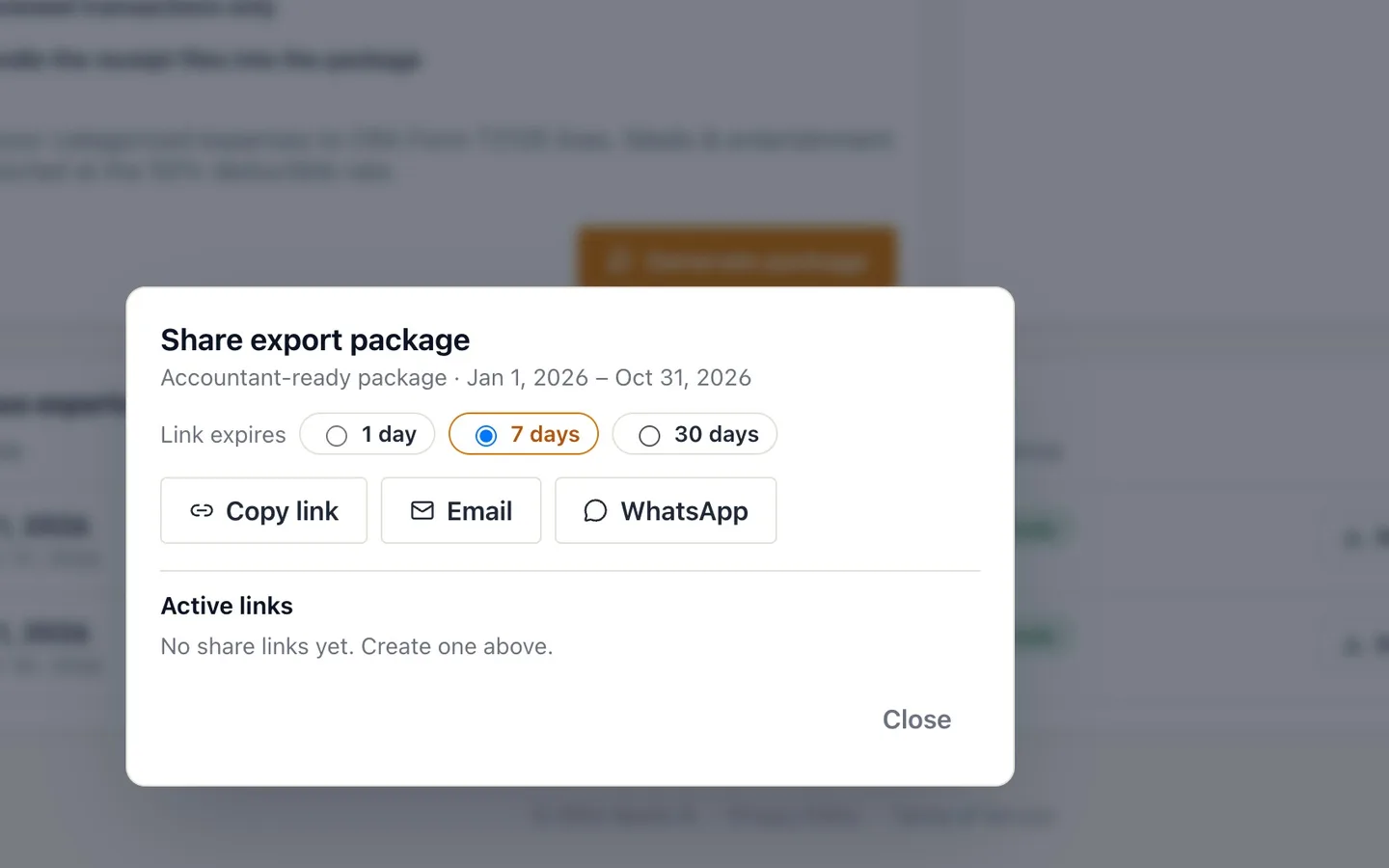
Choose how long the link works: 30 days.
1 day and 7 days are there too.
- 9
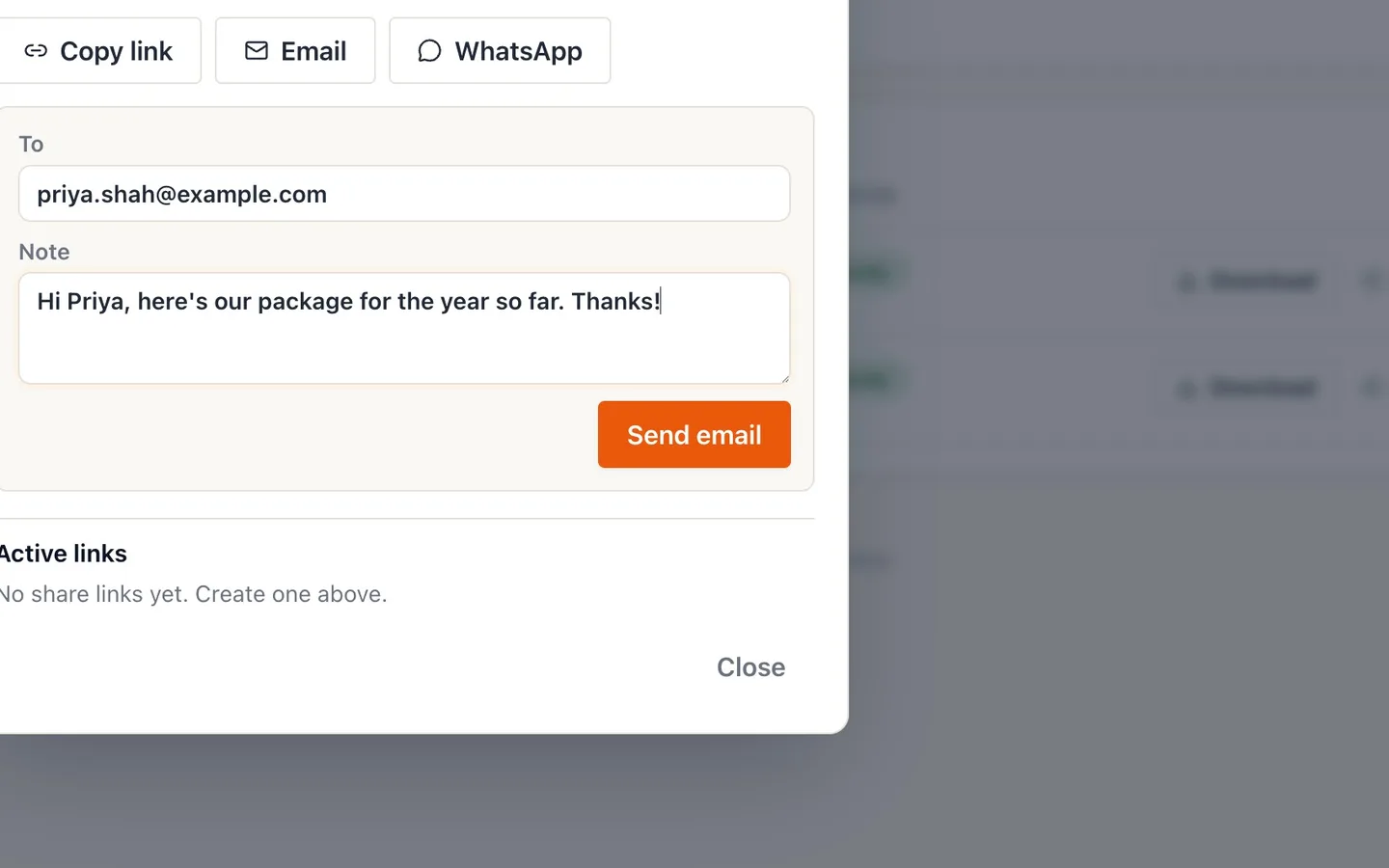
Select Email, enter your accountant's address and a note, then select Send email.
The note is optional.
- 10
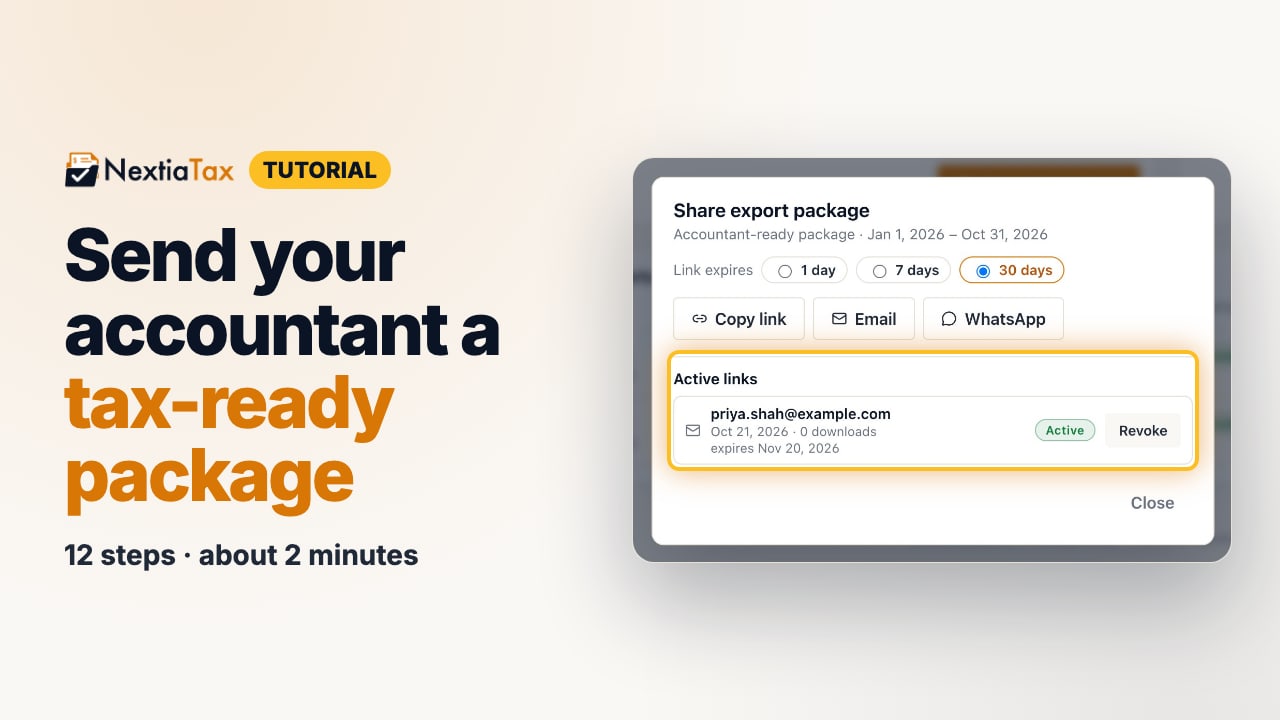
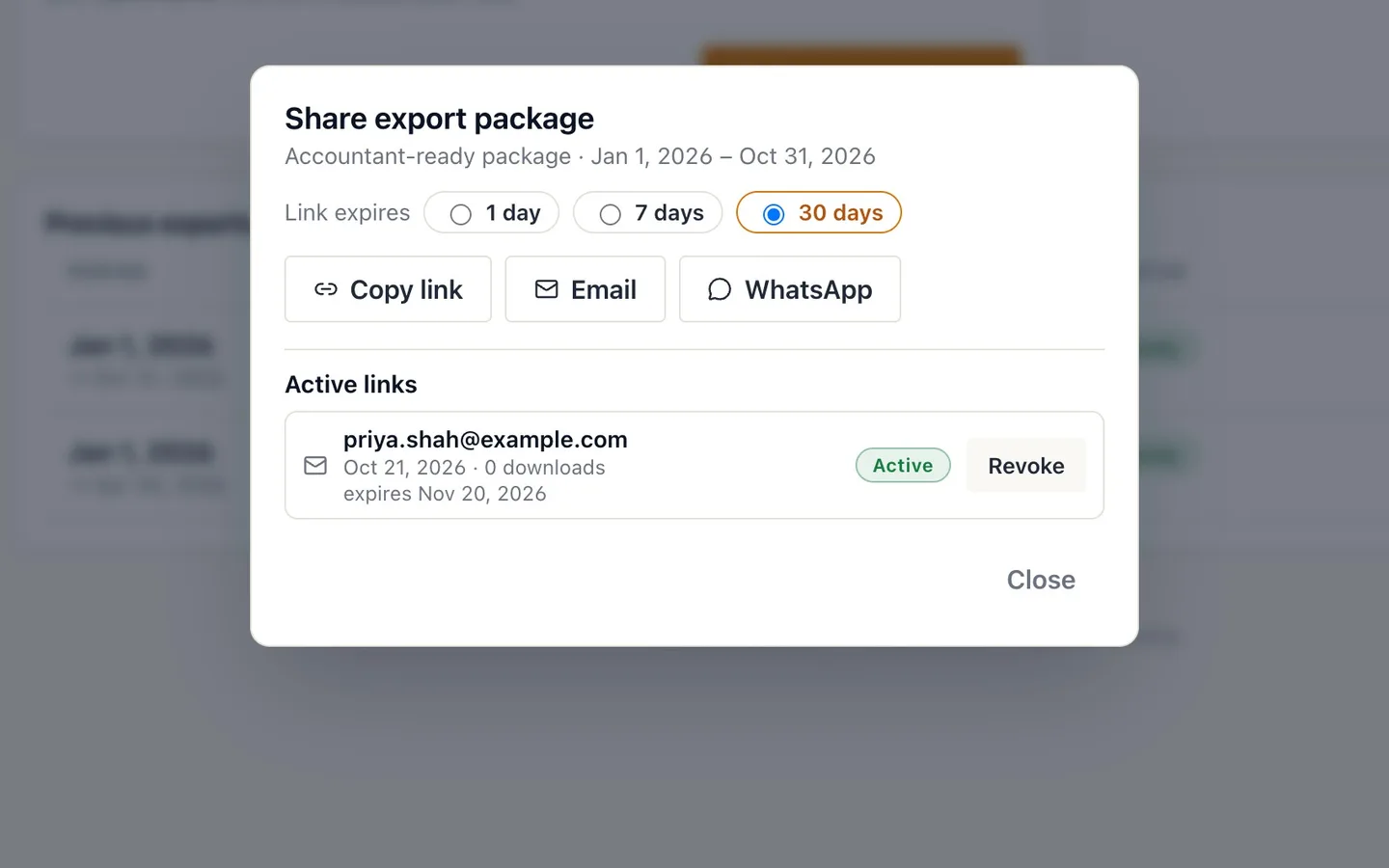
Your link appears under Active links.
It shows how many times it's been downloaded. Select Revoke to turn it off at any time.
- 11
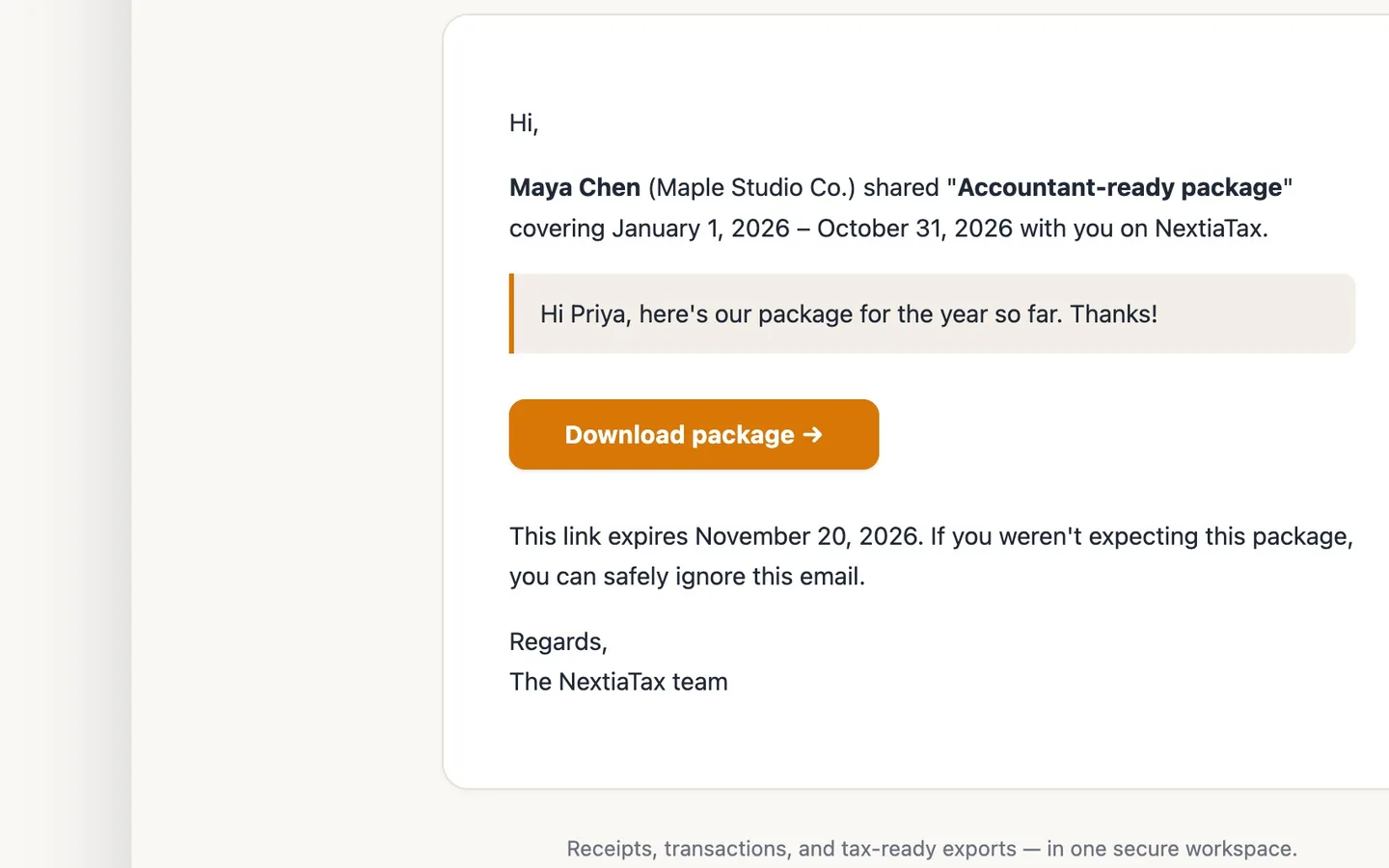
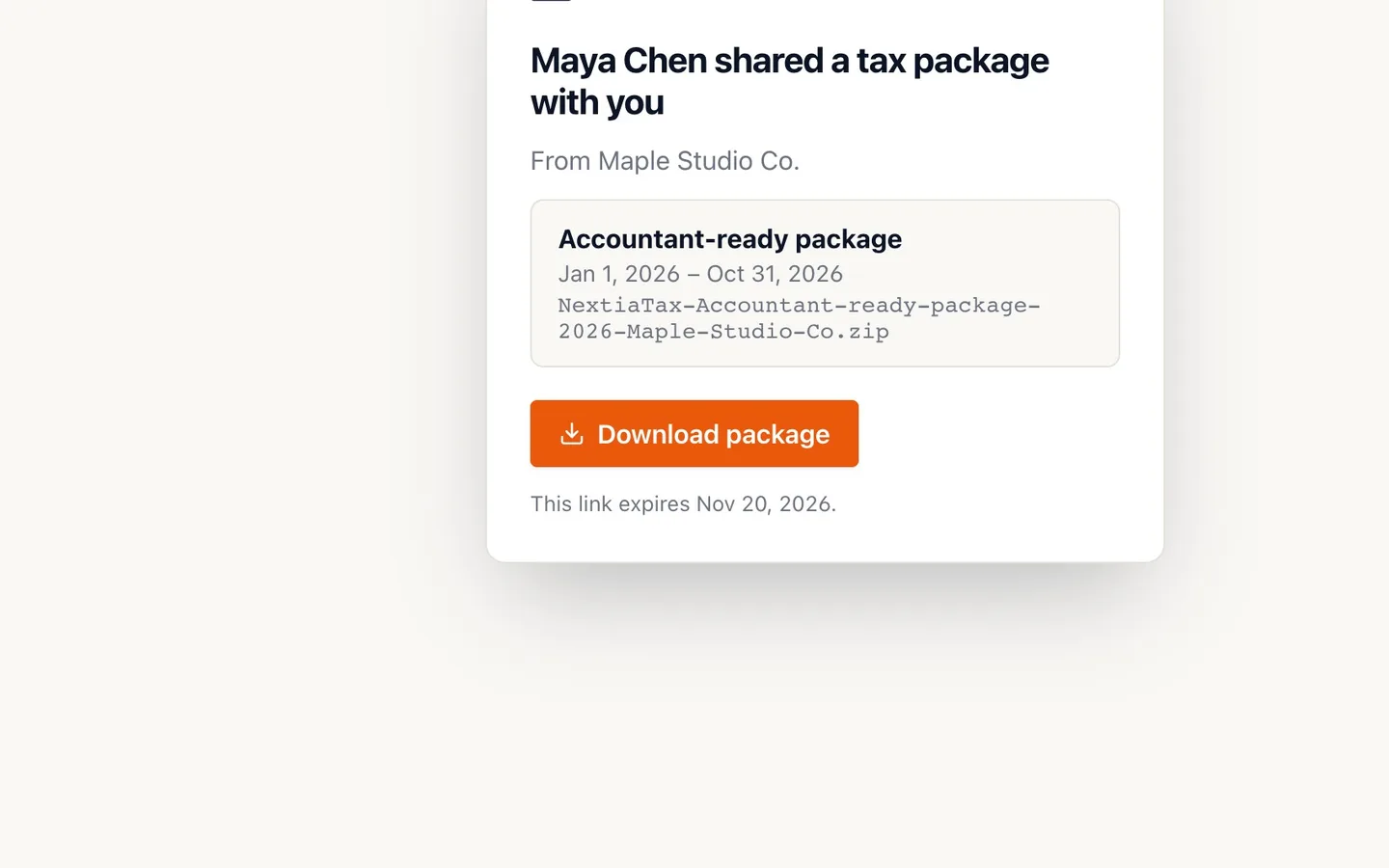
Your accountant gets an email and selects Download package.
It comes from NextiaTax, with your note.
- 12
They select Download package. That's it.
No account or password needed.
Send your accountant a tax-ready package
Before you start
- Review and categorize your transactions. By default the package includes reviewed transactions only; the pre-flight check on the Exports page says how many unreviewed ones would be left out.
- If Generate package is greyed out, your role can't create exports. Ask the business owner for access.
Steps
- Select Exports in the sidebar. You can open it from any page.
- Choose the period: select Fiscal YTD. Last 3 months and Last fiscal year fill the dates in too, or pick the months yourself.
- Open Package type and choose Accountant-ready package. It has your income and expense detail, T2125 lines, a sales-tax summary and a one-page PDF.
- Optional: tick Bundle the receipt files into the package. Do this if your accountant wants copies of your receipts.
- Select Generate package. After a few seconds it appears under Previous exports, marked Ready.
- Select Download to keep a copy. A ZIP with spreadsheets, a missing-receipts list and a one-page summary.
- Select Share on the same row.
- Choose how long the link works: 30 days. 1 day and 7 days are there too.
- Select Email, enter your accountant's address and a note, then select Send email. The note is optional.
- Your link appears under Active links. It shows how many times it's been downloaded. Select Revoke to turn it off at any time.
- Your accountant gets an email and selects Download package. It comes from NextiaTax, with your note.
- They select Download package. That's it. No account or password needed.
Tips
- Prefer to send it yourself? In the Share window, Copy link or WhatsApp creates the same secure link.
- Links work for 1, 7 or 30 days. Thirty days gives your accountant time to come back to it.
- Every package you build stays under Previous exports, so you can share it again later.
If something goes wrong
- The link doesn't open for your accountant. It may have expired or been revoked. Open Share on the package and send a new link.
- The package shows Failed. Select Generate package again. If it fails twice, contact support from the Help menu.