
Understand your numbers
The Dashboard gives you the daily picture. Analysis breaks it down by category, vendor, month and more.
- 9 steps
- About 2 min
- Checked against NextiaTax on October 21, 2026
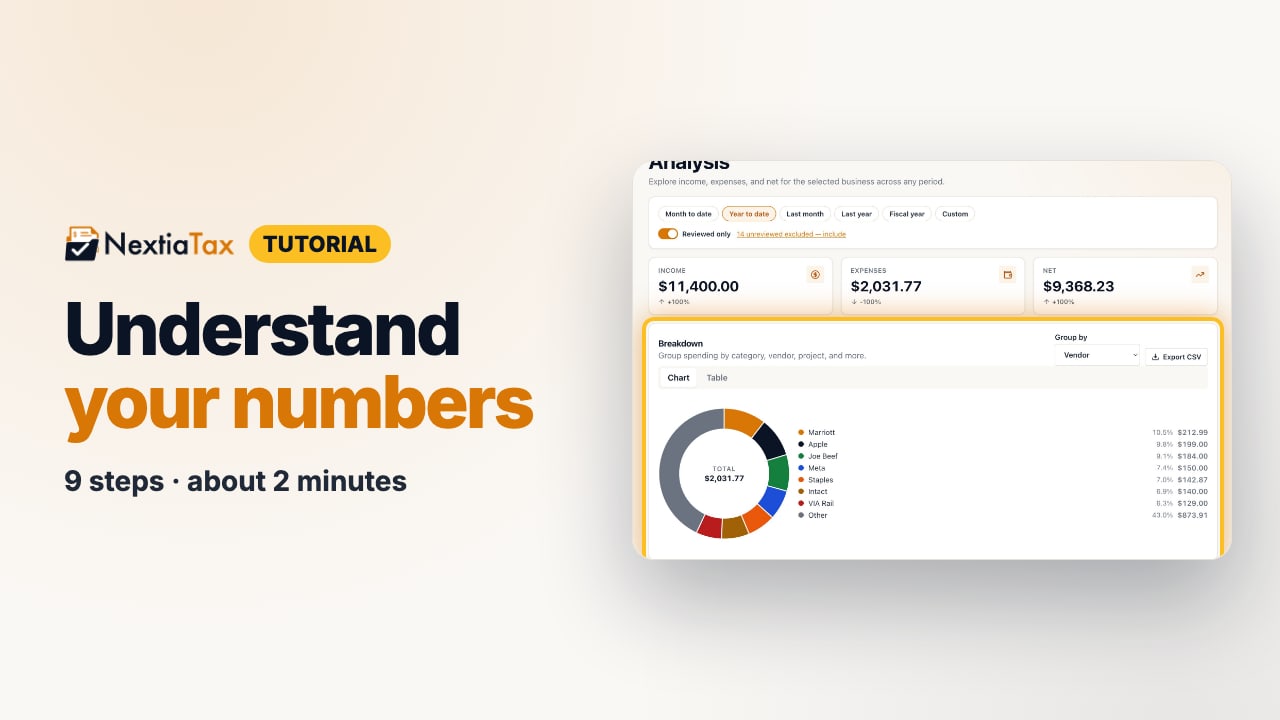
The video is on its way. The step-by-step and written versions are ready now.
- 1
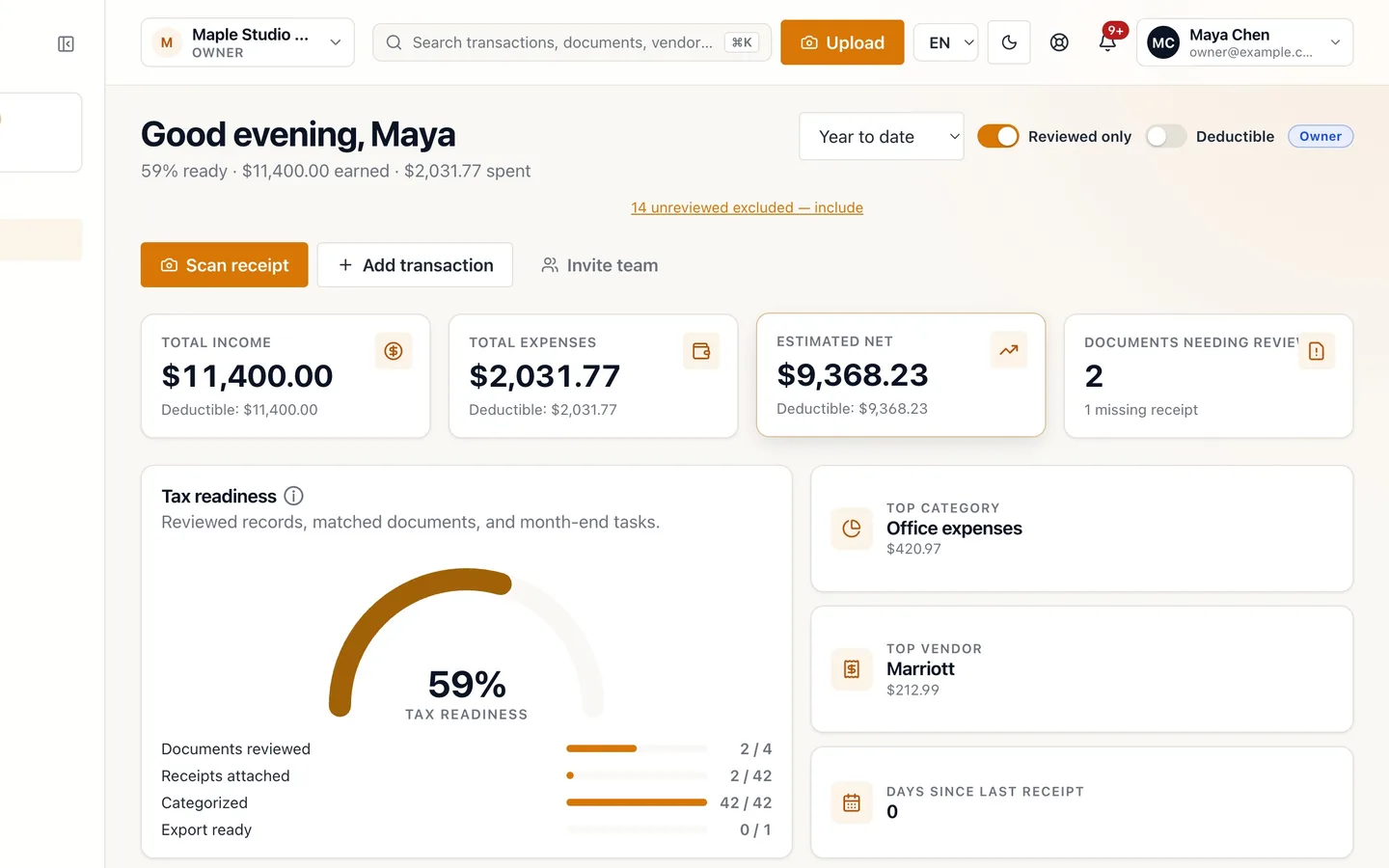
Start on the Dashboard.
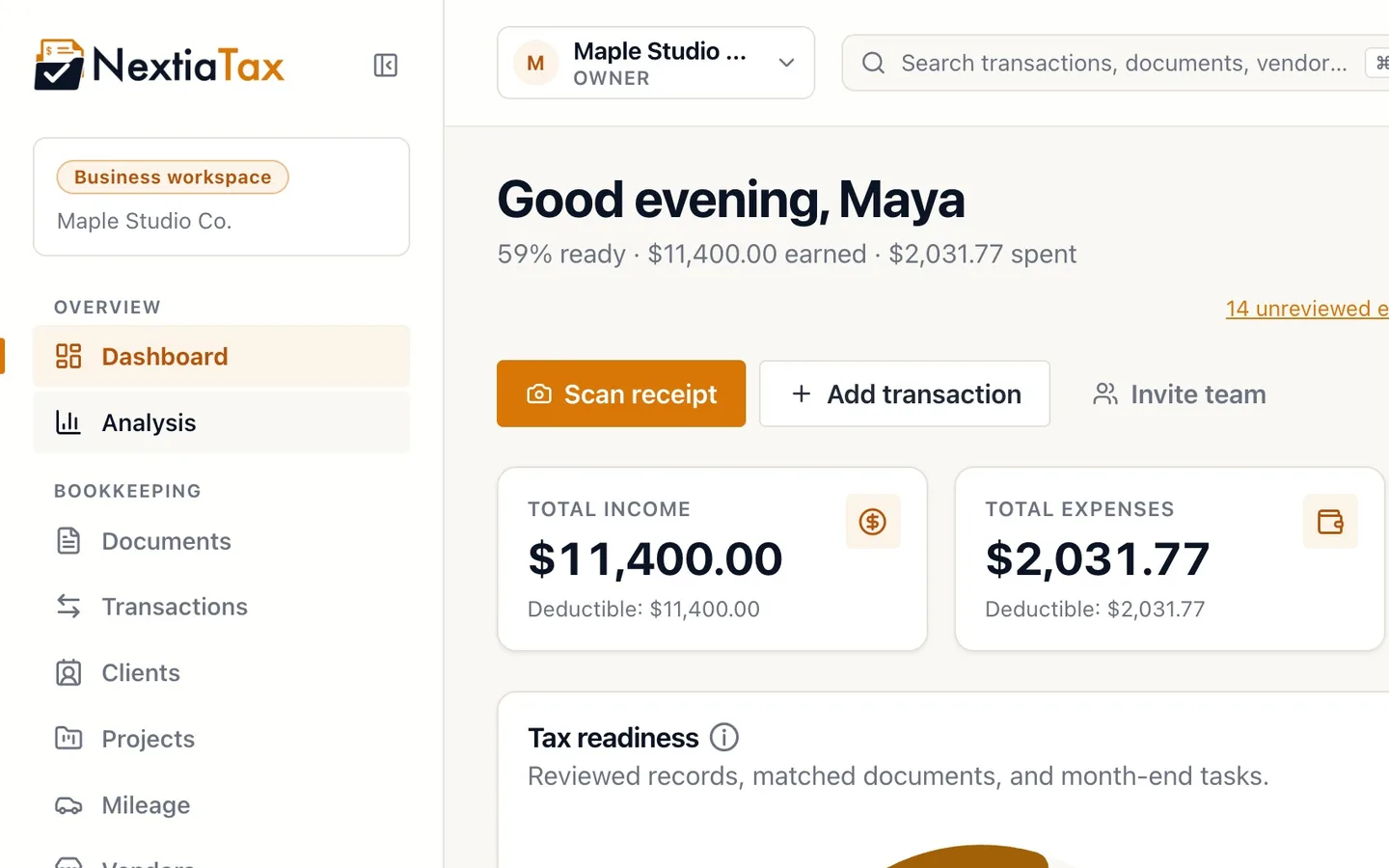
Income, expenses and estimated net for the period you pick.
- 2
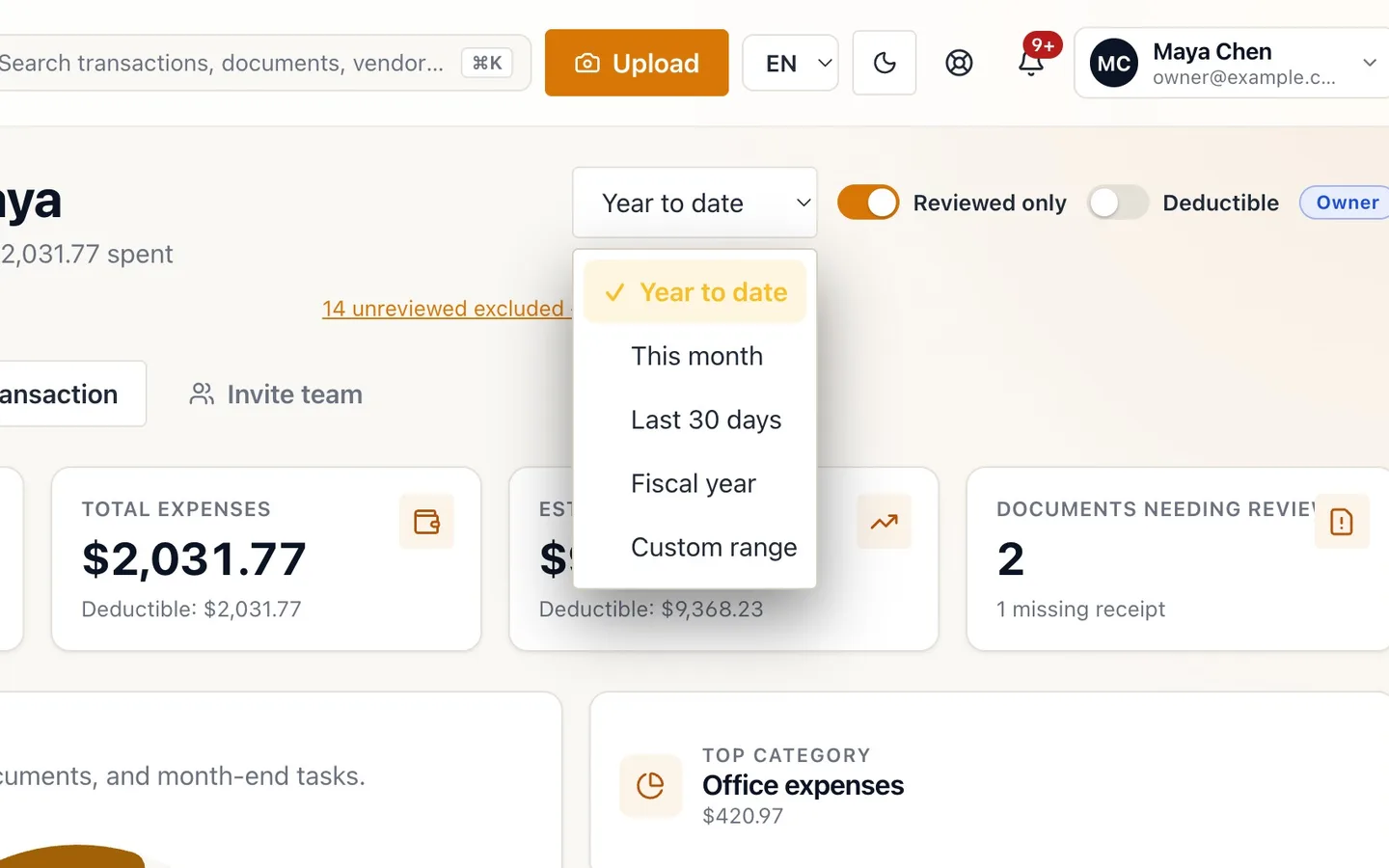
Pick the period.
Year to date, This month, Last 30 days, Fiscal year or Custom range.
- 3
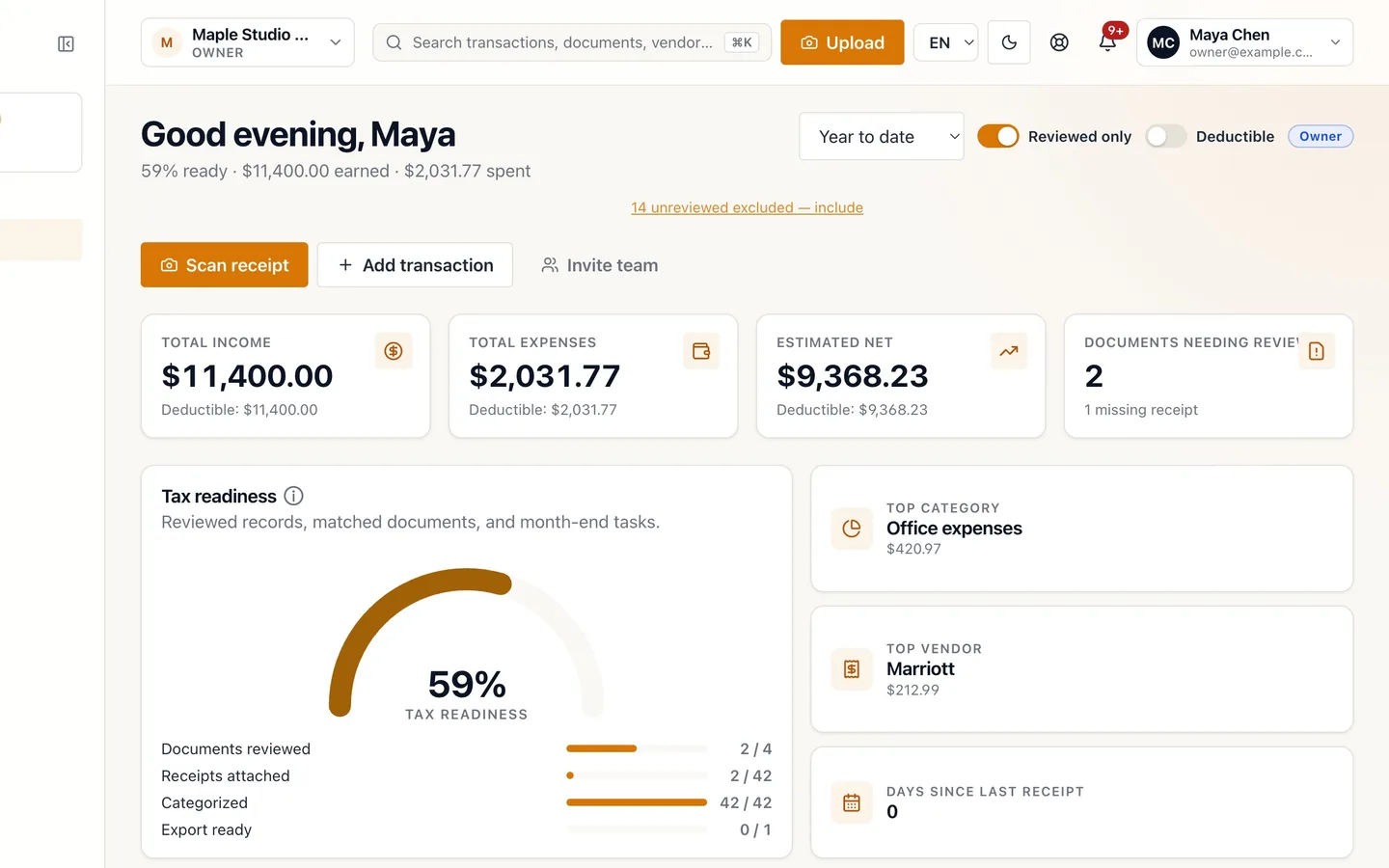
Use Reviewed only to see confirmed numbers.
The note shows how many unreviewed transactions are left out; select it to include them.
- 4
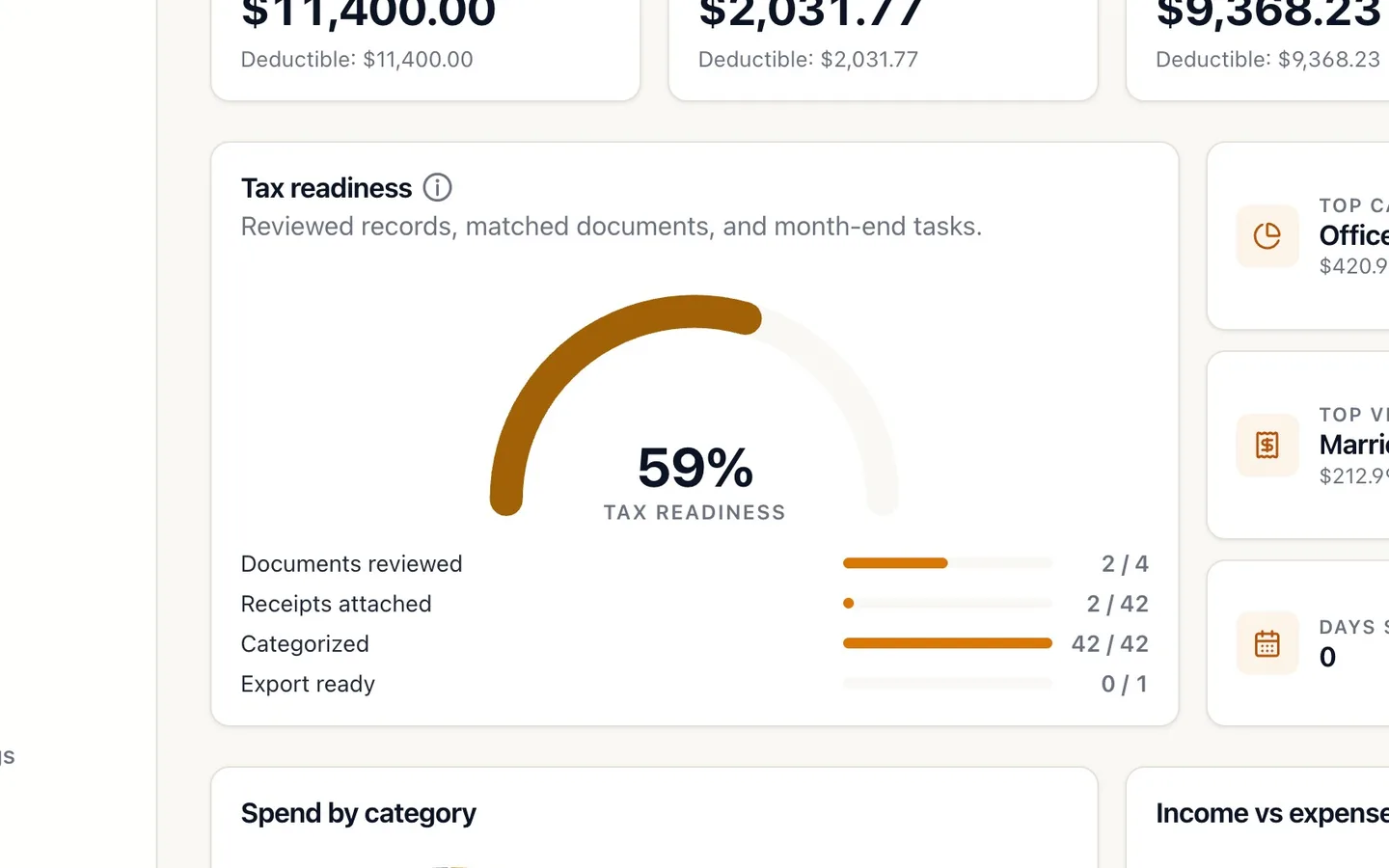
Check Tax readiness.
Documents reviewed, receipts attached, categorized, and export ready.
- 5
Select Analysis in the sidebar.
Owners, admins and accountants can open it.
- 6
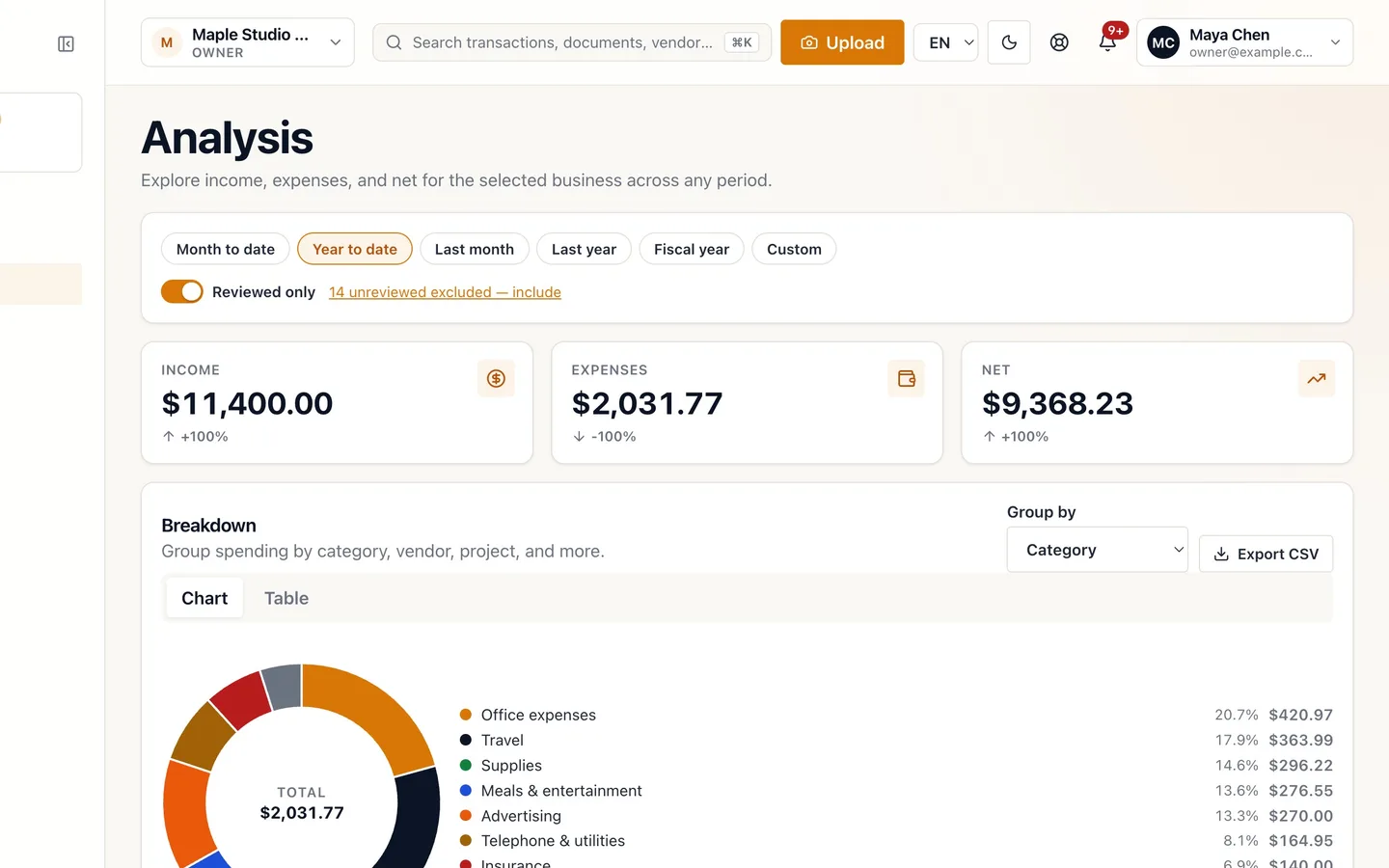
Pick a period.
Income, expenses and net, compared with the period before.
- 7
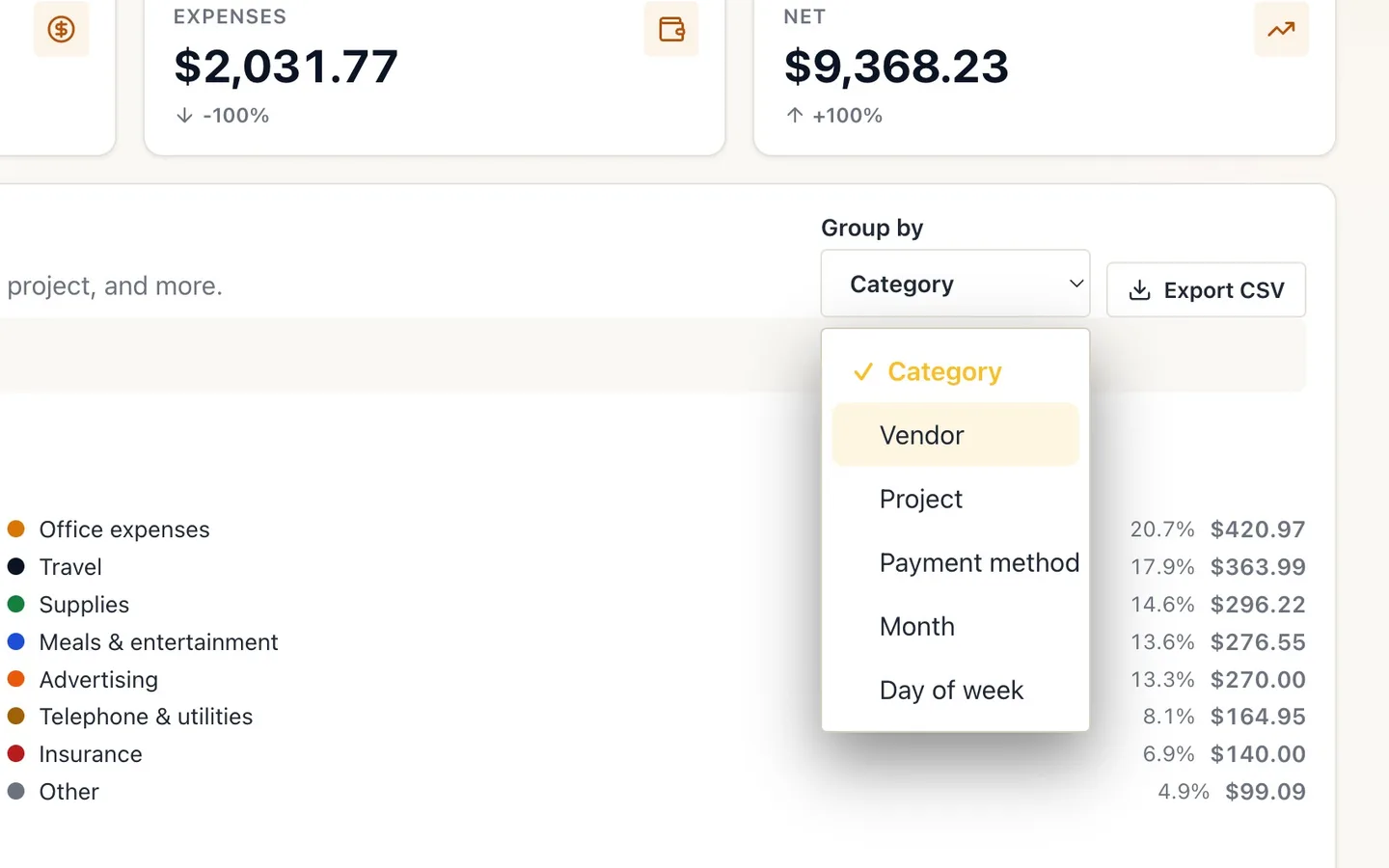
In Breakdown, choose how to Group by.
Category, vendor, project, payment method, month or day of the week. Here, Vendor.
- 8
Use the Pivot table to cross two dimensions.
For example, category by month.
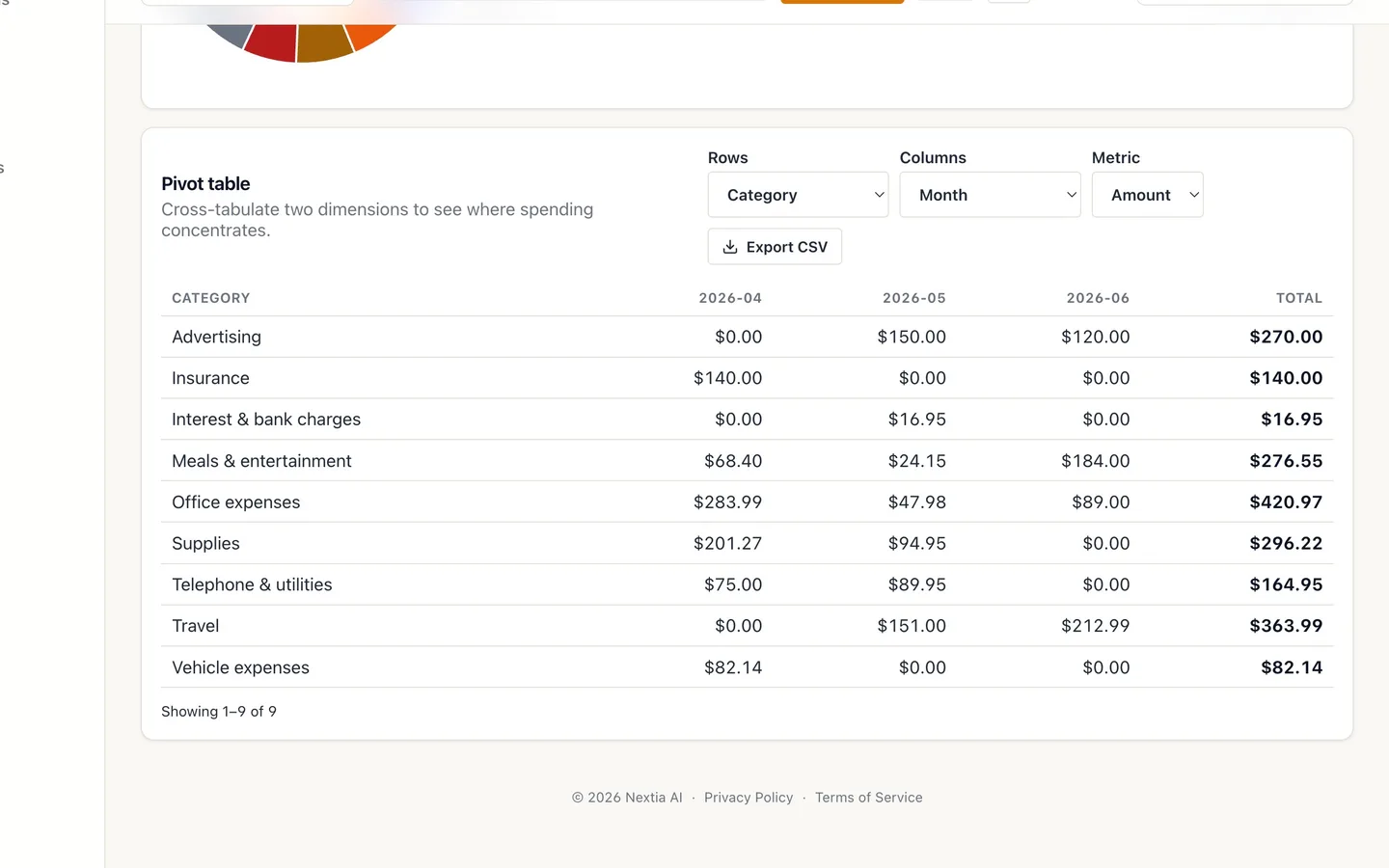
- 9
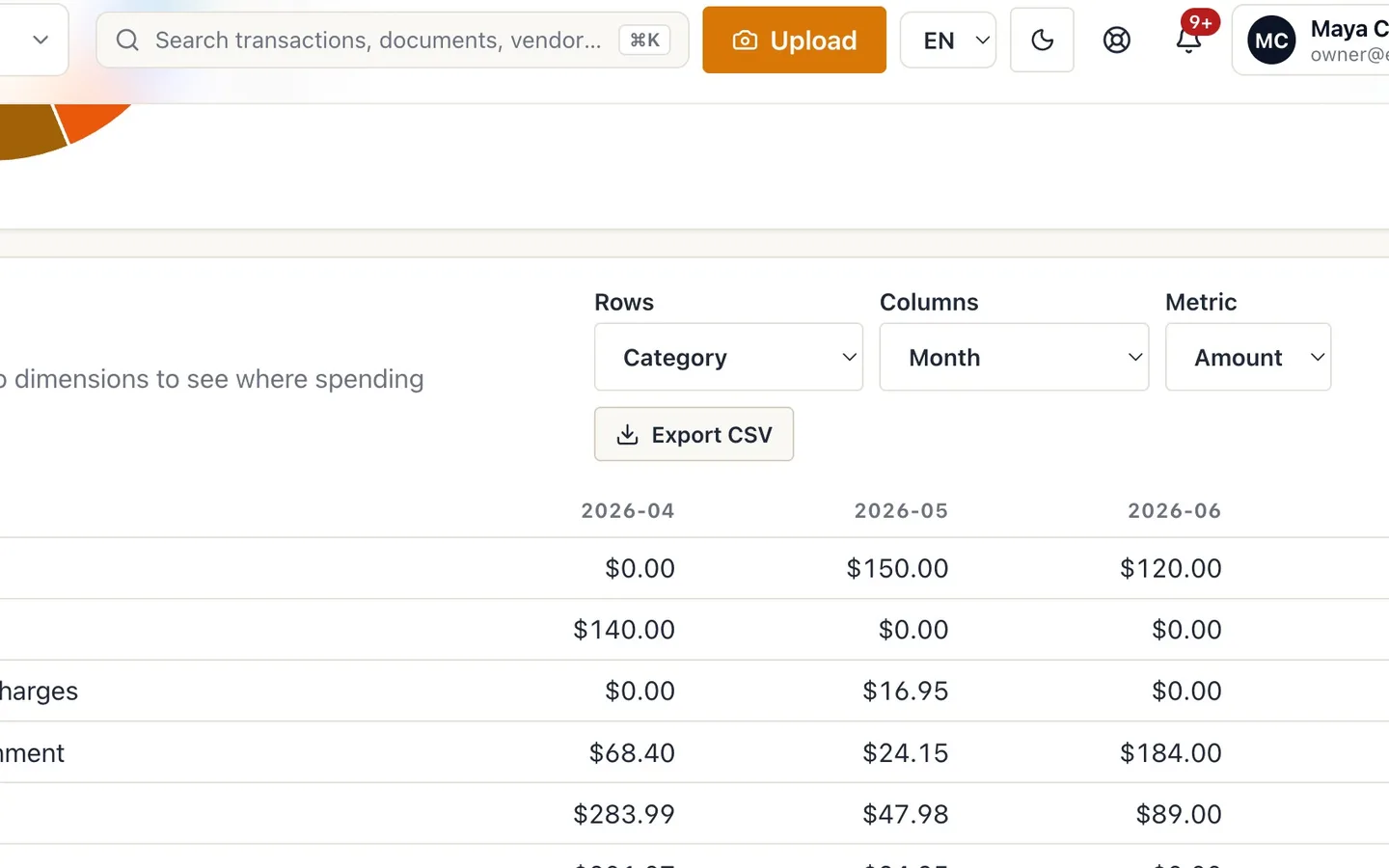
Select Export CSV to work in a spreadsheet.
Available on the web app.
Understand your numbers
Before you start
- Numbers count reviewed transactions by default, so review your queue first for the full picture.
- Analysis needs the Owner, Admin or Accountant role.
Steps
- Start on the Dashboard. Income, expenses and estimated net for the period you pick.
- Pick the period. Year to date, This month, Last 30 days, Fiscal year or Custom range.
- Use Reviewed only to see confirmed numbers. The note shows how many unreviewed transactions are left out; select it to include them.
- Check Tax readiness. Documents reviewed, receipts attached, categorized, and export ready.
- Select Analysis in the sidebar. Owners, admins and accountants can open it.
- Pick a period. Income, expenses and net, compared with the period before.
- In Breakdown, choose how to Group by. Category, vendor, project, payment method, month or day of the week. Here, Vendor.
- Use the Pivot table to cross two dimensions. For example, category by month.
- Select Export CSV to work in a spreadsheet. Available on the web app.
Tips
- If the reviewed and all-transactions views differ a lot, work the review queue on Transactions.
- The Dashboard and Analysis read the same transactions: the same period and review setting give the same totals.
If something goes wrong
- Your totals don't match your bank balance. NextiaTax counts your reviewed business records, not a live balance. Unreviewed, pending and personal transactions make the difference.
- You can't see Analysis. It needs the Owner, Admin or Accountant role. Ask the business owner.