
Invite your team with the right access
Invite your accountant, bookkeeper or staff by email, each with a role that gives exactly the access they need.
- 8 steps
- About 2 min
- Checked against NextiaTax on October 21, 2026
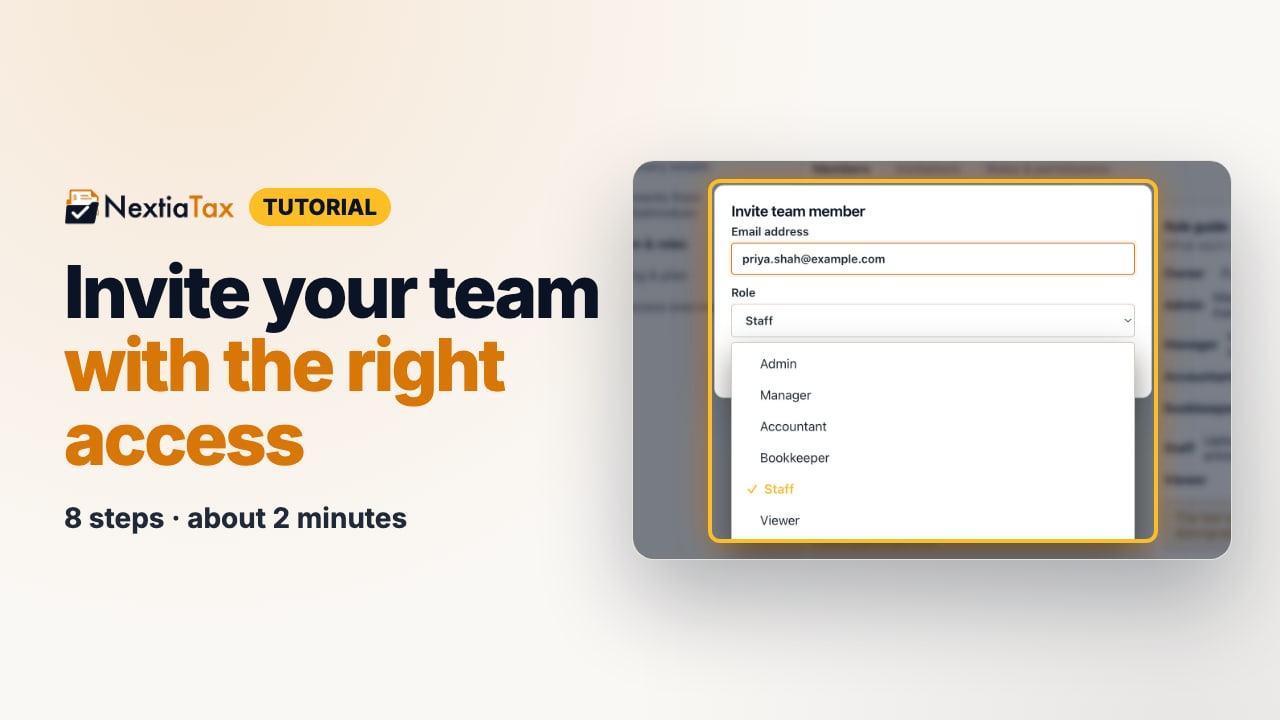
The video is on its way. The step-by-step and written versions are ready now.
- 1
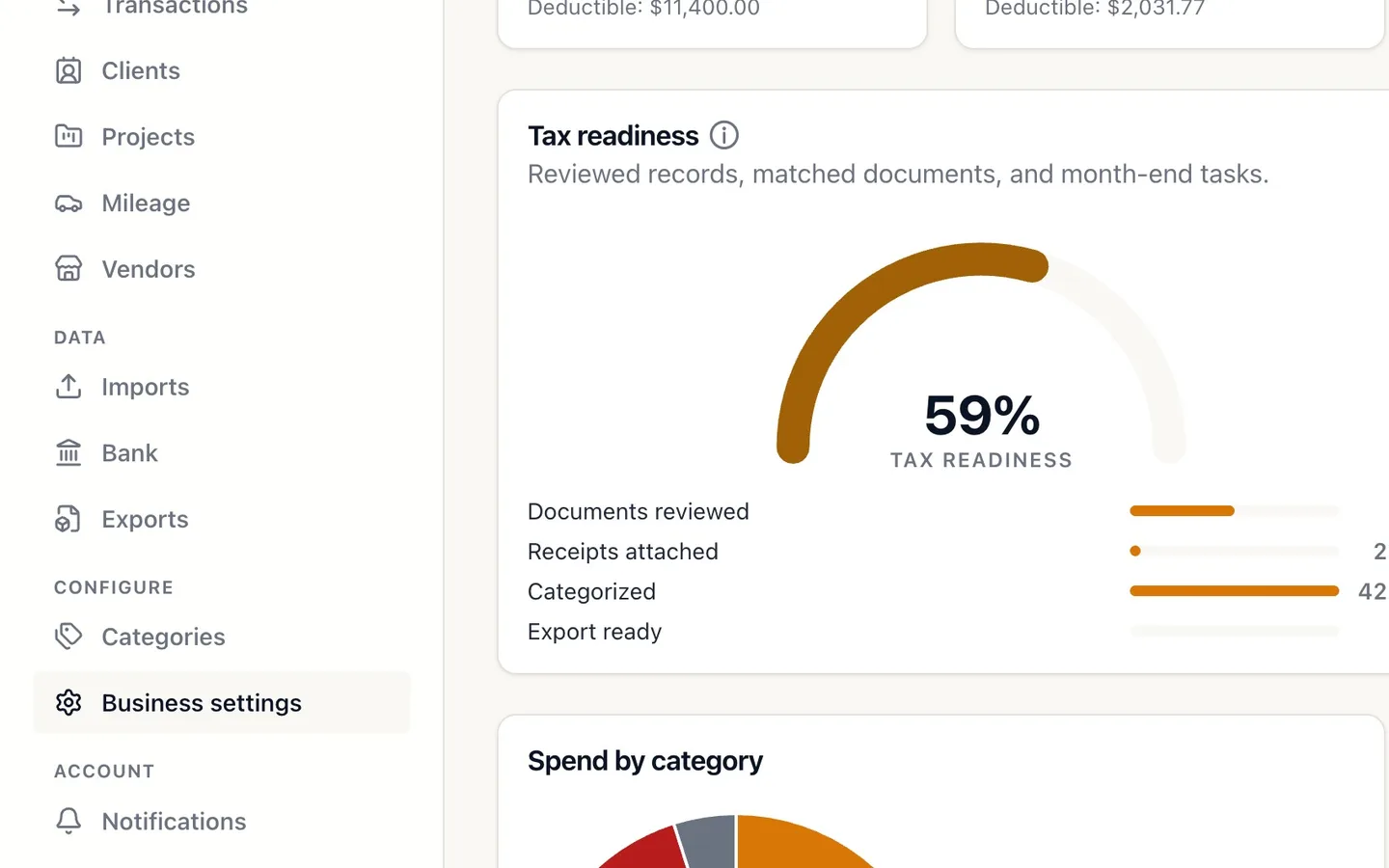
Select Business settings in the sidebar.
- 2
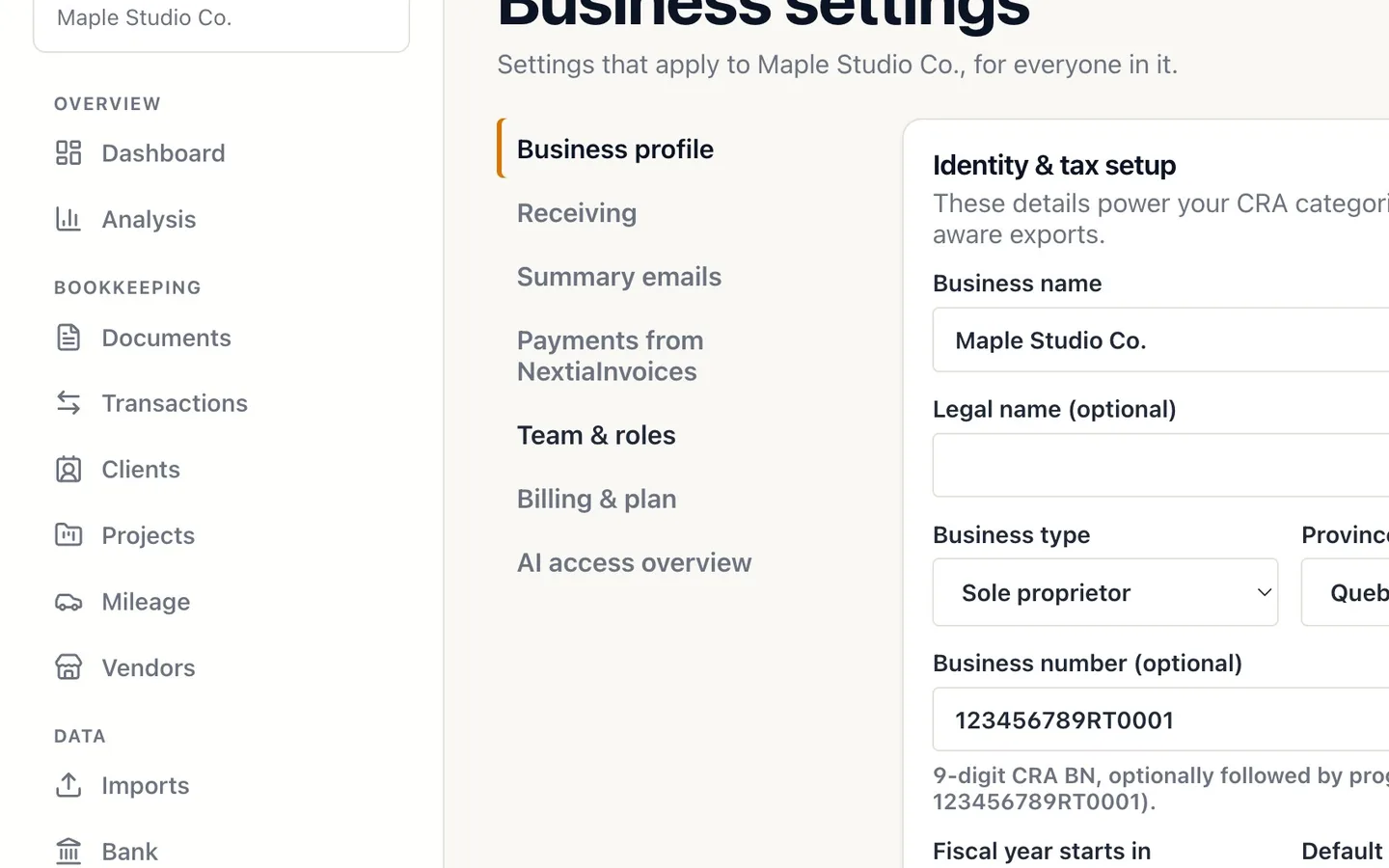
Select Team & roles.
- 3
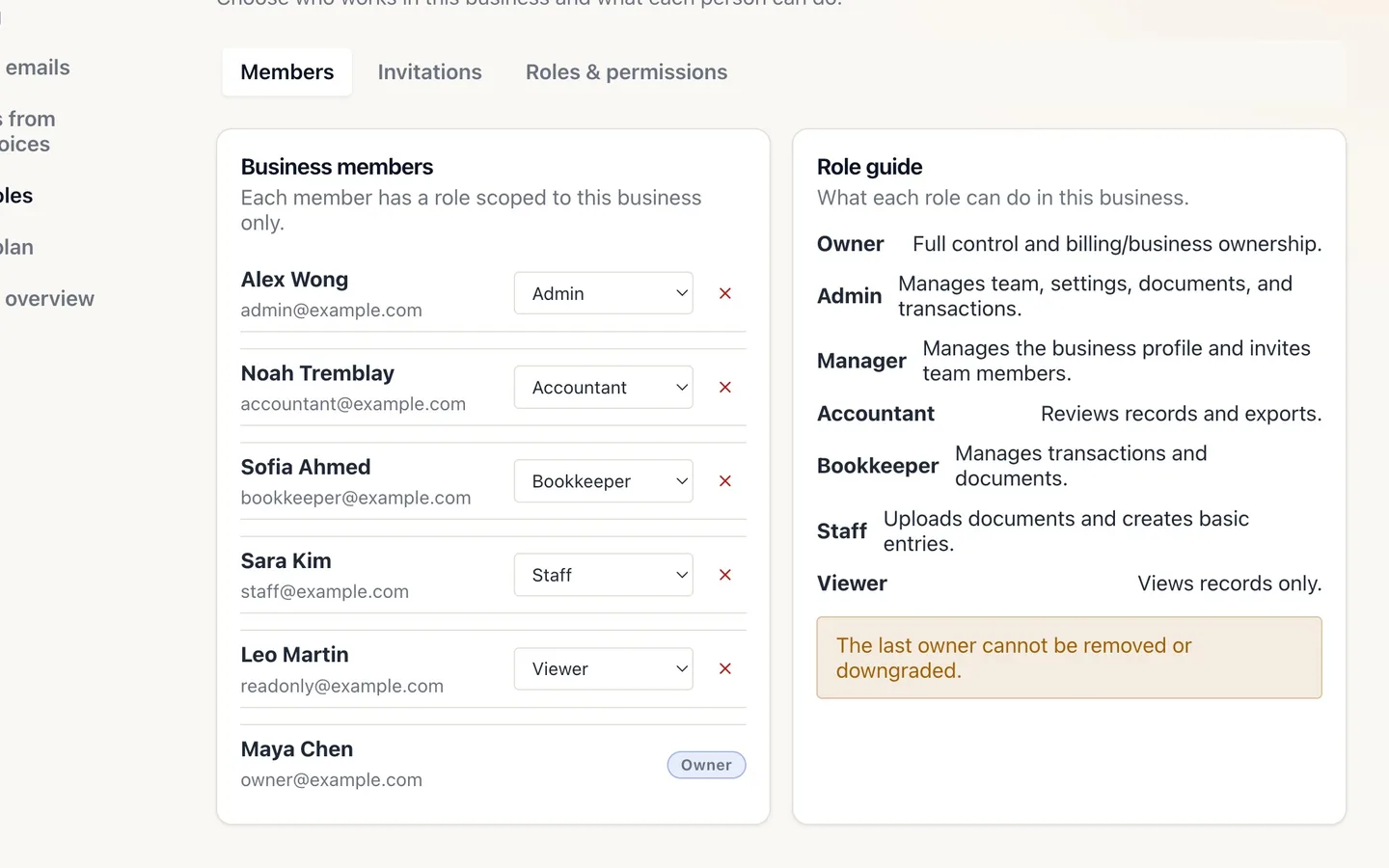
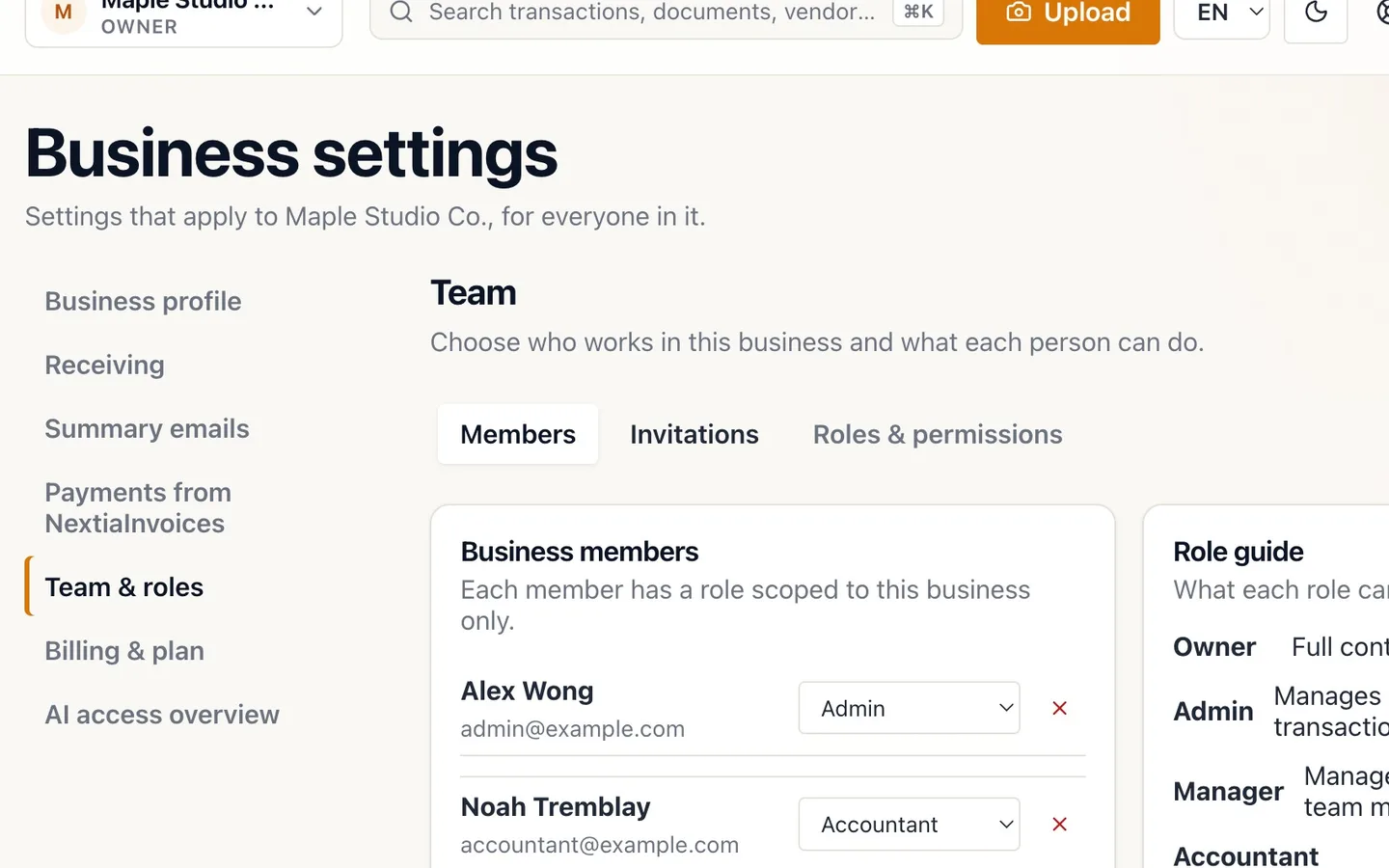
See who's in your business.
Each member has a role; the role guide says what each one is for.
- 4
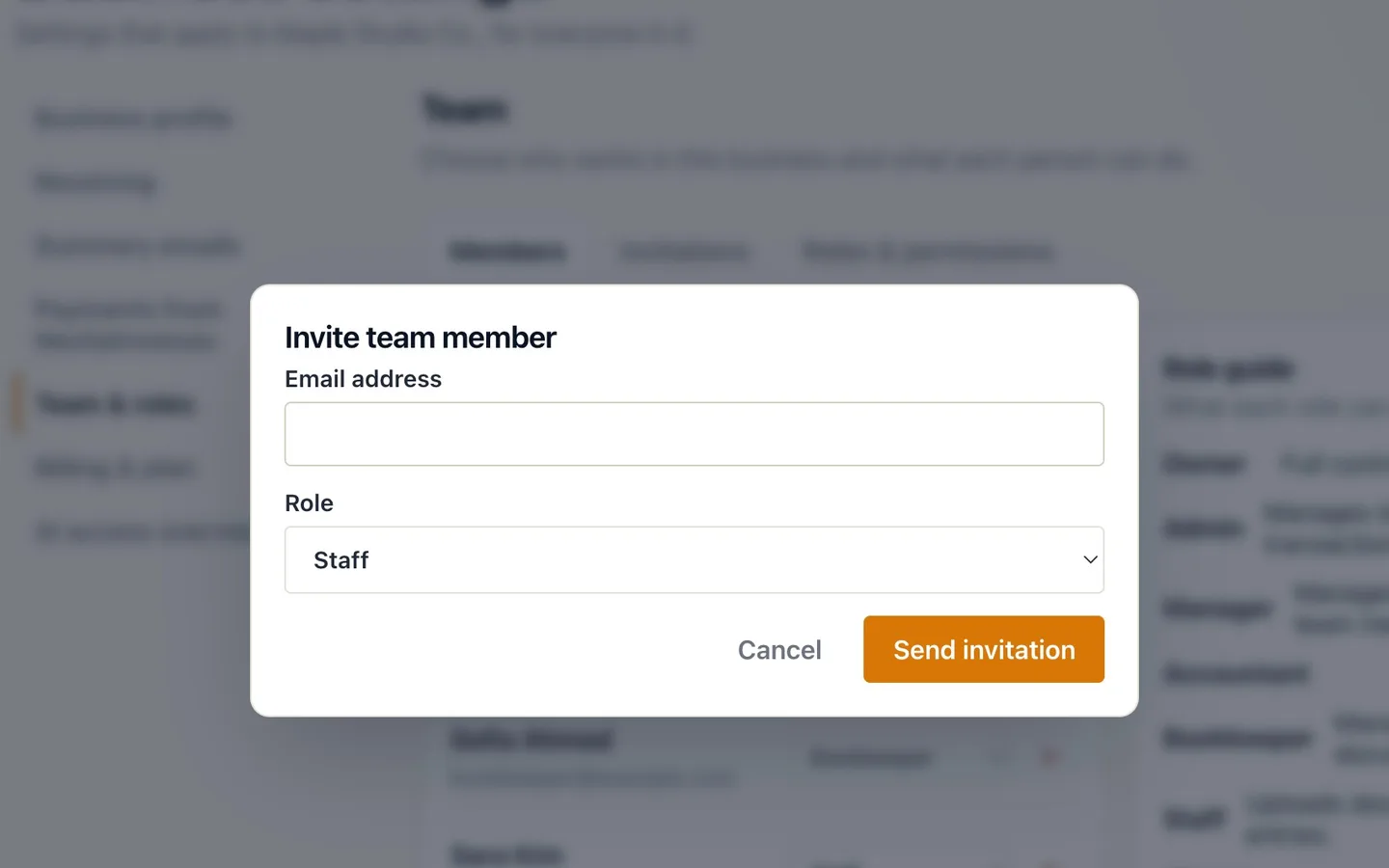
Select Invite user and enter their email address.
- 5
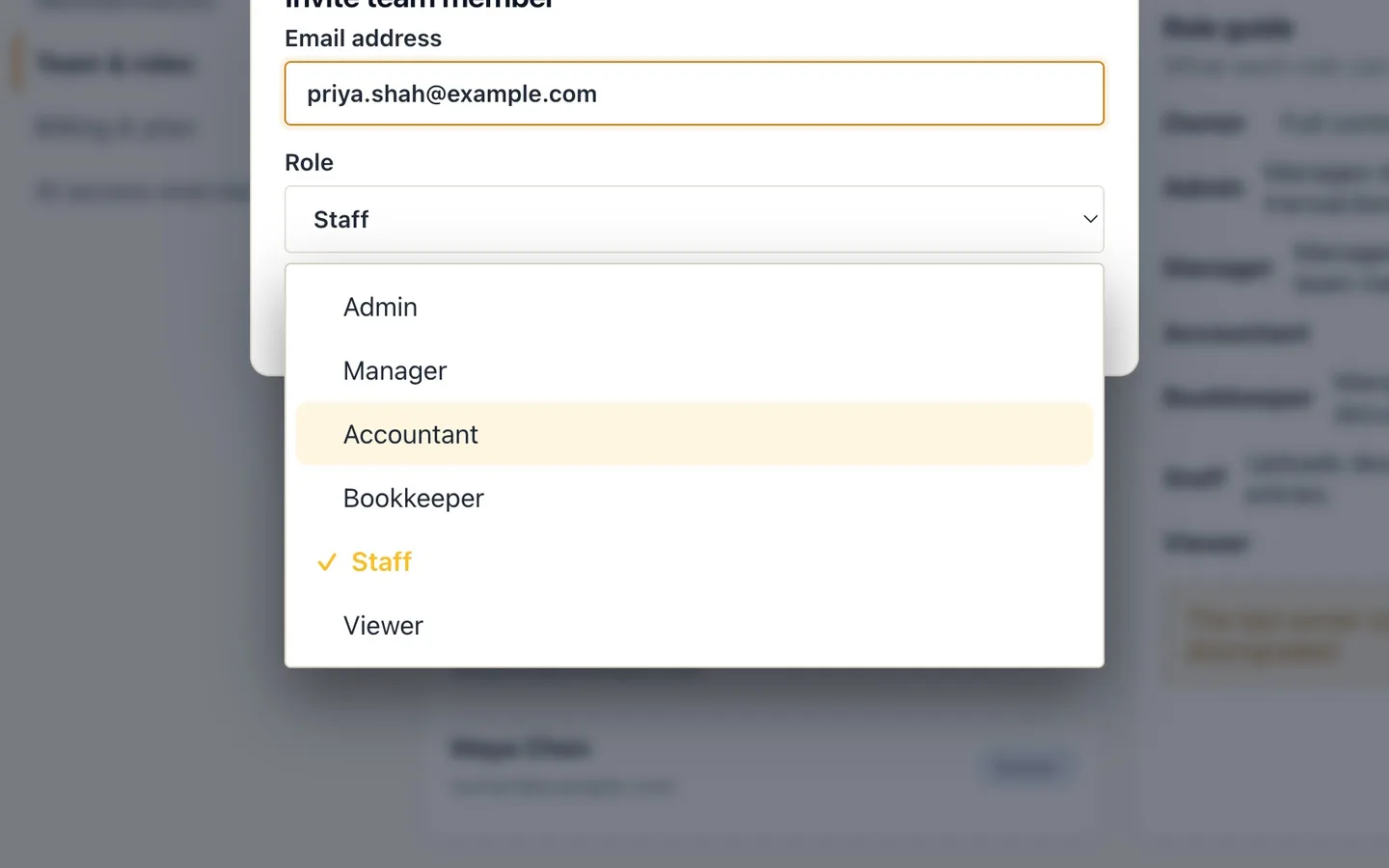
Pick a Role.
For your accountant, Accountant: reviews records and generates exports, and can't delete anything.
- 6
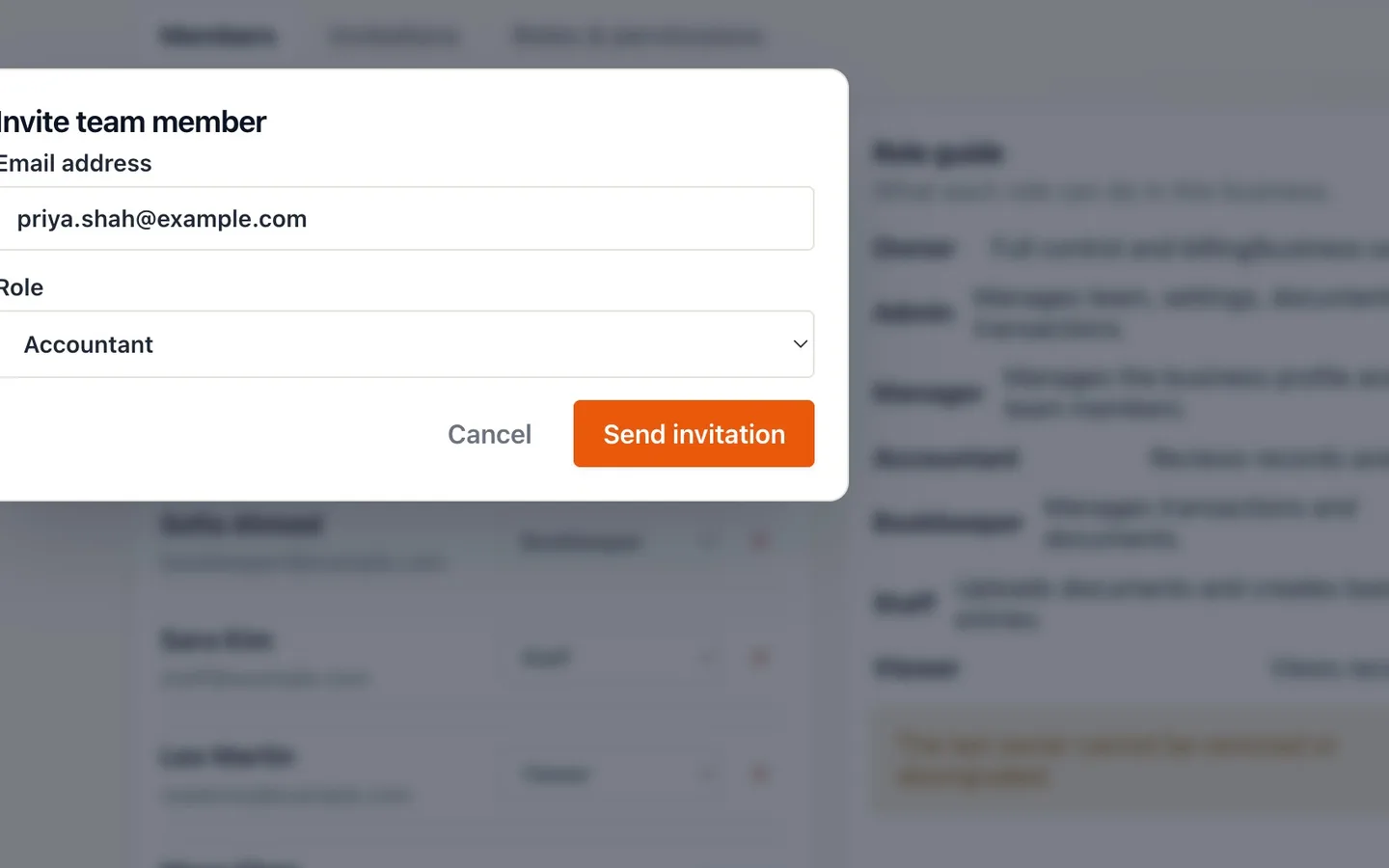
Select Send invitation.
The email has a link they use to join.
- 7
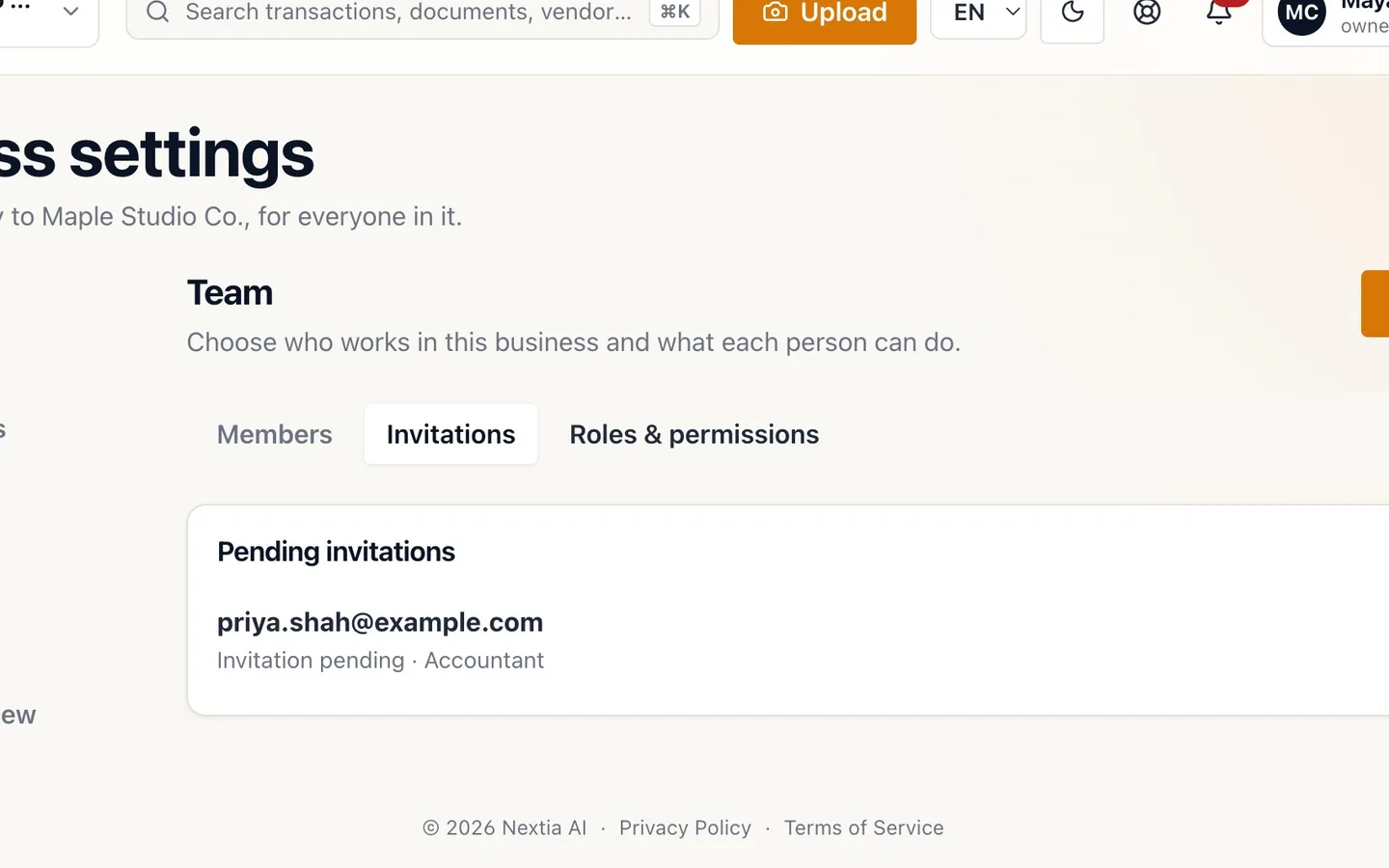
Find it under Invitations until they accept.
You can withdraw it there.
- 8
Open Roles & permissions to see exactly what each role can do.
Invite your team with the right access
Before you start
- You need the Owner, Admin or Manager role to invite people.
- Team management is in the web app.
Steps
- Select Business settings in the sidebar.
- Select Team & roles.
- See who's in your business. Each member has a role; the role guide says what each one is for.
- Select Invite user and enter their email address.
- Pick a Role. For your accountant, Accountant: reviews records and generates exports, and can't delete anything.
- Select Send invitation. The email has a link they use to join.
- Find it under Invitations until they accept. You can withdraw it there.
- Open Roles & permissions to see exactly what each role can do.
Tips
- Change a member's role any time from the Members list; it takes effect right away.
- Not sure which role? Roles & permissions lists exactly what each one can do.
If something goes wrong
- The invitation email didn't arrive. Check the address under Invitations. If it's wrong, withdraw it and send a new one.
- Your invitee sees an account mismatch. They're signed in with a different account. They need to sign in with the address you invited.