
Import a bank statement a month in one go
Bring a month of bank or card transactions into NextiaTax at once from your bank's CSV or Excel file, with the columns matched for you.
- 9 steps
- About 2 min
- Checked against NextiaTax on October 21, 2026
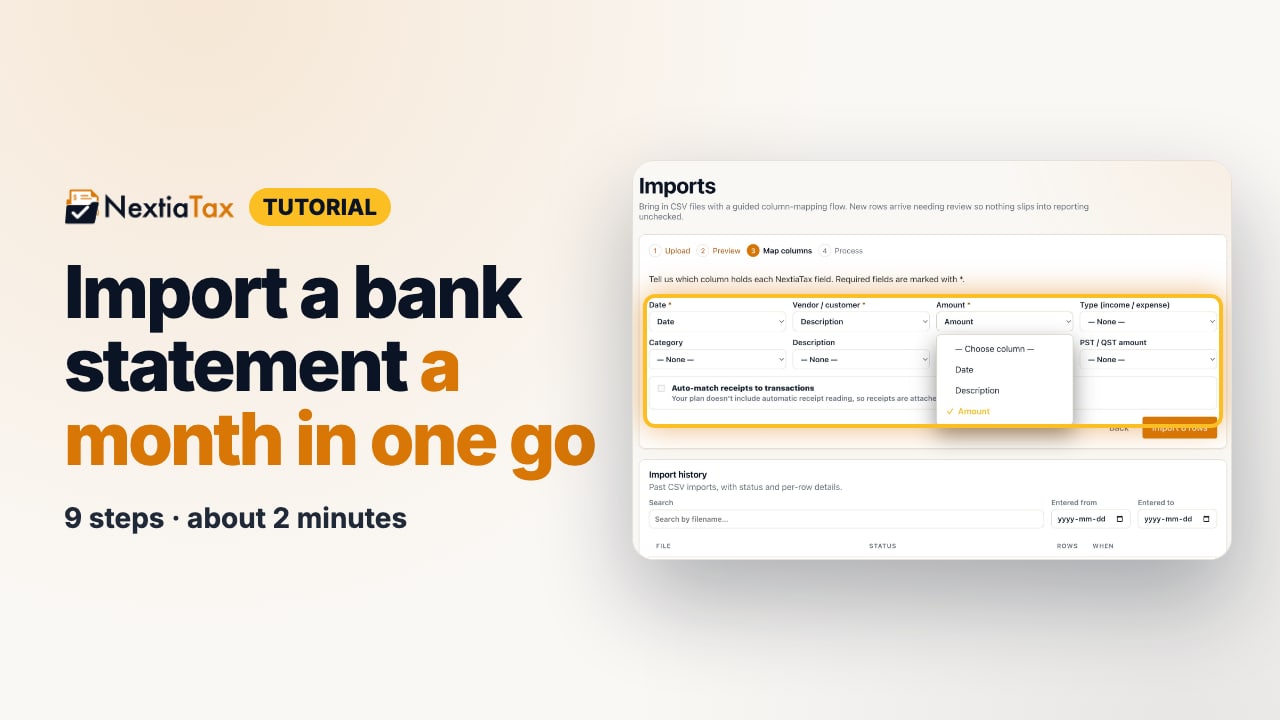
The video is on its way. The step-by-step and written versions are ready now.
- 1
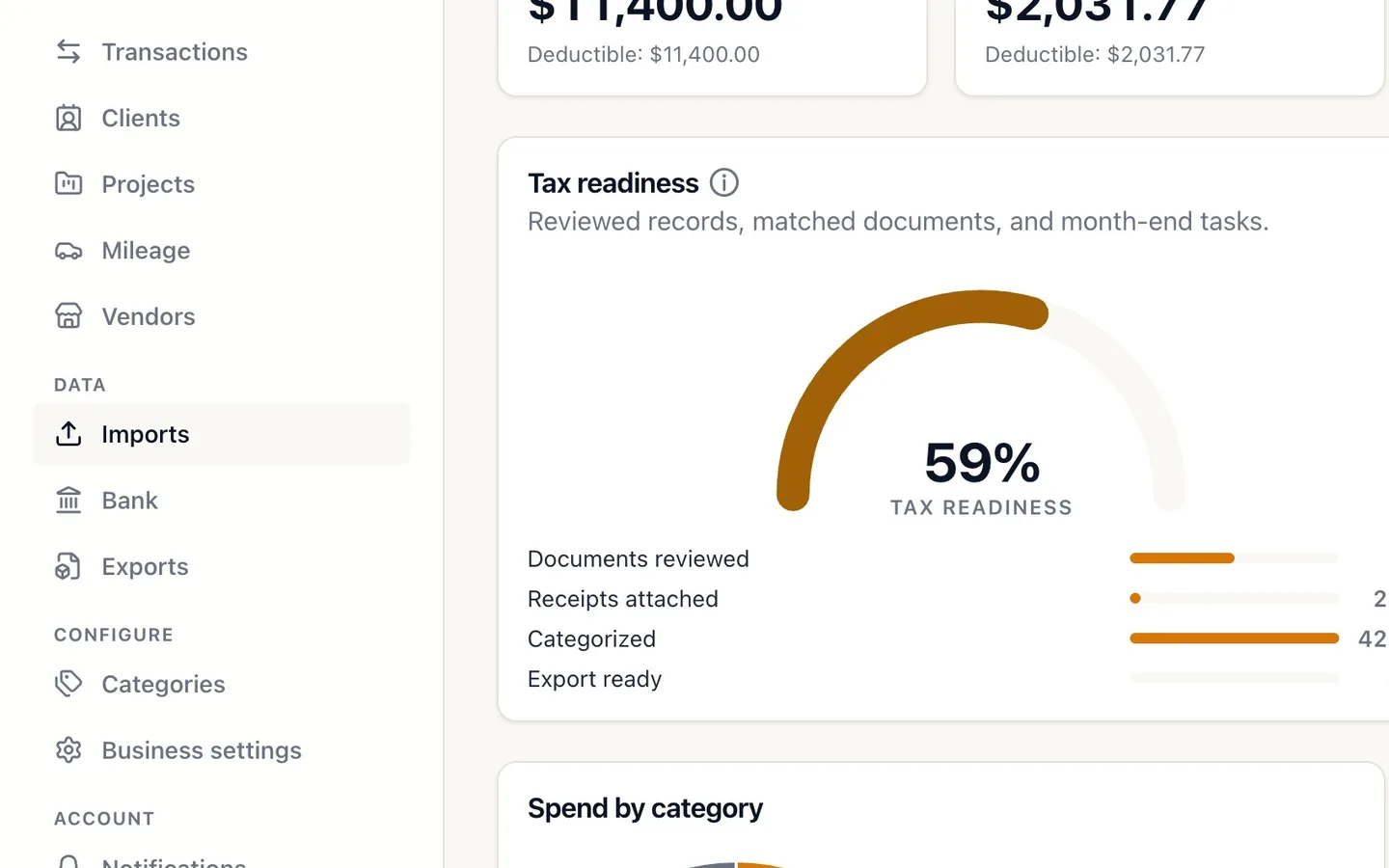
Select Imports in the sidebar.
- 2
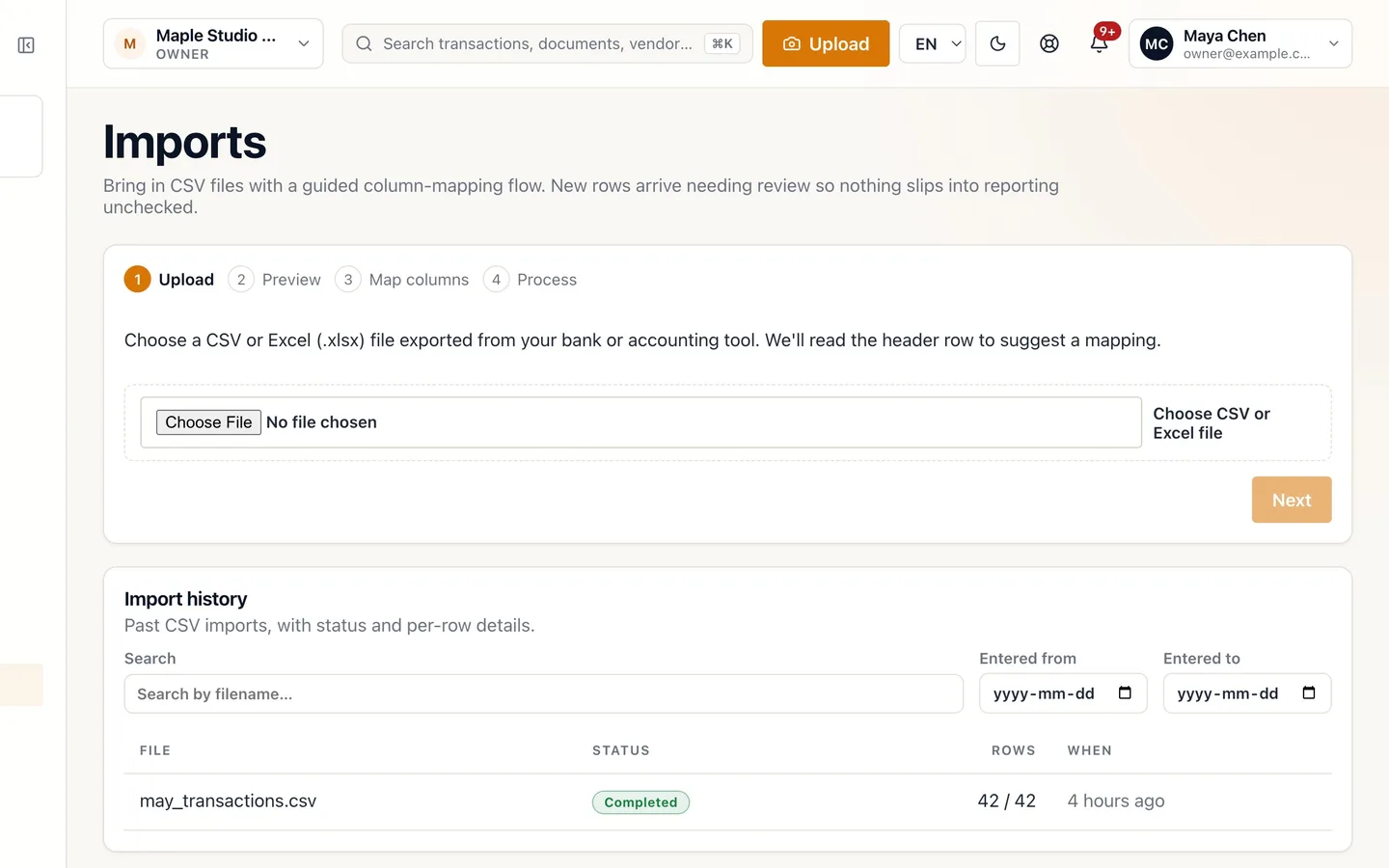
Select Choose CSV or Excel file and pick your statement.
Download it from your bank's website as CSV, or Excel.
- 3
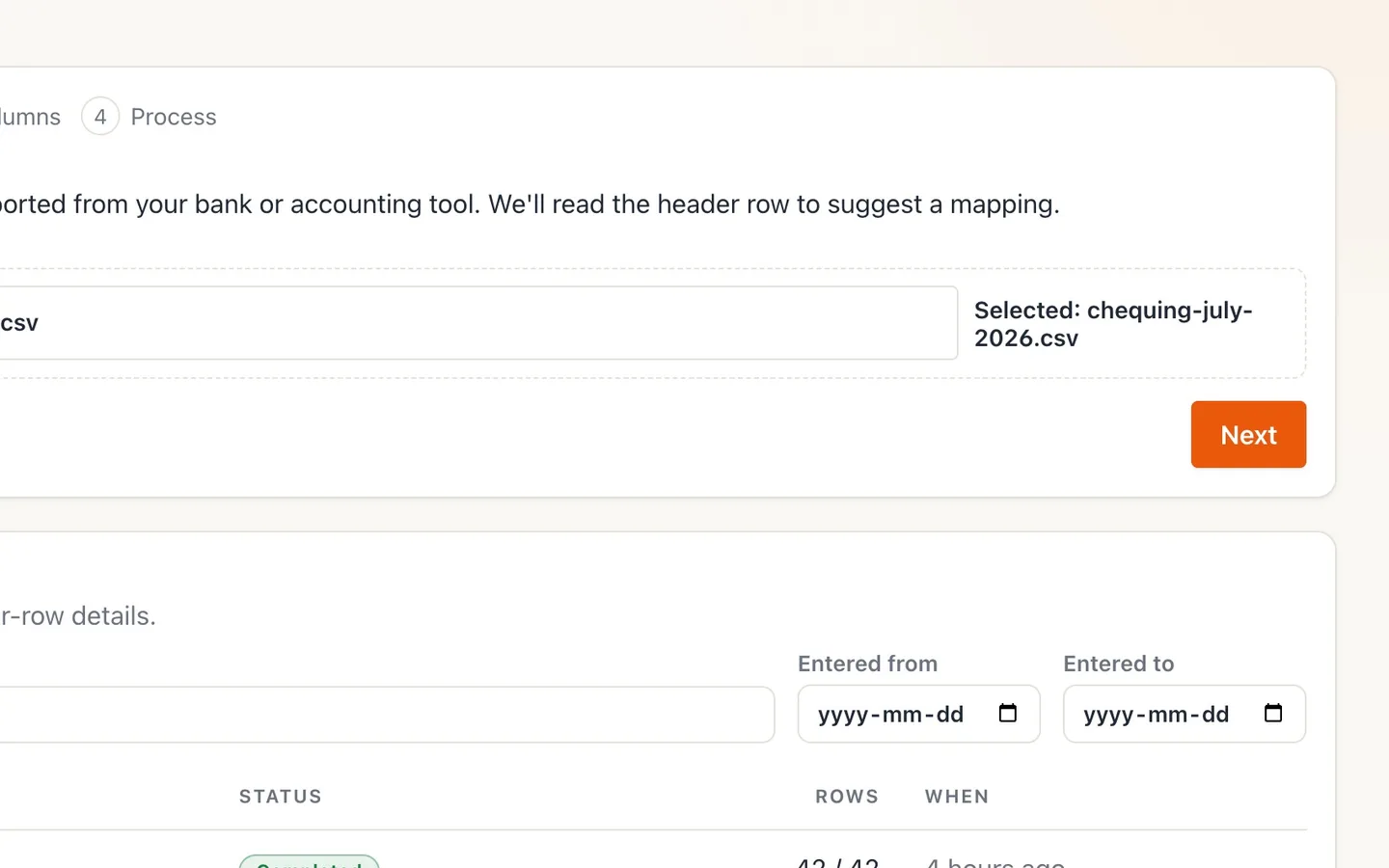
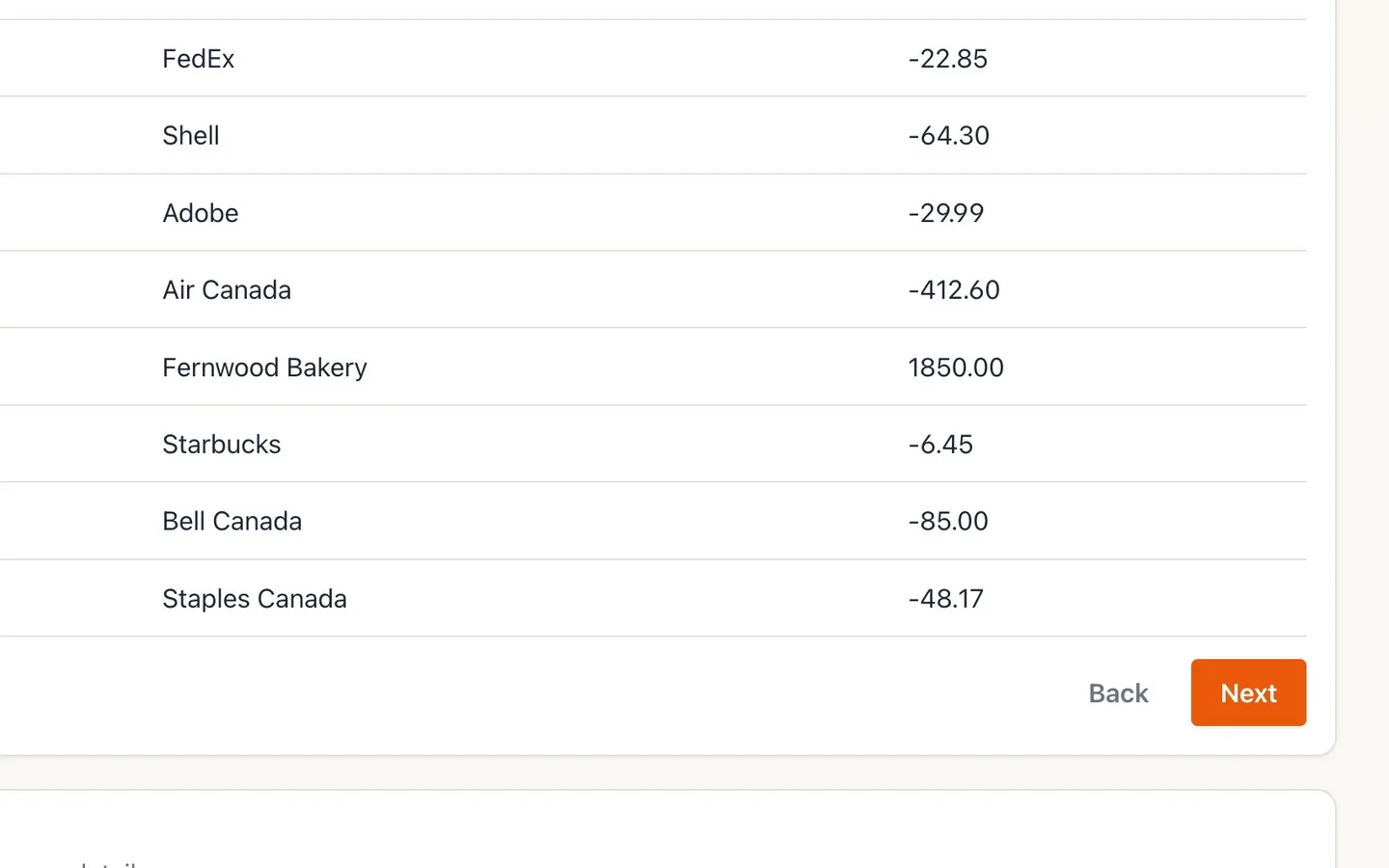
Select Next and check the preview.
It shows your file's first rows, so you know it's the right one.
- 4
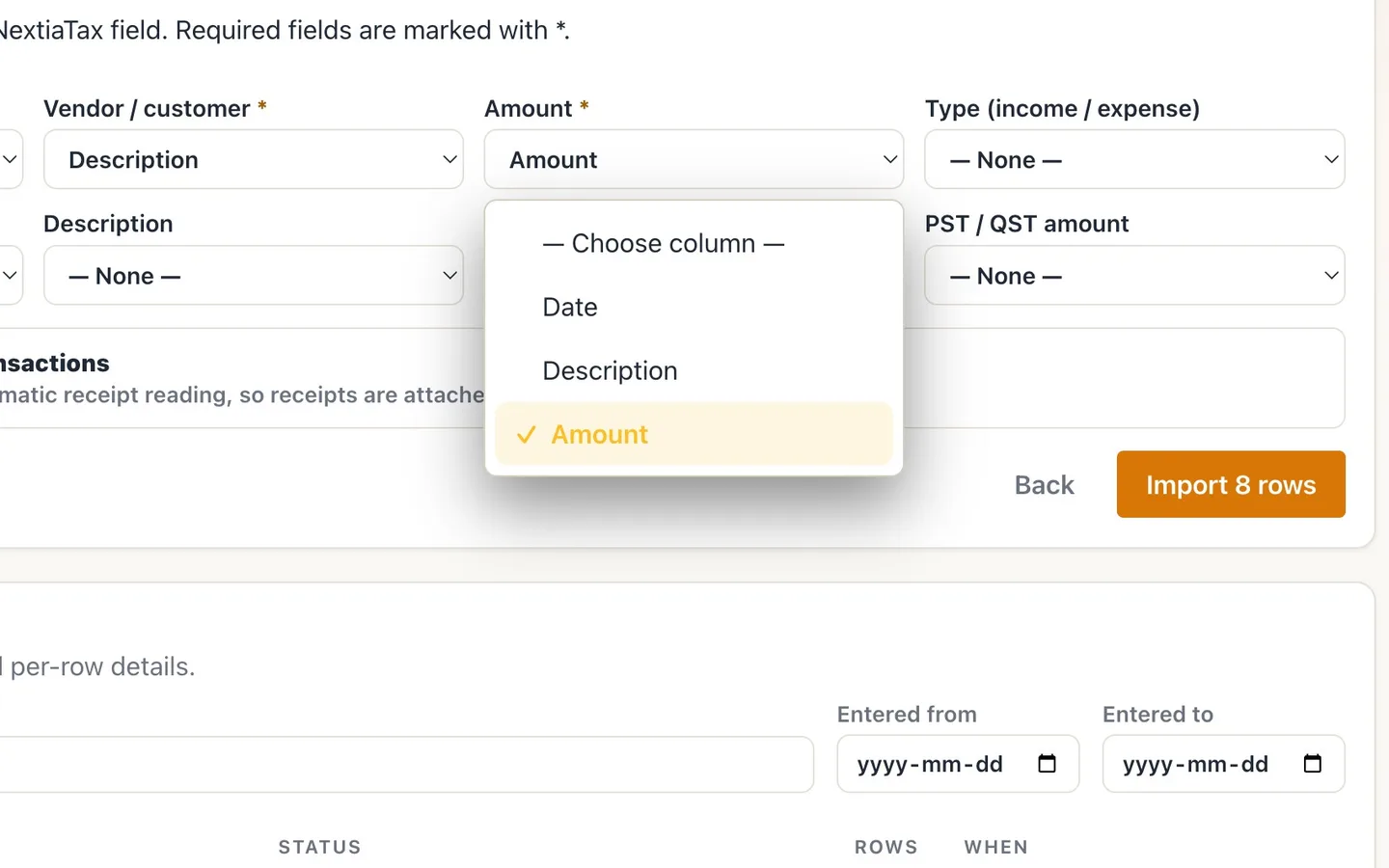
Select Next and check the suggested columns.
Date, Vendor / customer and Amount are required.
- 5
Fix any column that's wrong by picking from the list.
Amounts keep your bank's signs: money out is negative, money in is positive.
- 6
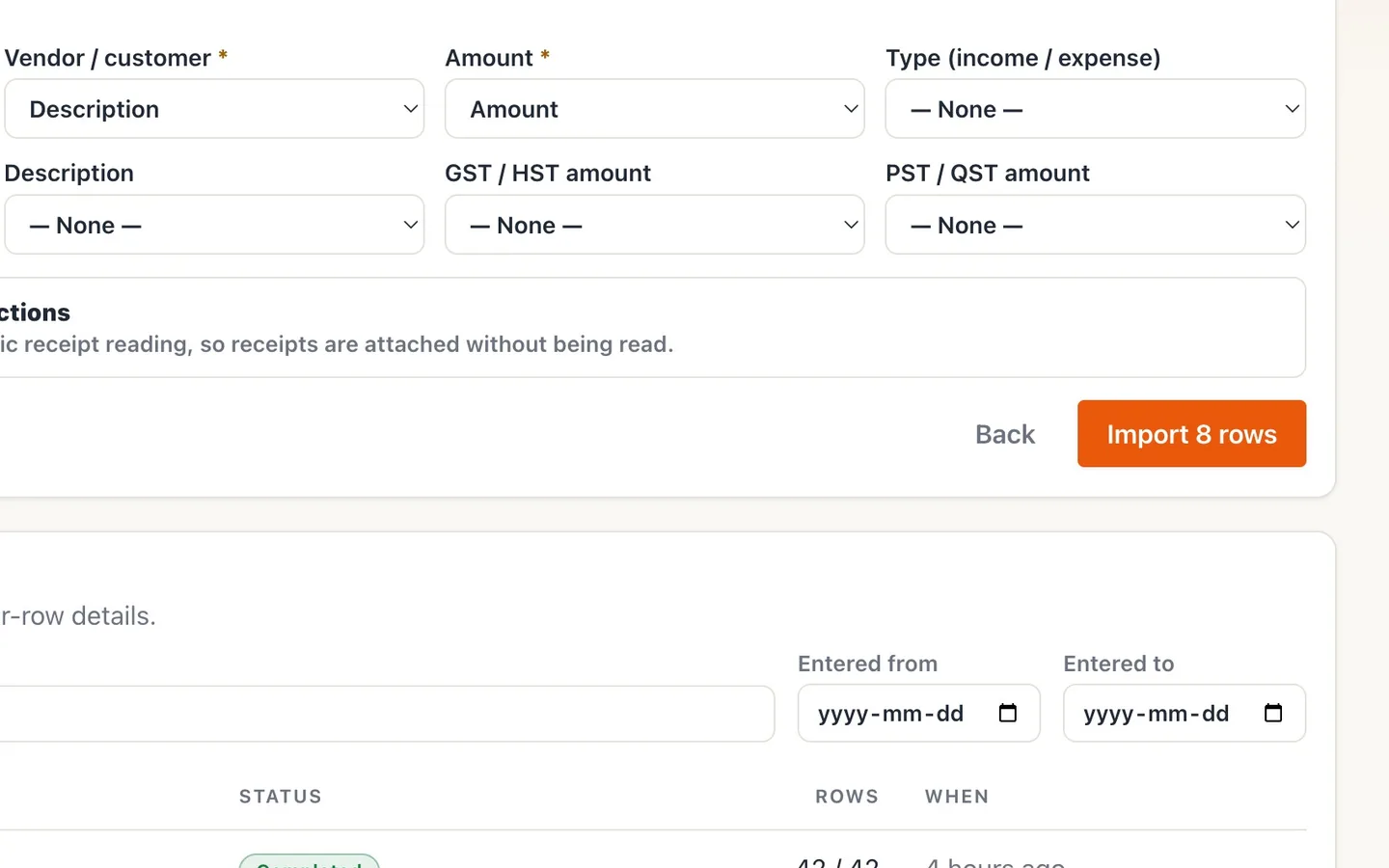
Select Import 8 rows.
The number is your file's row count.
- 7
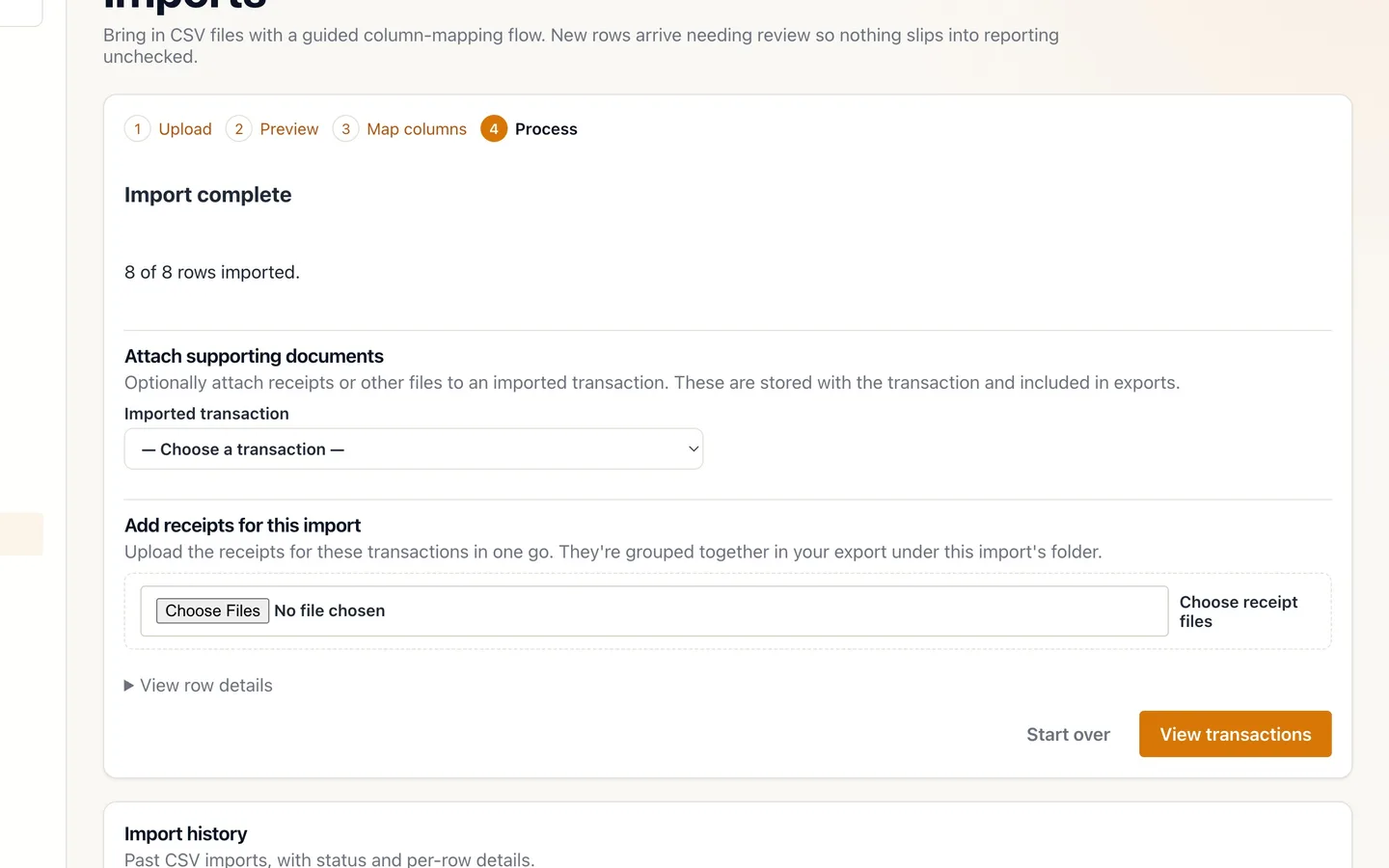
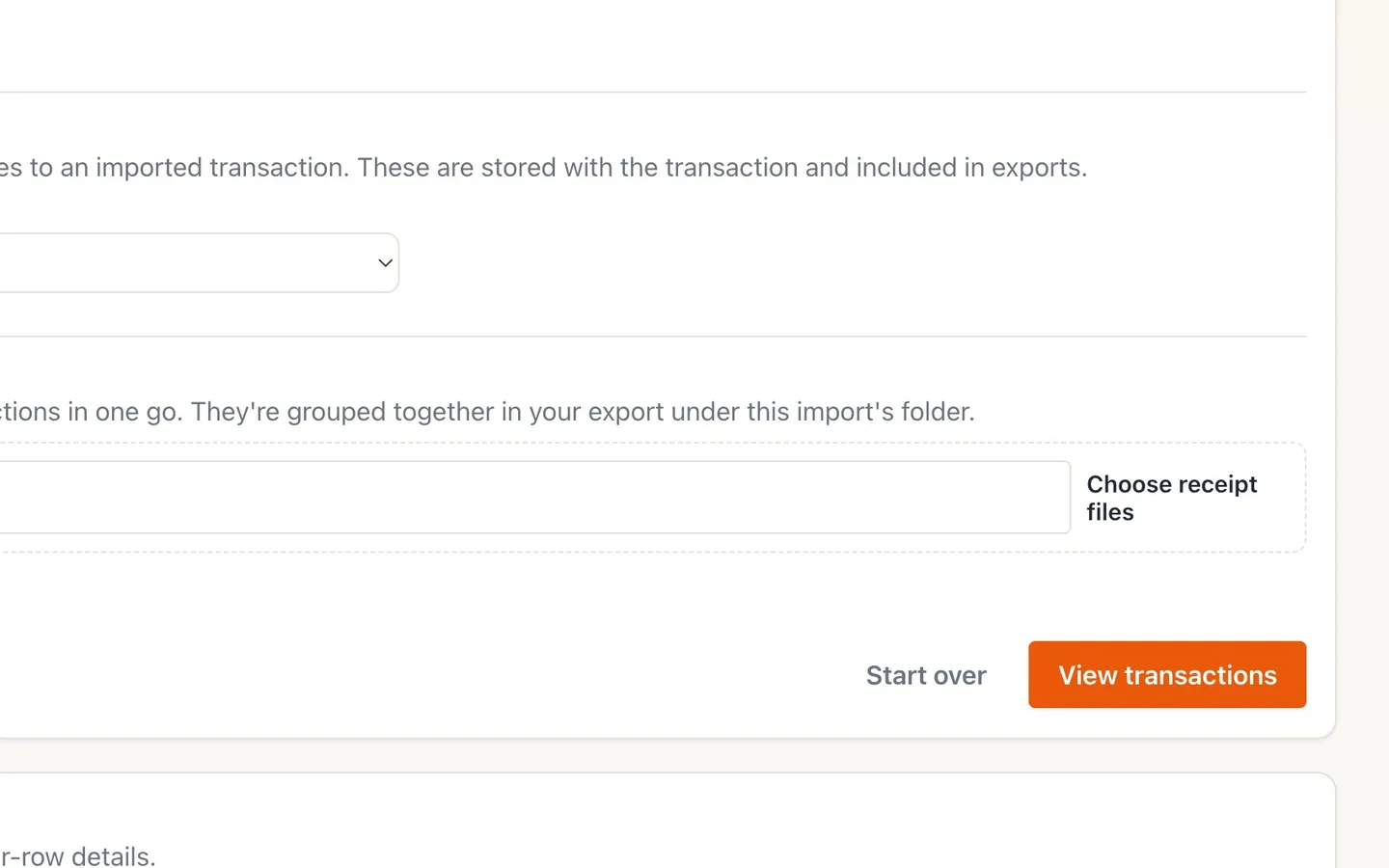
Attach receipts here if you have them.
Or add them later from each transaction.
- 8
Select View transactions.
Imported rows need review, and are categorized where your rules or saved vendors know the vendor.
- 9
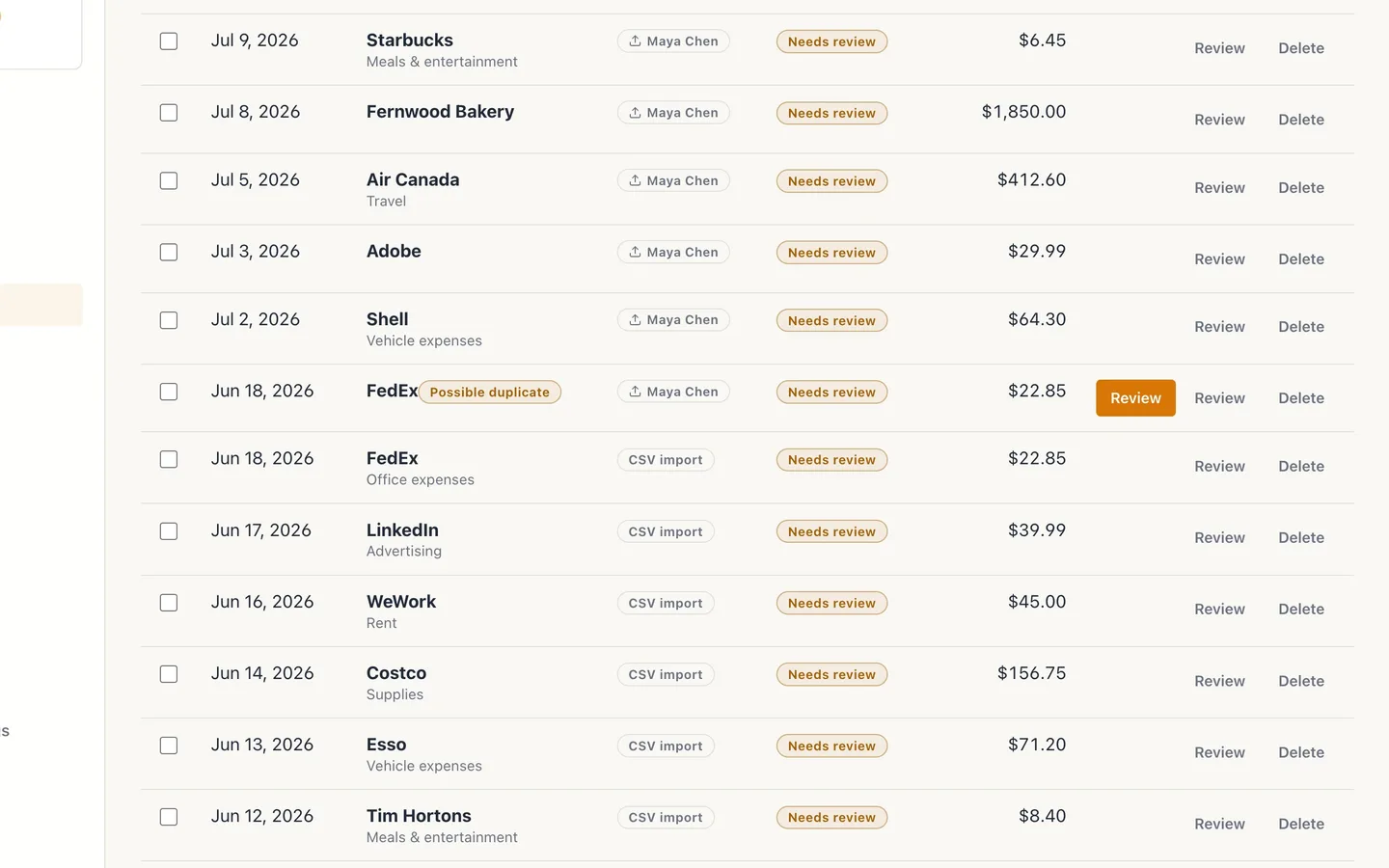
Check anything marked Possible duplicate.
In review, merge them into one or mark it Not a duplicate.
Import a bank statement a month in one go
Before you start
- Download your statement from your bank's website as CSV (or Excel). PDF statements go in Documents instead.
- Importing is in the web app, and needs the Owner, Admin, Manager, Accountant or Bookkeeper role.
Steps
- Select Imports in the sidebar.
- Select Choose CSV or Excel file and pick your statement. Download it from your bank's website as CSV, or Excel.
- Select Next and check the preview. It shows your file's first rows, so you know it's the right one.
- Select Next and check the suggested columns. Date, Vendor / customer and Amount are required.
- Fix any column that's wrong by picking from the list. Amounts keep your bank's signs: money out is negative, money in is positive.
- Select Import 8 rows. The number is your file's row count.
- Attach receipts here if you have them. Or add them later from each transaction.
- Select View transactions. Imported rows need review, and are categorized where your rules or saved vendors know the vendor.
- Check anything marked Possible duplicate. In review, merge them into one or mark it Not a duplicate.
Tips
- Overlapping files are safe: rows you already have are flagged as possible duplicates, not added twice.
- French bank exports work as they are: semicolons, decimal commas and French headers are all read.
If something goes wrong
- Every amount came in as the wrong type (income instead of expense). Your bank shows spending as positive. Map a Type (income / expense) column if the file has one, or ask your bank for a signed export.
- A row failed to import. Open View row details on the finished import to see why, usually a date or amount the file wrote differently. Fix the row in the file and import it again.